KONNWEI KW901 ELM327 V1.5 Bluetooth 5.0 for Android/IOS OBDII OBD2 Scanner ELM 327 V1 5 Auto OBD 2 Car Diagnostic Tools
Purchase Notes!!!
Some customers have problem when use it on IOS, error happen"OBDII is no Supported"when connect after open Bluetooth of iPhone,please follow the tips:Open Bluetooth of iPhone,don't connect ,just open Bluetooth,then go to software make connection.
1.Plug in the KW901 to the OBD2 interface,and Open the IPhone's Bluetooth first
2.Open the software(like AUTO Doctor)
3.Choose "Extras",then click "Connectivity ",choose"Bluetooth",and click "Device",choose "Konnwei"
4.Connect Bluetooth in the"Connectivity ",then refresh software
For IOS Connection method:

For Android Connection method:

ELM327 V1.5 (Bluetooth BT5.0 )Features:
* Small size, compact structure. Plug and never unplug
* Stable wireless connection via Wireless BT5.0
* No wires or batteries (adapter is powered by the 12V Vehicles battery)
* 30 Minutes without communication, it will automatically go to sleep mode.
* Ultra low cumsumption in sleep-mode, less than 10MA
* Supports ALL OBDII protocols, widest coverages
* The adapter uses the fast communication mode and most reliable PIC18F25K80 chips, up to 30PID/S.
* True ON-OFF button, you can press button to turn off the elm if not in use.
ELM327 V1.5 (Bluetooth BT5.0) Function List:
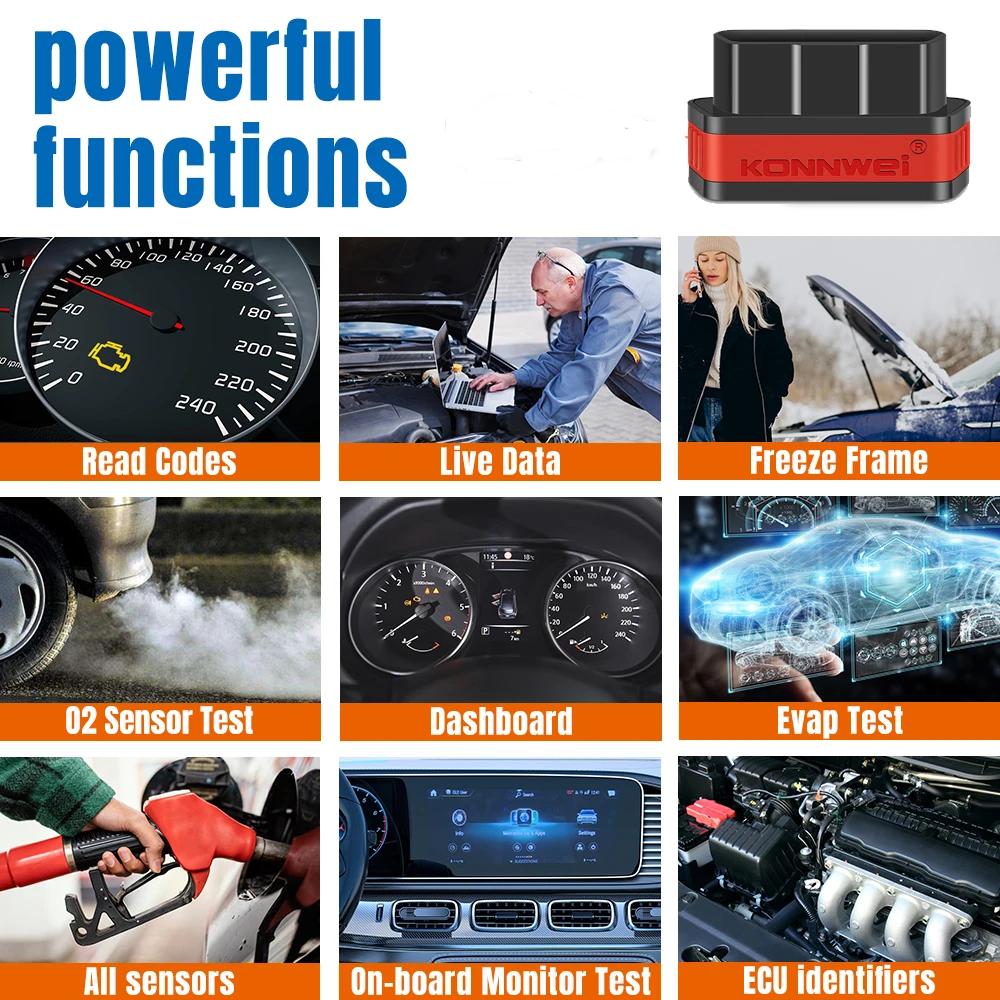
1.Read diagnostic trouble codes, both generic and manufacturer specific
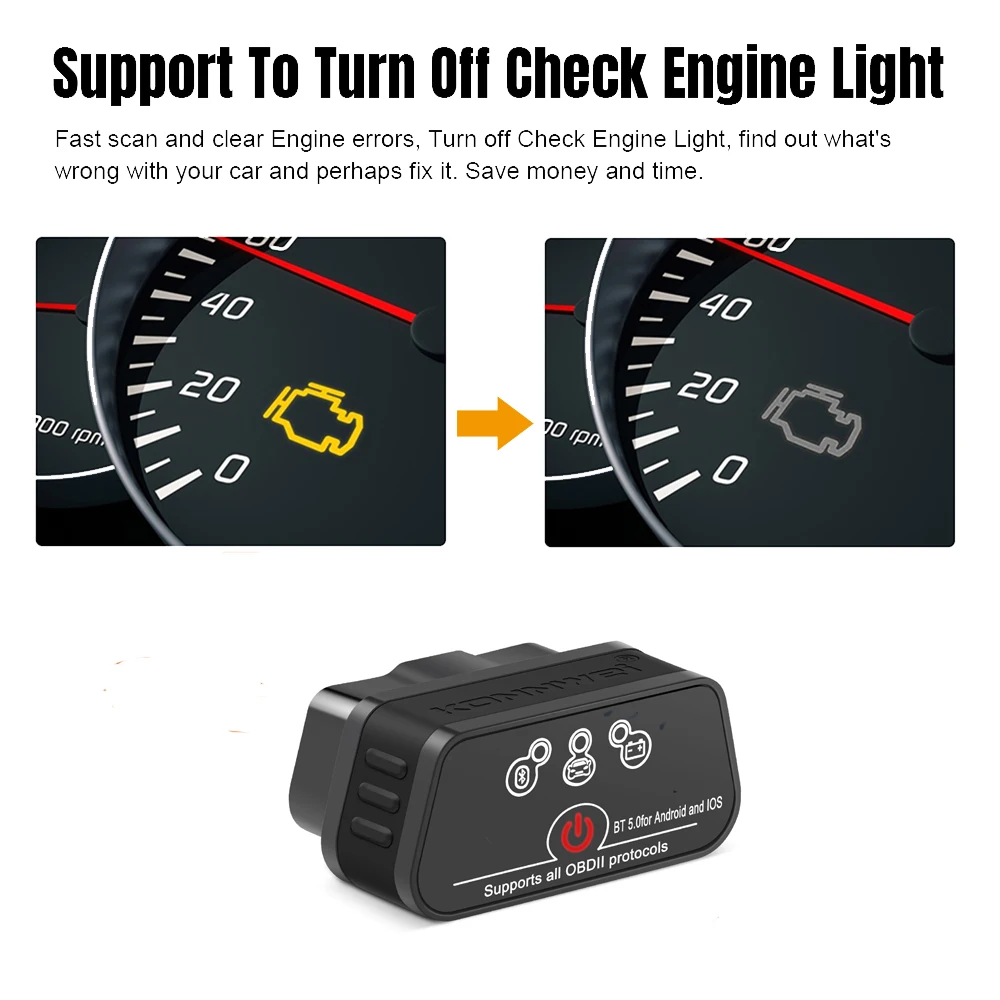
2.Clear trouble codes and turn off the MIL ("Check Engine" light)
3.Display current sensor data, including:
4.Engine RPM
5.Calculated Load Value
6.Coolant Temperature
7.Fuel System Status
8.Vehicle Speed
9.Short Term Fuel Trim
10.Long Term Fuel Trim
11.Intake Manifold Pressure
12.Timing Advance
13.Intake Air Temperature
14.Air Flow Rate
15.Absolute Throttle Position
16.Oxygen sensor voltages/associated short term fuel trims
17.Fuel System status
18.Fuel Pressure

How to setup B-luetooth pairing: BLE5.0 Dual mode version
For Android users:
Home screen
Go to setting page
Select V-LINK Default password is “1234”
Device paired
Run Torque app
Go to Torque app OBD II adapter setting
Choose connecion type>Bluetooth
Choose B-luetooth device>V-LINK
Exit Torque app completely
Run Torque app
Connected
For iOS users:
Home screen
Go to setting page
Click on B-luetooth function
(Device name is invisible)
Run Accurate app
Go to Accurate app setting page
Select B-luetooth and connect
Exit Accurate app and run again
Connected



PACKING LIST
1x KW902 Wireless BT5.0 scanner
1x English User Manual