 |
|
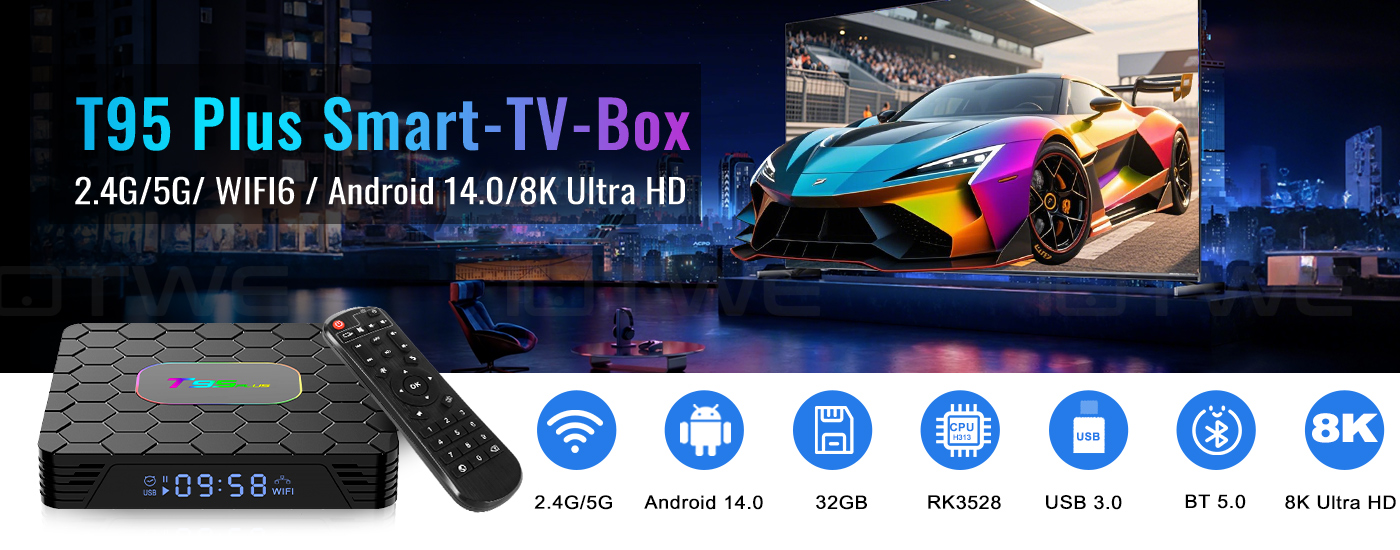
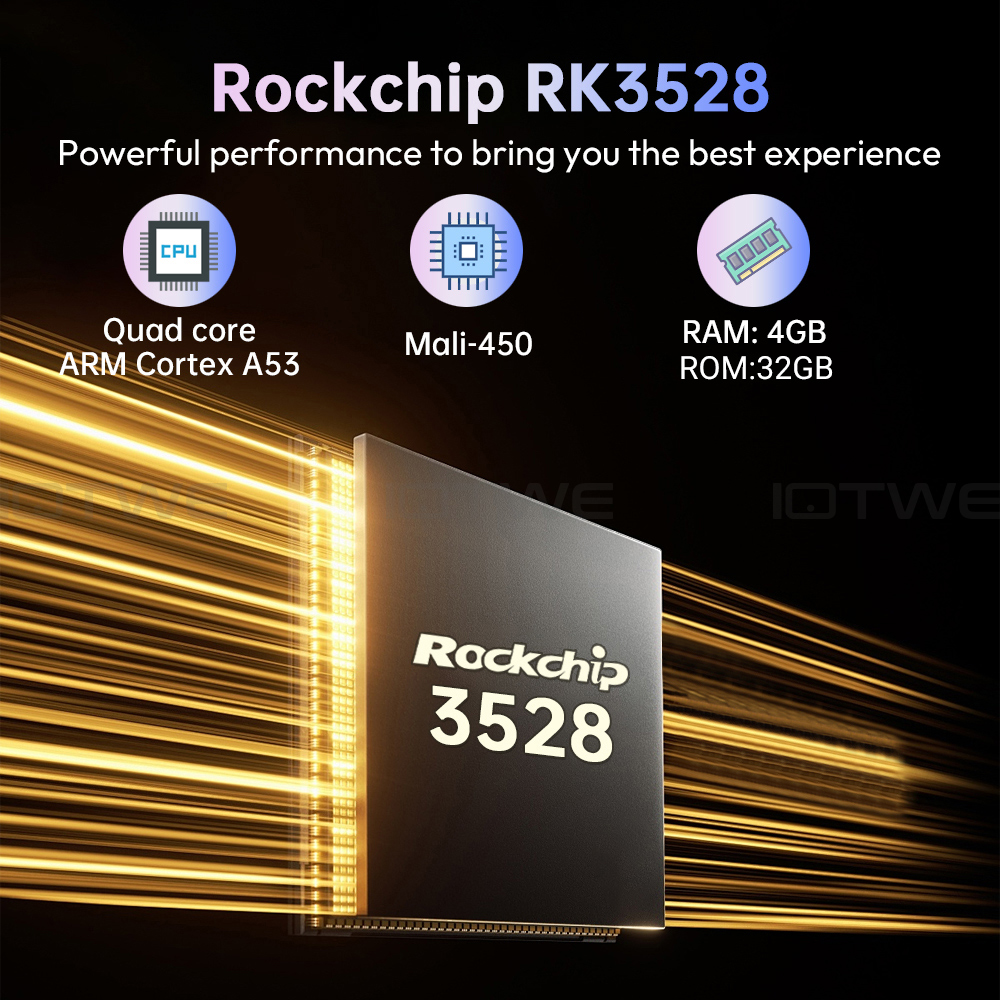
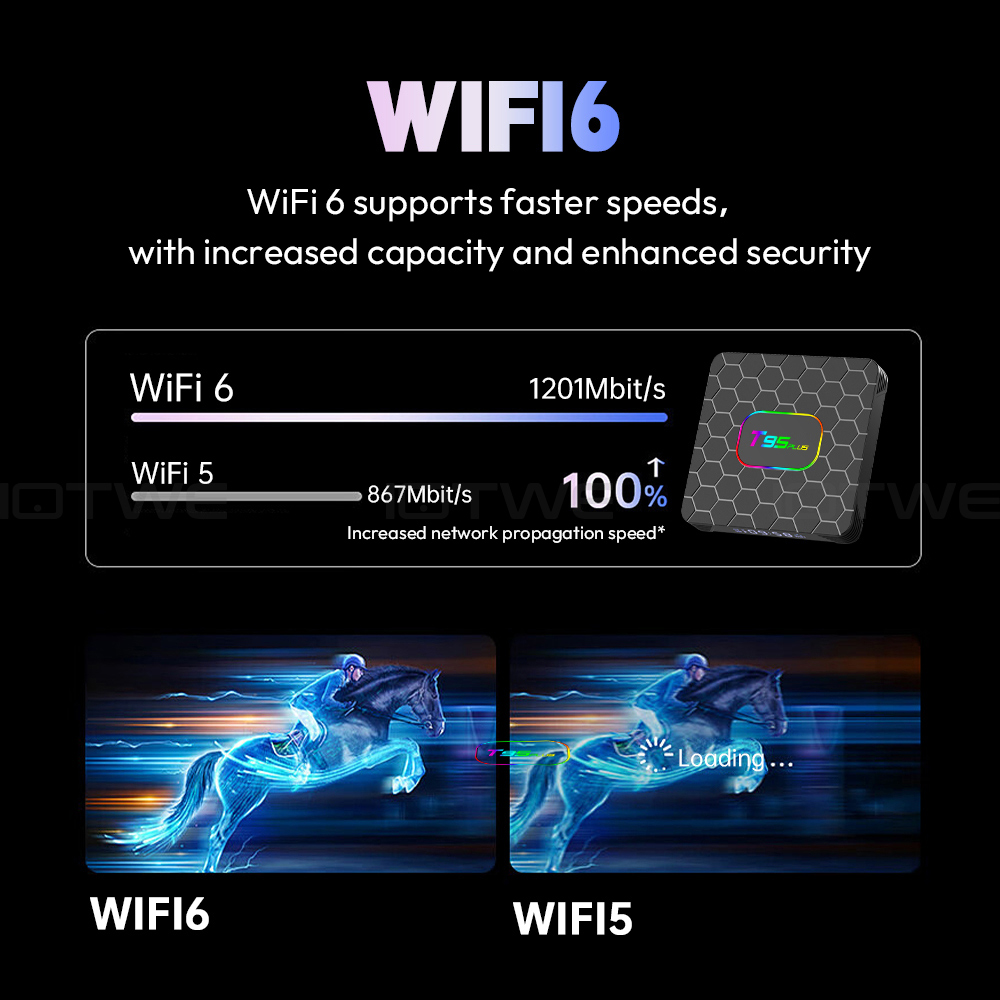
【Android 14.0】 The Android TV box with Android 14.0 ensures stability and smooth loading of movies, pictures, and games without buffering. Experience improved performance and usability with a smooth and stable interface. With the powerful RK3528 quad-core processor and advanced image processing technology, you'll enjoy an outstanding experience with fast running speed and professional picture quality. 【4 GB RAM / 32/64/128 GB ROM】 The Android 14.0 TV box offers impressive performance with 32/64/128 GB ROM to ensure a smooth operating system and enable faster running speeds without buffering or crashes. It also offers ample storage for apps, games, and more. You can also expand the memory via the micro SD card slot, so you'll never run out of space. 【4 GB RAM / 32/64/128 GB ROM】 【2.4G/5G Wi-Fi 6 and Bluetooth 5.0】 The smart TV box offers a fast and stable 2.4G/5G Wi-Fi 6 connection with transfer rates of up to 9.6 Gbps. With the new Wi-Fi 6, you can enjoy a fast and stable network and seamless streaming, gaming, and more. It also features HDMI 2.0, 10/100M Ethernet LAN, and Bluetooth 5.0 for multiple connectivity options and enhanced wireless audio transmission. 【8K + 3D and H.265】 The TV box supports playback of all common audio and video formats, allowing you to enjoy 8K HD videos with clearer resolution than 4K. Experience thousands of Android games on a spacious 8K screen and benefit from a smooth gaming experience with less buffering. In addition, the Android 14.0 TV box also offers 3D support for an impressive visual feast. (*Note: 8K and 3D features also require compatible devices.) 【Convenience and Convenience】 The T95 PLUS is the ideal solution for those who don't own a smart TV or don't want to spend a lot of money on an expensive TV. Connect your smartphone wirelessly to the TV and enjoy pictures and sound on the big screen. With the Android 14.0 TV box, you can use a web browser, use social networking apps, play music, videos, photos, and much more. Turn your TV into a versatile entertainment hub with the T95 PLUS. |
|
|
| • The T95 PLUS Smart TV Box with Android 14.0 OS offers you an improved operating system compared to Android 13.0. Enjoy the benefits of a faster, more stable system, improved software compatibility, and a streamlined user interface and experience. Experience better games, apps, and overall improved performance with the T95 PLUS Android 14.0 TV Box. |
 |
 |
 |
|
• The Android 14.0 TV box is equipped with the powerful quad-core Cortex-A53 RK3528 CPU chip, ensuring smooth and lag-free performance. And with 128GB ROM, it offers ample storage for your apps and content. You can also expand the storage, with a maximum expansion capacity of 64GB (*without SD card). Ensure ample storage for downloading and playing videos and games in crystal-clear quality. |
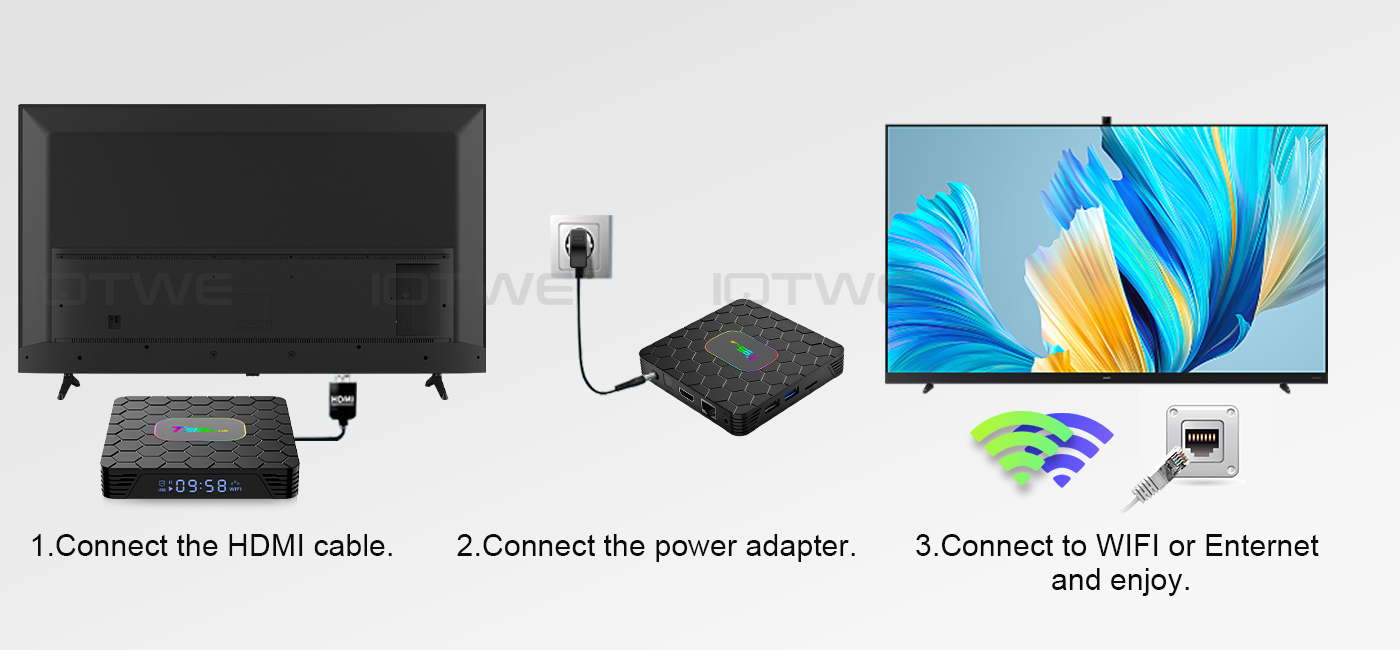
• Powered by Android 14.0, the TV box supports 2.4G/5G WiFi 6 and BT 5.0, making it more convenient to use a mini keyboard and headphones. With WiFi 6, you can enjoy up to 12 simultaneous data streams on both the 2.4GHz and 5GHz bands, compared to the 8 streams offered by WiFi 5 in a dual-band configuration. Use the app and watch movies. Simply plug the network cable into the appropriate jack, and you're ready to go. |
• With this Android TV box, you can easily stream a wide variety of content, including videos, music, games, and documents, to your TV screen without complicated cable installation. The connection allows you to realize on-screen interactions across multiple devices, elevating your user experience to a higher level. |
 |
|
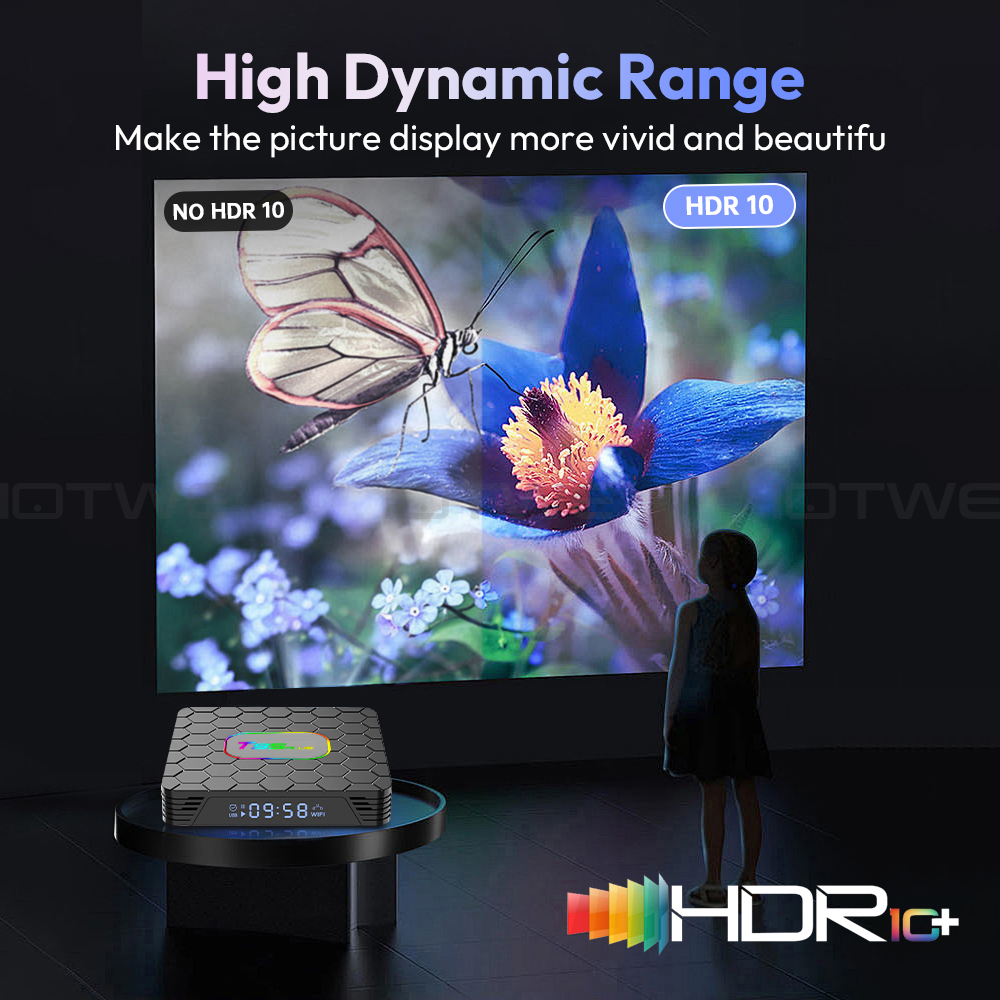
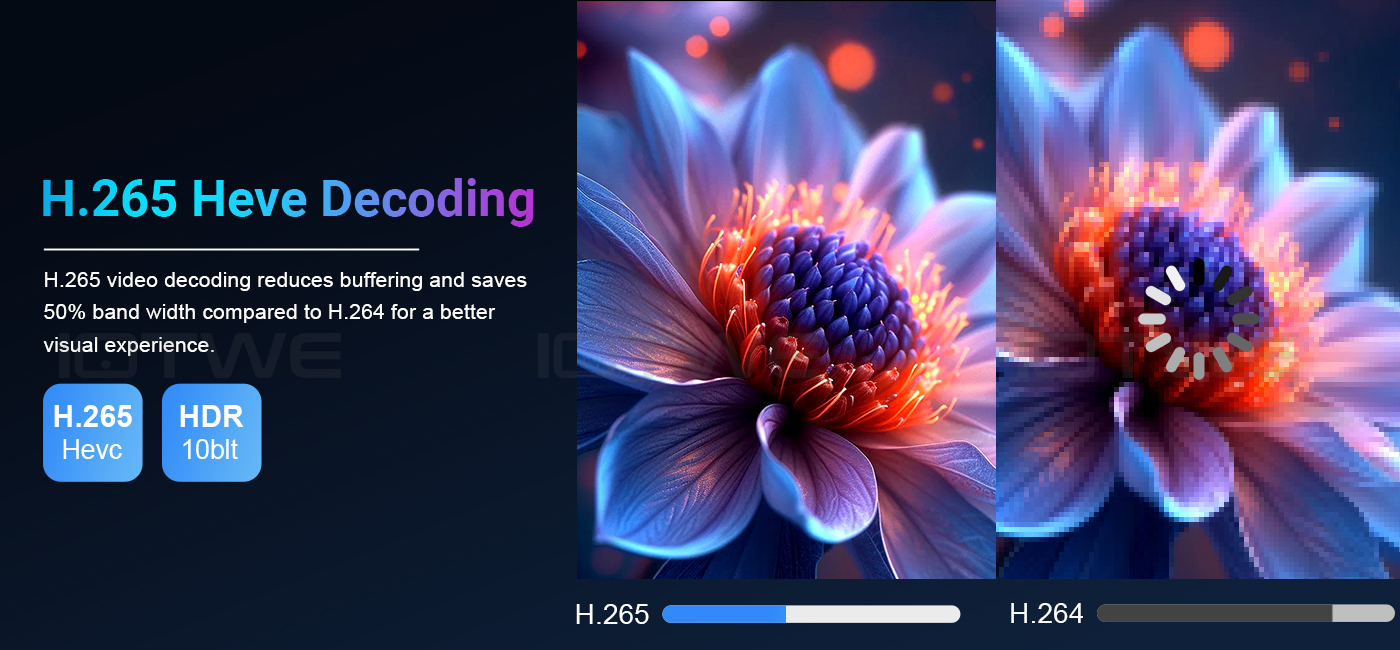
Android TV box with 8K HD resolution. Colors are more vivid and vibrant on the HDR10+ display. Ultra HD picture quality ensures the ultimate viewing experience, allowing you to watch blockbuster movies every day. The Android box supports decoding and displaying all video and audio formats. |
 |
|
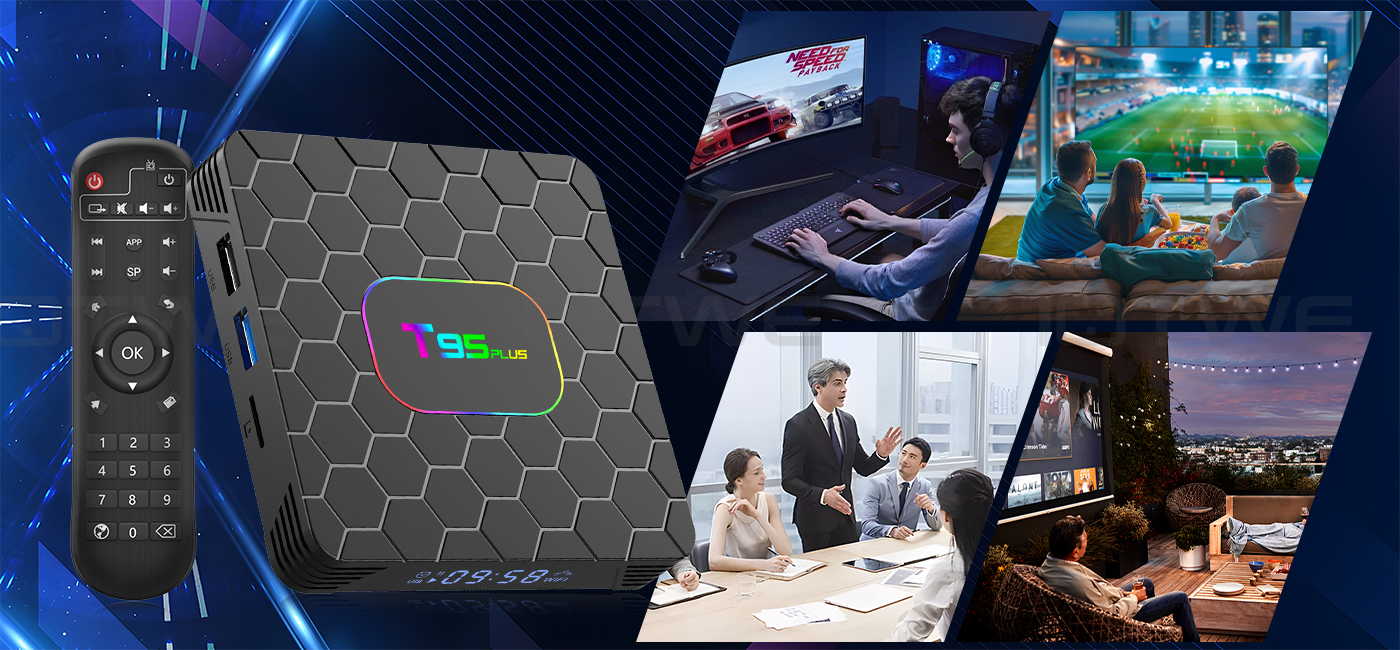
The T95 PLUS Android 14.0 TV BOX offers excellent performance and functionality, along with an easy-to-use, user-friendly interface. Connect it to your TV or monitor and enjoy browsing apps, watching movies, playing games, and more. |
|
|

|
Question: Can't boot/open for the first time? Answer: Our QC team has thoroughly tested the item before shipping, so I believe we can solve the problem together. In this situation, please try the following: 1. Here are the steps for setting up the TV box: A. Connect the charger to the TV box and the power outlet. B. Connect the HDMI cable between the TV box and the TV. C. Set your TV to HDMI mode. Please check if you have connected the cables correctly. 2. Check if a red or blue light is lit, or if there is no light at all, and get back to me. |
|
Question: How do I fix the TV box's video blur? Answer: If it happens in some of them, it may be the video quality issue. It doesn't depend on the box. You can try setting the resolution to max (1080p or higher) and see if it works well. Or you can try it in other apps. 1. If it happens in all videos, here are the steps: A. If you have a different HDMI cable, could you please try a different HDMI cable? B. Connect the TV to the TV box correctly using the AV-Out cable (there are different color ports. Please check and set them correctly), or you can choose to use the HDMI cable to connect it as well. C. If the issue persists, please try restoring the factory settings as follows: Press Settings - Backup & Reset ---- Factory Data Reset ----- Reset TV Box ---- Erase Everything. D. Set the TV box's resolution to 1080P. Here's the step: Settings--Display--Disable Auto Resolution--Set the resolution to 1080P.
|
|
Question: Are you having problems with your Wi-Fi settings or connection? Answer: 1. Please try resetting the device: (Settings)-(Backup & Reset)----(Factory Data Reset)-----(Reset Device)----(Erase All) 2. Please check if you have successfully connected the device to your Wi-Fi router and if the signal is strong. If the signal is very weak or out of range, try using it near your Wi-Fi router. If it is unable to connect, please check your Wi-Fi router settings and also try connecting to a different router. 3. Could you please plug your network cable directly into the RJ45 port to see if it can work. |
|
Question: How can I set the language on the XGODY TV Box? Answer: 1. In this case, please check the settings /Setting-Language/Language-English/English 2. If it still doesn't work, please follow these steps: A: Press: Settings - Backup & Reset ---- Factory Data Reset ----- TV Box Reset ---- Erase All (or: Settings - Other - More Settings - Backup & Reset ---- Factory Data Reset ----- TV Box Reset ---- Erase All) B: Then, when you turn on the device for the first time, select the desired language. 3. You can also enter the language in the app. There will be a compass-like icon; click on it to change the language. |
On Dec 3, 2025 at 02:11:51 PST, seller added the following information: