Product Description
Top 5 Reasons To Get CAT Caterpillar ET Diagnostic Tool Adapter 4
1. Latest Version:2025A
2. 2025A Supported Operating System: Windows 8/8.1 32 bit, Windows 8/8.1 64 bit, Windows 10 32 bit, Windows 10 64 bit, Windows 11 64 bit, Windows 11 Pro 64bit
3. We will activate it after installing 2025A version software.(Pls contact us after software installed we will remote control to activate software for you)
4. Supported Language: Chinese(Simplified), Danish, German(Germany), French(France), Portuguese (Portugal), Japanese, Spanish (tradition), Italian(Italy), English(America)
5. Support caterpillar diagnostic till 2025
Pls note: CAT 2025 version software includes Caterpillar Cat factory password generator 10 digit pw, you can press the ctrl+f2 shortcut to bring it up.
Caterpillar electronic technician 2025A with WinFlash future is an updated version of the caterpillar dealer diagnostic software that can help technicians to diagnose existing and potential problems with their electronically controlled Caterpillar Engines and Machines.
2025A Caterpillar Electronic Technician softwarer With CAT ET 4 Cat caterpillar adapter 3 support caterpillar diagnostic till 2025.
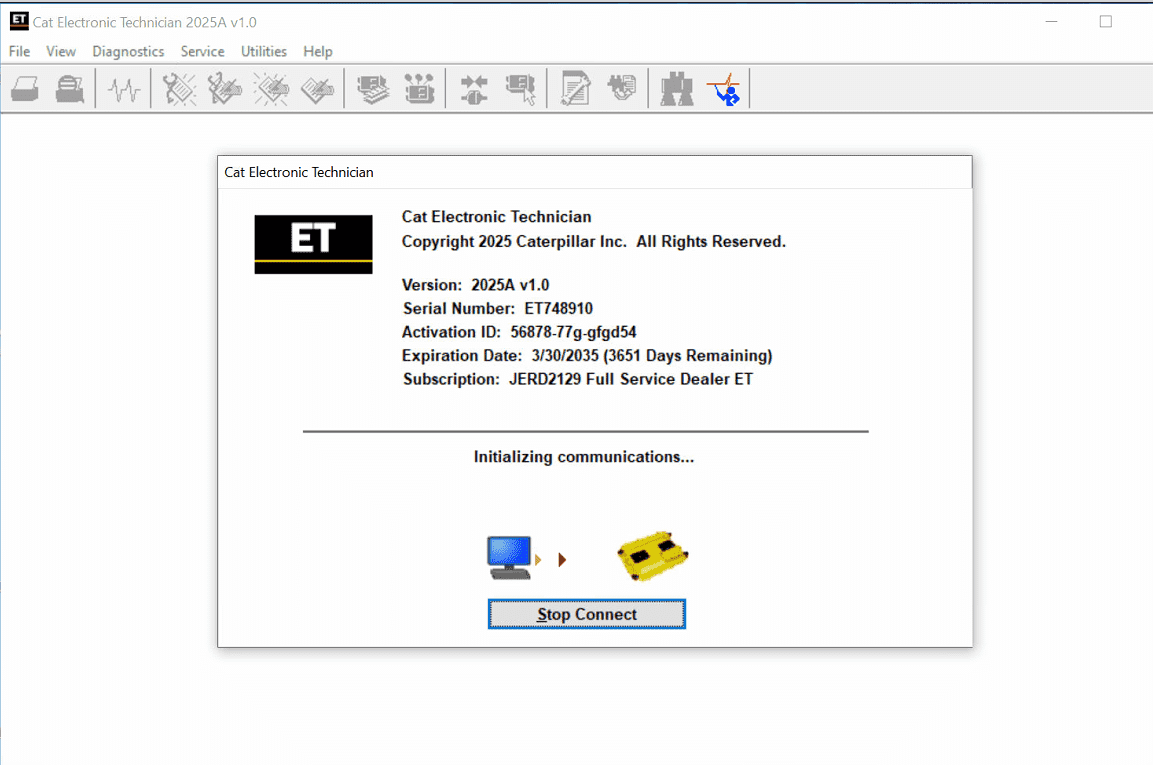
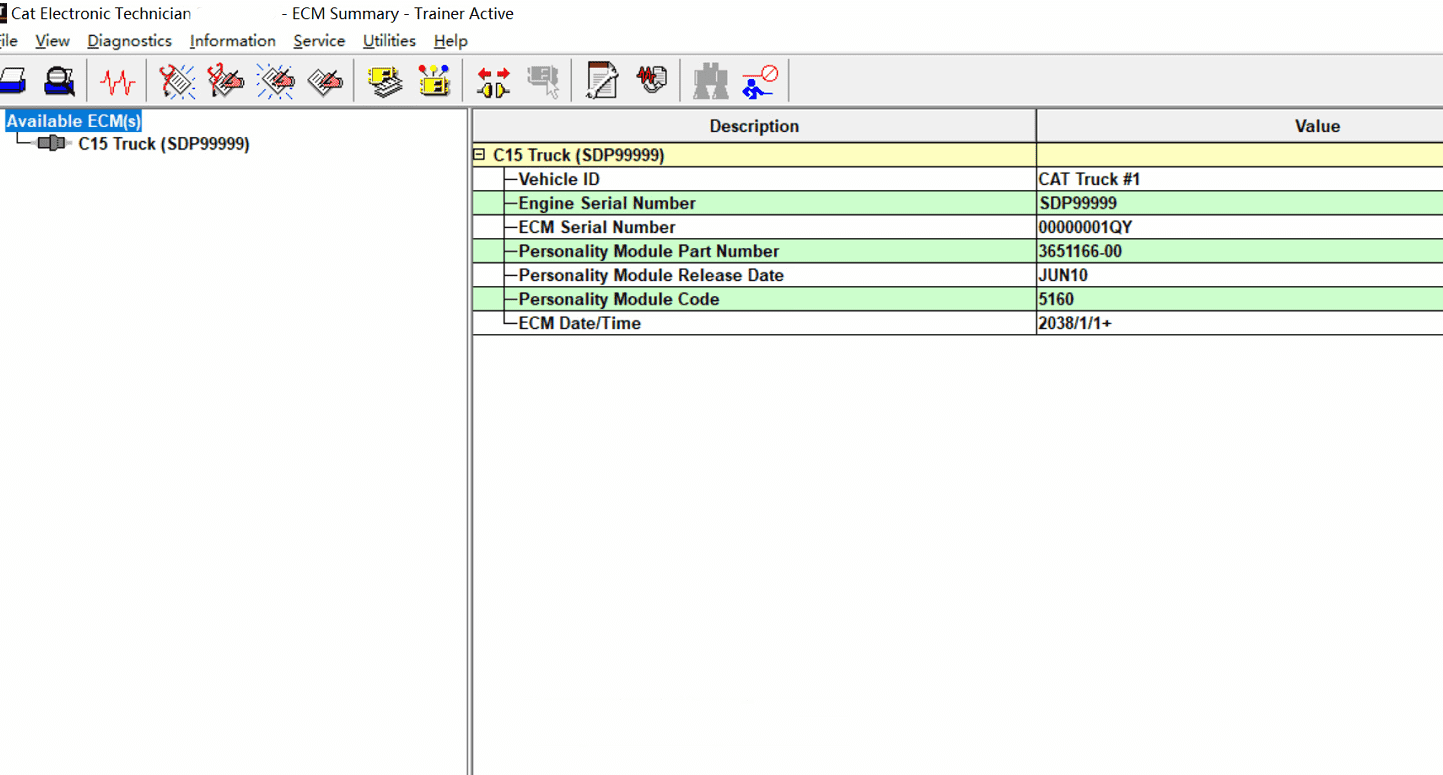
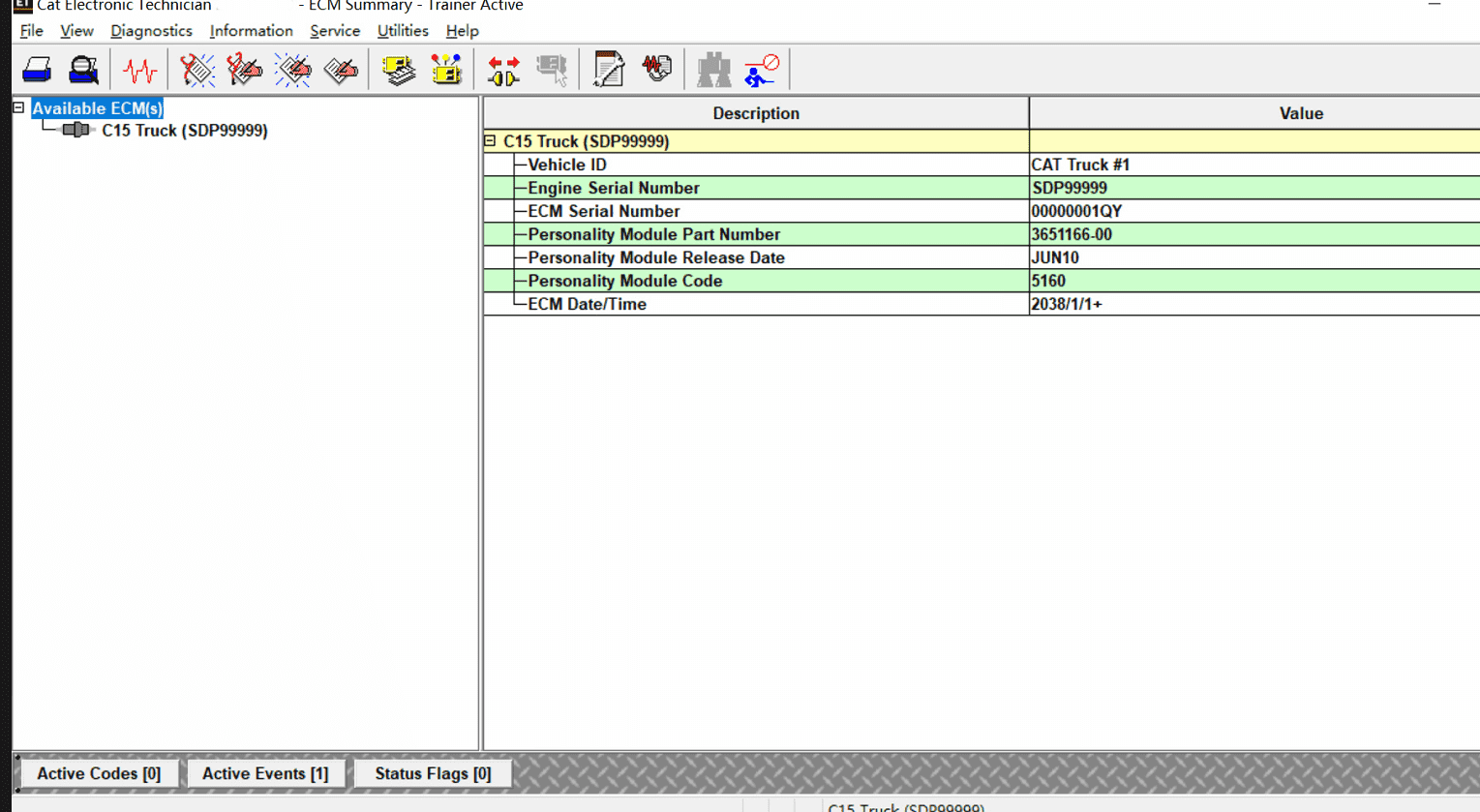
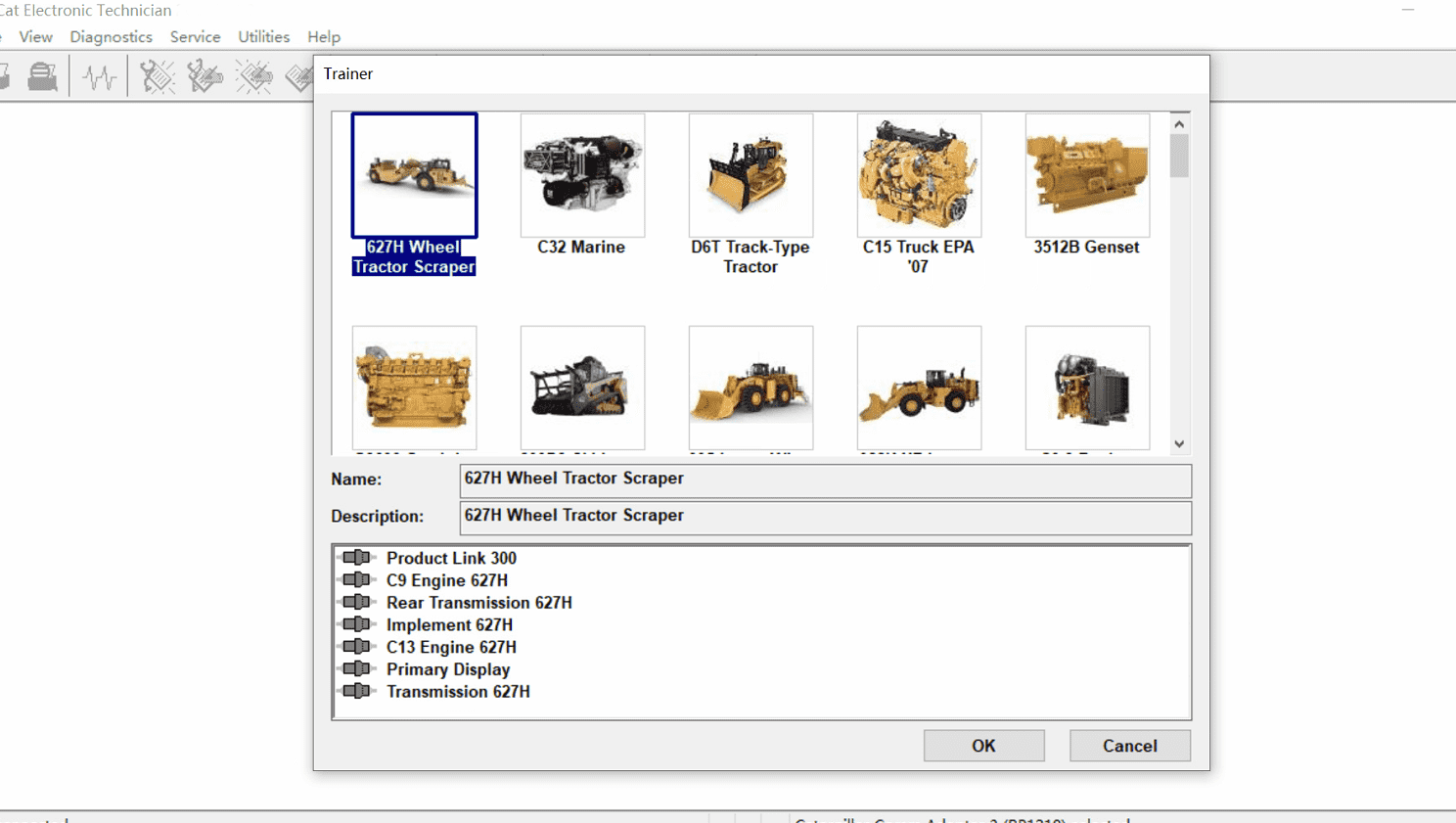
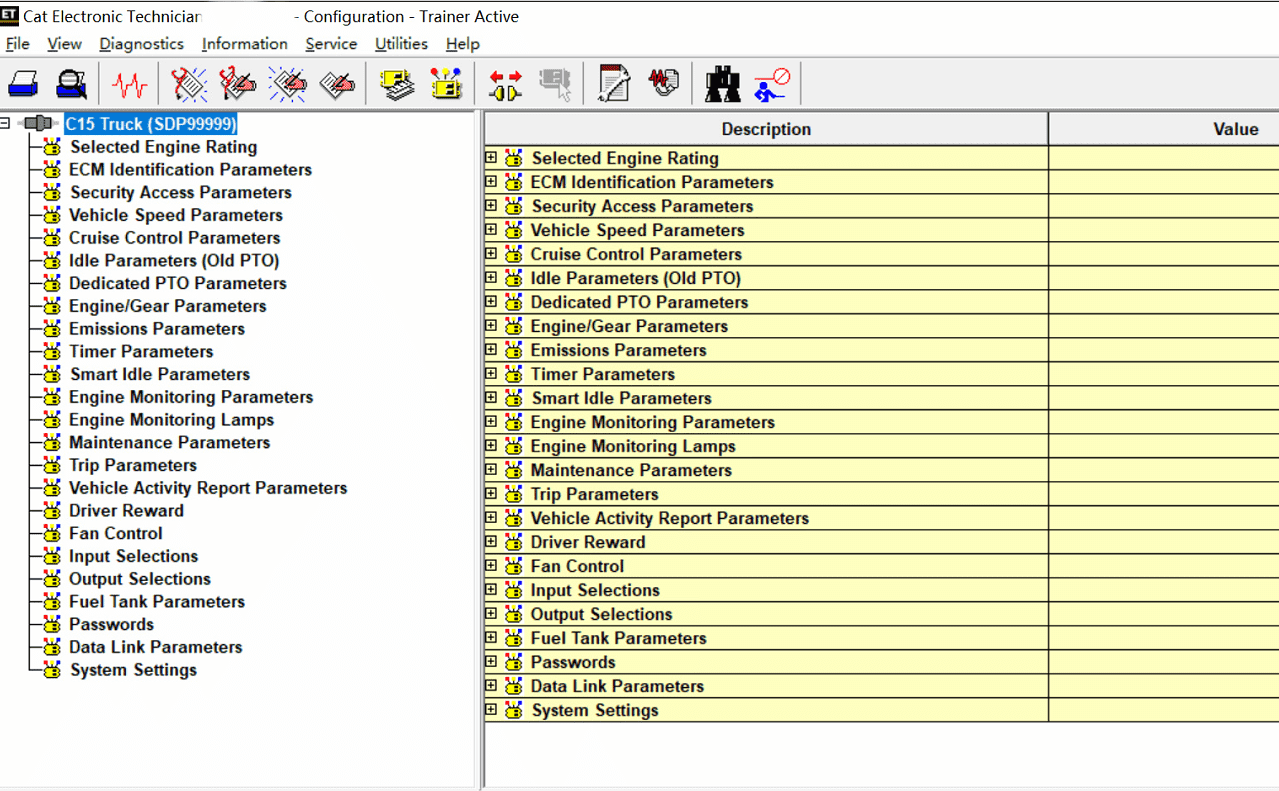
Caterpillar ET 2025A Electronic Technician Diagnostic Software :
Brand: Caterpillar
Region: WorldWide
Support Multi-languages:English, Chinese, Danish, French, German, Italian, Japanese, Portuguese, Russian, Spanish
Support All cars of CAT
With the CAT Diagnostic Tool, you can:
View active and logged diagnostics
View events where irregularities occurred and were logged by the ECM
View the status of a group of parameters (temperatures, pressures, etc.) simultaneously
Record and log performance data
Graph a group of status parameters
View the current configuration of an ECM
Change ECM configurations
Perform diagnostic tests
Perform calibrations
Print reports and diagnostic results
For some machine and engine products, additional functionality has been included with the service tool program
Product Description
CAT Caterpillar ET Diagnostic Tool from Caterpillar provide the capability to access Electronic Control Modules (ECMs) from a personal computer. Many job-critical tasks can be performed with an electronic service tool. The user can display the status of a group of parameters (temperatures, pressures, etc.) simultaneously, view active and clear logged diagnostics, display the current configuration of an ECM and much more. The service tool works with a communication adapter to allow connection to an ECM. A graphical interface makes this software quick to learn and easy to use. A separate pull-down menu for each function enhances the "ease of use." The version and identification of the ECM is automatically retrieved and is displayed on a summary screen when the program is started. Diagnostic tests and calibrations can also be performed.
CAT Caterpillar ET Diagnostic Tool enable service technicians to reprogram ECMs, reconfigure control system parameters, fine tune performance or diagnose the root cause of a failure the first time. These powerful tools allow service personnel to display and analyze vital performance and health information from any system quickly and accurately. The service tool communicates with any system using ATA (J1708), J1939 or the Caterpillar proprietary data link networks. The service tools provide information and features needed to help a technician diagnose problems and perform repairs and to customize and personalize the operation of a product. By allowing customers to design flexibility and configurability into a product, Caterpillar service tools stretch beyond the capabilities of preprogrammed ECMs or onboard display systems.
PC, Communication Hardware, and Cable Requirements
NOTE: The minimum PC Configurations should not be used as a standard when buying new personal computers for service tool purposes. If the existing equipment meets these minimum requirements, it will run the service tool.
PC Requirements
Recommended Configurations
PC containing a 2.0 GHz dual-core processor
3GB RAM
3GB of the available hard disk drive
DVD-ROM drive (optionally)
15.4-inch XGA Screen (1280x1024 compatible)
RS232 port with 16550AF UART or compatible (for use with Comm Adapter II)
USB 1.1 or 2.0 port (for use with Comm Adapter 3)
Ethernet RJ45 connector
Built-in pointing device or mouse
For security purposes, Microsoft Internet Explorer version 11 or newer or Microsoft Edge is recommended.
Note: The most recent version of Microsoft Internet Explorer may not be validated to work with the service tool.
The list of supported CAT machines and engines can be found below:
Engines:
Electric Power
Electric Power Generation
Industrial
Marine Power Systems
Oil and Gas
Machines:
Articulated Trucks
Asphalt Pavers
Backhoe Loaders
Cold Planers
Compactors
Dozers
Drills
Excavators
Feller Bunchers
Forest Machines
Forwarders
Harvesters
Hydraulic Mining Shovels
Knuckleboom Loaders
Material Handlers
Motor Graders
Off-Highway Trucks
Pipelayers
Road Reclaimers
Site Prep Tractors
Skid Steer and Compact Track Loaders
Skidders
Telehandlers
Track Loaders
Underground - Hard Rock
Underground - Longwall
Underground - Room and Pillar
Utility Vehicles
Wheel Dozers
Wheel Excavators
Wheel Loaders
Wheel Tractor-Scrapers
Package :
1*Adapter
1*9+14PinEthernetCable
1*6Pin Cable
1*Network Cable
1*plastic box
1*USB Cable
1 * Remote installation of ET 2025A
What's New - Updates by Version
2025A
No significant new features or feature enhancements
2024C
Automatic Connection Preferences
Users are now able to change multiple automatic connection preferences for the service tool and WinFlash. After navigating to the Preferences dialog, users may enable the service tool to connect automatically when opened in service and/or flash mode. Both options may also be disabled if the user wishes to connect manually.
2024B
No significant new features or feature enhancements
What’s New – 2024A
Automatic Product Status Report (PSR) Upload
The service tool includes a new tool that automatically uploads Product Status Reports. The tool scans for newly generated Product Status Reports and uploads them when an internet connection is available. The default is that automatic report uploading is enabled. The Preferences dialog has an option to disable the tool.
What’s New – 2024A
ECM Naming Changes
Certain ECMs connect to the service tool over two data links at the same time. The service tool shows a message popup when the ECM is only detected on one link. The service tool has been changed to add the text **INCOMPLETE** in the ECM name when the connection is incomplete. Service tool features that display a connection icon also use a new icon for an incomplete connection.
What’s New – 2024A
No significant new features or feature enhancements
What’s New – 2024A
CEOS Fleet Configuration File TOP
A CEOS (Customer Electronic Option Selection) Fleet Configuration File can be created/modified for an engine using the Service Tool. This is available in connected and disconnected mode.
Error When Launching Service Tool
There is a Microsoft issue with upgrading libraries during an installation involving certain versions of the C++ redistributable. After a successful service tool installation, when trying to run the service tool for the first time, one of the following errors may occasionally appear: “The entry point could not be located in api-ms-win-crt-runtime” or “The program can’t start because mfc140u.dll is missing from your computer.” If either of these messages is displayed, please let us know and we will send you to step by step troubleshooting guide. This procedure requires administrator rights.
Service Tool License Corruption Issues with Windows 10 Updates
Windows 10 updates 1709 and 1803 will corrupt service tool licenses. Future Window 10 updates may do the same
If either of license error messages is displayed, please let us know and we will send you to step by step troubleshooting guide.
What’s New – 2024A
Trainer Update – 988K XE Wheel Loader
The 988K XE Wheel Loader has been added to the Trainer application.
What’s New – 2024A
Preferences Option to Save a Product Status Report to PDF
The Preferences dialog for the Product Status Report has changed. The dialog contains a new checkbox to automatically save a Product Status Report as a PDF file when the report is created. The service tool will continue to automatically save Product Status Reports as an XML file.
What’s New – 2024A
Product Status Report Updates
The Product Status Report has been updated to include certain history features supported by the ECM, such as the after-treatment Regeneration History and the Service Test History.
Winflash Screen Update
The screen for the Winflash feature has been updated. A new Expand All button opens all sections of the screen to show all details for ECMs detected by WinFlash. A new Collapse All button hides all sections of the screen, except for header rows showing detected ECM names.
ET4 function:
1. Display the 'Logged Event Code' to display engine overspeed, high temperature, fuel consumption, etc.
2. View the current configuration of the ECM and change user settings
3. Conduct diagnostic testing and calibration, and perform calibration
4. Electromechanical and electro-hydraulic components
5. Context-sensitive help guides the operator through each task that ET can perform
6. The data logger and data log viewer allow the recording of ECM signals for delayed troubleshooting.
7. All operating conditions that result in high maintenance costs due to functional display, such as: Overspeed, high temperature, fuel consumption, transmission shift count.
Including:
1pc CAT Communication adapter ET4 (478-0235)
1pc USB cable
1pc Network cable
1pc × 6-pin, 9-pin, and 14-pin cables
CD (2019C software version, can be installed on more laptops by oneself)
1pc USB drive (latest software 2026A, please contact us if you need to install)
1 piece x plastic hard shell
Warranty period: 1 years
About this item
- ET4:478-0235 538-5051. Our software comes with a new version of ET v2023A OR V2025c software. Equipped with fast USB communication. Operating systems: Windows 7, Windows 8, Windows 10. (We recommend the most stable system: win10 64-bit professional version.)
- Note:The difference between the ET4 Ethernet version and the ET4 standard version is that the enhanced Ethernet cable can speed up the efficiency, save more time in detection and programming, allow the fa-ult problem to be solved quickly, and also allow the programming to reduce the time by at least 10 times. It has time value.
- Powerful Function:Equipped with USB interface, easy to operate data analysis, fa-ult codes, time adjustment, throttle calibration, timing calibration, hydraulic flow matching, computer board maintenance, refresh, computer board programming, computer board configuration modification, EFI engine maintenance.
- Cylinder breaking test, overrun test, rotary test, ET are not only diagnostic tools, but also powerful maintenance functions such as maintenance calibration: PRV main pump control pressure calibration, PRV power shift calibration, PRV hydraulic cooling fan calibration, PRV optional valve flow control calibration.
- No-worry Purchase, Reliable Custom Service: For any issues, you may have before or after the purchase, email us.We are always ready to offer help and value your feedback to achieve improvement. [If you don't know how to install the software, you can use email Contact us to install the software for you. ]