MARINE
Best accessory for PS4 controller!
Your loyal personal Marine won't let you down.
Overview
With “MARINE”, you can use PS4 controller to play your favorite games wirelessly on PS4, PS3, Switch, Android, PC and Mac, and 4 removable extra buttons give you the flexibility to customize the controller.
You can say goodbye to “out of power” when faced with big challenges, “MARINE” will release the full potential of your PS4 controller to rock your gaming experience!
Features
- Support PS4, PS3, Switch, Android, PC and Mac
- Wireless Control
- Support Turbo and Remap
- 4 Extra Customizable buttons
- Replaceable 18650 Battery (*Batteries not included)
- Support Motion Control (for PS4/SW)
- Audio Function (for PS4)
Install
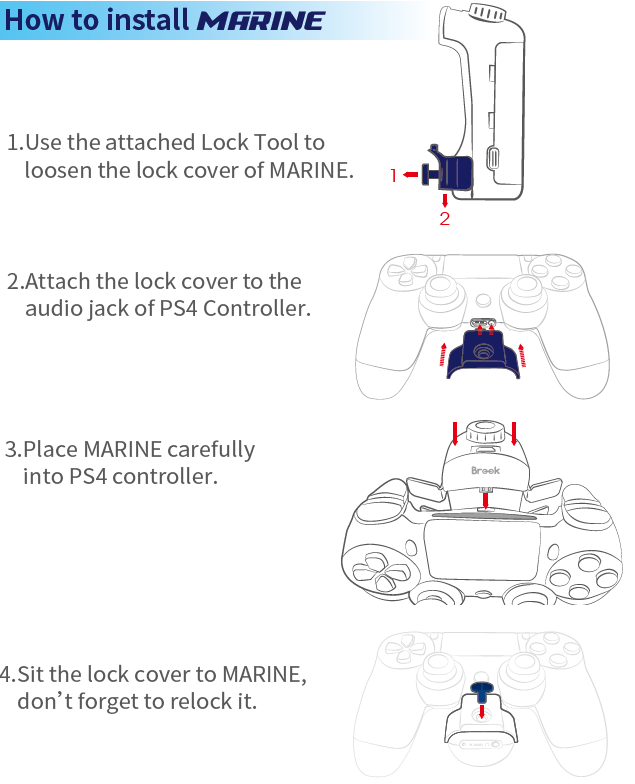
Instructions
PS4/PS3/NS mode
Wired Connection:
Connect directly to MARINE and PS4/PS3/NS consoles with Micro-USB cable.
Wireless Connection:
- Turn the knob to PS4/PS3/NS mode and press the BROOK-Key to activate. Please confirm that the LED on MARINE is displayed in blue/cyan/orange.
- For first time use, please operate by wired connection.
Support Features:
| PS4 | PS3 | NS |
Wired control | ○ | ○ | ○ |
Wireless control | ○ | ○ | ○ |
Audio function (Wired) | ○ | ╳ | ╳ |
Audio function (Wireless) | ○ | ╳ | ╳ |
Motion control | ○ | ○ | ○ |
Turbo & Remap | ○ | ○ | ○ |
○ = Support、╳ = Not Support
Android/PC/Mac mode
Wired Connection:
When knob is in Ad/PC/OS mode, connect MARINE to Android device/PC/Mac (iOS device) with Micro-USB cable and proper OTG connector.
Wireless Connection:
- It has to be paired via Bluetooth for first time use. After pairing is completed, you can use it wirelessly. The pairing method is as the followings:
- Press and hold the BROOK-Key for 2 seconds to enter the pairing mode, the LED will flash red and blue alternately.
- Turn on Bluetooth on Android/PC/Mac, search for “P4 Battery Pack” in Android Mode/ “P4 Battery Pack” in PC Mode/ “Wireless Controller” in Mac Mode, and then click Connect.
- When the connection is successful, the LED will appear as green/white/yellow.
- For future use, make sure the knob is in Ad/PC/OS mode, and press the BROOK-Key to activate MARINE to reconnect to the console. Please confirm that the LED on MARINE is displayed in green/white/yellow.
Support Features:
| Android | PC | Mac |
Wired control | ○ | ○ | ○ |
Wireless control | ○ | ○ | ○ |
Audio function (Wired) | ╳ | ╳ | ○ |
Audio function (Wireless) | ╳ | ╳ | ╳ |
Motion control | ╳ | ╳ | ╳ |
Turbo & Remap | ○ | ○ | ○ |
○=Support、╳=Not Support
Functions
Turbo Setting
Turbo function available buttons:╳、○、□、△、L1、R1、L2、R2、L3、R3 and the 4 paddles on MARINE. In the following description, these buttons are referred as FB, the controller will vibrate when setting:
Step 1. Enter the Turbo Setting Mode:
Press Share & PS Key, MARINE’s LED will dim.
Step 2. Choose FB:(EX: ╳ to set turbo function)
Hold down Share, then press ╳.
Step 3. Complete the Turbo Setting Mode:
Release all buttons then press Option.
The controller will vibrate once strongly.
To set another button, repeat Step 2.
Step 4. Exit the Turbo Setting Mode:
Press PS Key to save the settings and exit setting mode.
If it’s not set successfully, please check step 3.
Cancel all turbo settings:
After entering the turbo setting mode by pressing the Share & PS key, press and hold Share + Option, then press the PS Key to clear all settings. This will clear all turbo settings, but will not affect the remap settings.
When all settings are canceled, the controller will vibrate three times strongly.
Remap Setting
Remap function available buttons:╳、○、□、△、Up、Down、Left、Right、L1、R1、L2、R2、L3、R3 and the 4 paddles on MARINE. In the following description, these buttons are referred as FB, the controller will vibrate when setting:
Step 1. Enter the Remap Setting Mode:
Press Option & PS Key, MARINE’s LED will dim.
Step 2. Choose FB: (EX: △ to do ╳+○ function)
Press △.
Step 3. Choose Remap button:
Hold down Share, then press ╳+○.
Step 4. Complete the Remap Setting Mode::
Release all buttons then press Option.
To set another button, repeat Step 2 to 4.
Step 5. Exit the Remap Setting Mode:
Press PS Key to save the settings and exit setting mode.
If it’s not set successfully, please check step 4.
Cancel all Remap settings:
After entering the Remap Setting Mode by pressing the Option & PS key, press and hold Share + Option, then press the PS Key to clear all settings. This will clear all remap settings, but will not affect the turbo settings.
When all settings are canceled, the controller will vibrate three times strongly.
Note:
The 4 paddles on MARINE can be assigned to other buttons, but not vice versa. For example, you can assign "╳+○" to a paddle, but you can't assign paddles to ○.
Button Configuration
PS4 | PS3 | SW | Android | PC | macOS |
UP | UP | UP | UP | UP | UP |
Down | Down | Down | Down | Down | Down |
Left | Left | Left | Left | Left | Left |
Right | Right | Right | Right | Right | Right |
╳ | ╳ | B | A | A | A |
○ | ○ | A | B | B | B |
□ | □ | Y | X | X | X |
△ | △ | X | Y | Y | Y |
SHARE | SELECT | - | SELECT | Back | Back |
OPTIONS | START | + | START | Start | Start |
Lx | Lx | Lx | Lx | Lx | Lx |
Ly | Ly | Ly | Ly | Ly | Ly |
Rx | Rx | Rx | Rx | Rx | Rx |
Ry | Ry | Ry | Ry | Ry | Ry |
L1 | L1 | L | L1 | L1 | L1 |
R1 | R1 | R | R1 | R1 | R1 |
L2 | L2 | ZL | L2 | L2 | L2 |
R2 | R2 | ZR | R2 | R2 | R2 |
L3 | L3 | LTSB | L3 | L3 | L3 |
R3 | R3 | RTSB | R3 | R3 | R3 |
PS | PS | Home | Home | Home | Home |
Touch-Pad | |||||
Touch-Pad+Key | Capture |
PS4 | PS3 | SW | Android | PC | macOS | |
Brook-Key | SHARE | PS | Capture | Home | Home | Back |
Notice
- The Remap Setting in each Mode will be memorized. For example: you make a Remap Setting in PS4 mode, then switch to NS Mode. The next time you switch back to PS4 mode, the Remap Setting in PS4 mode still remains.
- The default of Backup Mode has no function currently. It is reserved for possible future product upgrades.