Wifi Liquid Level Sensor Tuya Smart Water Tank Monitor with Real-Time App Push,Wireless Liquid Depth Detector for Water Tanks,Storage Tanks & Pools,Smart Life App Control
How to Add a Tuya Wi-Fi Liquid Level Sensor to the Smart Life App
01. Turn on WiFi & Bluetooth: Make sure your phone is connected to a 2.4 GHz Wi-Fi network (the device does not support 5 GHz).
02. Add Device: Open the Smart Life app.On the home page (“my home”), tap the “+” icon in the top-right corner. Select Add Device.
03. Connect Level Sensor: If the device doesn't flash, Press and hold the "Touch key" on the sensor for 5 seconds until the light flashes to enter pairing mode.
The app will start searching for nearby devices.
When the liquid level sensor appears, select it.
Alternatively, you can choose Add Manually and find the device under the appropriate category (e.g., Sensors or Small Home Appliances).
04. Enter WiFi Password: Select your 2.4 GHz Wi-Fi network.Enter the Wi-Fi password carefully. Tap Next.
Note: If your router is dual-band, ensure you are selecting the 2.4 GHz network. 5 GHz networks are not supported.
- 【Important Notes Before Purchase】Connects directly via 2.4GHz WiFi – no gateway required. Works only with Smart Life / Tuya Smart app. Does not support Alexa or Google Home. Plug-in powered (not battery). Power cord length: 2.35m (92.5 inches). Use an extension cord if needed.
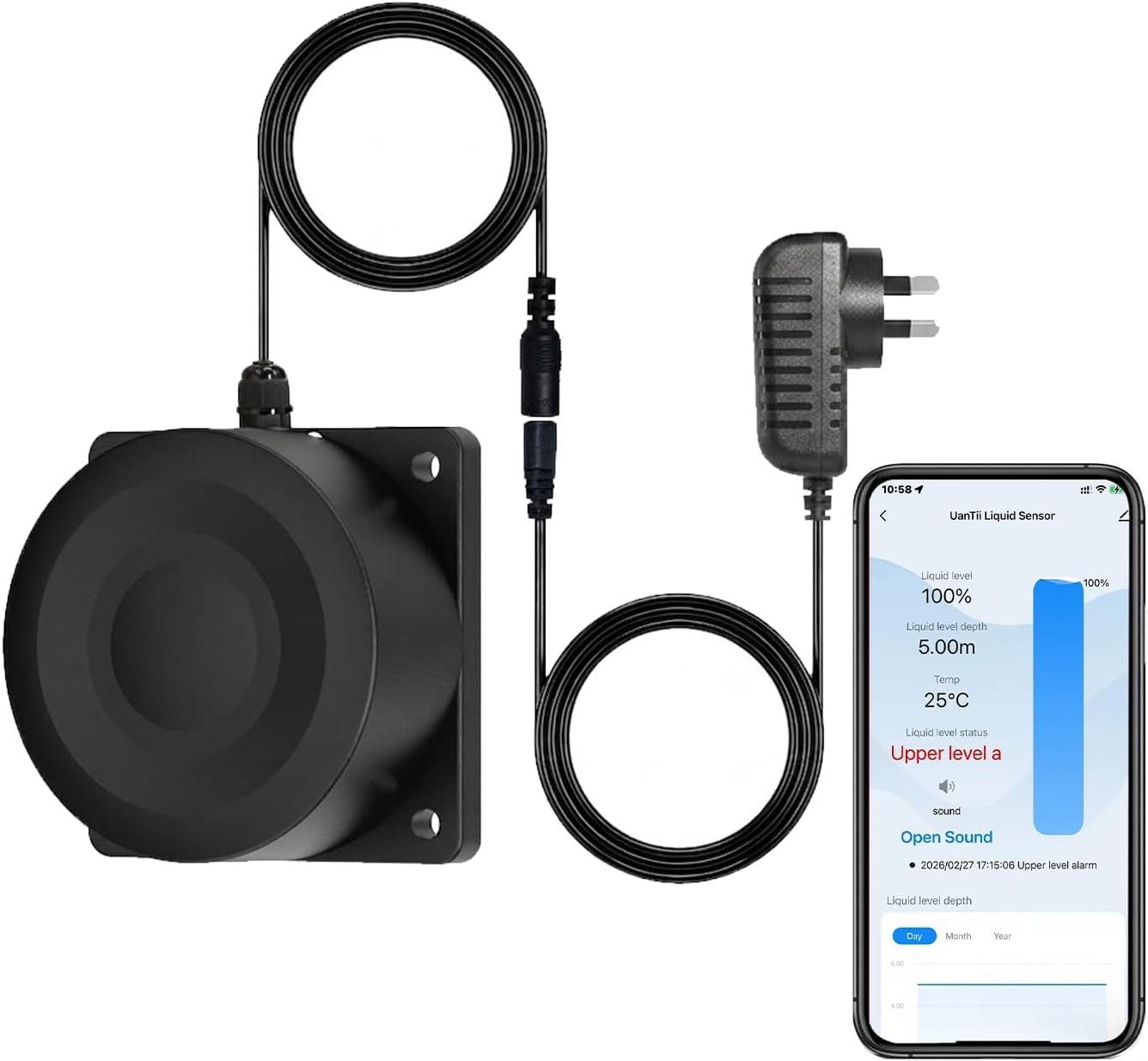
- 【Real-Time Liquid Level Monitoring,No Hub Required】 Instantly view current liquid level percentage, depth, and status (Normal/Active) on your smartphone via the Smart Life app, anytime and anywhere.
- 【Accurate & Reliable Detection】 High-precision sensor provides precise liquid level readings with clear visual indicators, helping you avoid overflow or dry-running issues.Receive timely App message push when liquid levels are too high or too low
- 【Historical Data Tracking】 Easily check daily, monthly, and yearly liquid level trends with built-in charts for better water management and usage analysis.
- 【Smart Automation Linkage】 Link with our smart WiFi water valve to enable automatic water refilling when the liquid level drops too low, achieving fully automated water management.
- 【Device Sharing Function】 Easily share access with family members so multiple users can monitor and control the liquid level sensor through the Smart Life app.
- 【Wide Application】 – Ideal for monitoring water levels in home water tanks, cisterns, rainwater barrels, pools, fish tanks, and other liquid containers.
-
Power Source Corded Electric Compatible Devices Android, IOS Voltage 3.3 Volts Control Method App Wattage 2 watts Color Black Item Dimensions L x W x H 6.5L x 6.5W x 2H centimetres Shape Rectangular Number of Packs 1 Item Weight 0.2 Kilograms Unit Count 1 Count Size Standard Manufacturer Intelligent Technology Number of Items 1 Country of Origin China Built-In Media sensor,user manaul Model Number UTWLLAU01 Colour Black Power source Corded Electric Compatible devices Android, IOS Product dimensions 6.5L x 6.5W x 2H centimetres
Shipping
- Fast shipping is very important for us.
- Our standard US shipping service is FREE.
- Your order will be shipped within 2-3 business days upon full payment received.
- Your order will be delivered within 2-3 business days after the handling time.
- We only ship to the confirmed PayPal address. We reserve the right to cancel any order for any reason at any time.
- We are not responsible for undeliverable addresses.

Returns and payment
- We offer a 30 days return policy from checkout winning date.
- We allow only PayPal as payment method

FeedBack
- Your feedback very important to us, after you get your package and you are satisfied with our service please leave us positive feedback
- If you have any problem with your order / any questions please before leave any type of feedback

For any questions, using eBay contact system