Questions and Answers:
Question 1: Which car models does the microphone support?
Answer 1: We are the original manufacturer of Car Mic microphones. and our mic supports (J5 J7 and O7) and E5, Karaoke functionality requires updating your car’s firmware to the latest version. Once the "KTV Assistant or Karaoke Mixer" App appears on your car’s screen , your cars will support Karaoke, and our microphone will work perfectly with it.
Question 2: How and where can I update the firmware for my J7 to enable Karaoke?
Answer 2: Starting from 2025, all new J7 vehicles will come pre-equipped with the Karaoke feature. For existing models without this function, you can update the firmware via the following methods: OTA Update: Connect your car to a stable network, then navigate to the car’s system settings > firmware update and follow the on-screen instructions to complete the update. Dealer Assistance: If your car does not support OTA updates, please visit your local authorized dealership and request a manual firmware update.
Once the "KTV Assistant & Karaoke Mixer" app appears on your car’s screen, the update is successful, and our microphone will work perfectly with your J7.
Important Notice: If your car does not have the "Karaoke Mixer" function and its firmware cannot be updated to support it, please do not purchase this microphone.
Please note that we will not accept returns or process refunds for this specific reason. Thank you for your understanding.
Question 3: Can I buy this mic for other cars? like Hyundai Honda Mazda?
Answer 3: No, Our Mic only support BYD and with karaoke mixer. Other cars not support and pls don't buy.
Question 4: Which karaoke apps are supported?
Answer 4: Once the microphone receiver is inserted into your vehicle, all music and karaoke apps pre-installed on your car’s will work perfect. Additionally, music apps can also function as karaoke tools through the Karaoke Mixer: our product features a "Vocal Elimination" function, allowing you to adjust the backing vocal level. This transforms regular music apps into karaoke apps effortlessly. Alternatively, you can connect your phone to the car via Bluetooth and use your phone’s karaoke apps with the microphone.
Question 5: The microphone has no sound—what should I do?
Answer 5: If your car has the latest firmware (with the "Karaoke Mixer" app), your microphone has enough power, and the volume has been turned up, but there is still no sound, please try re-pairing the UHF code by following the steps below:
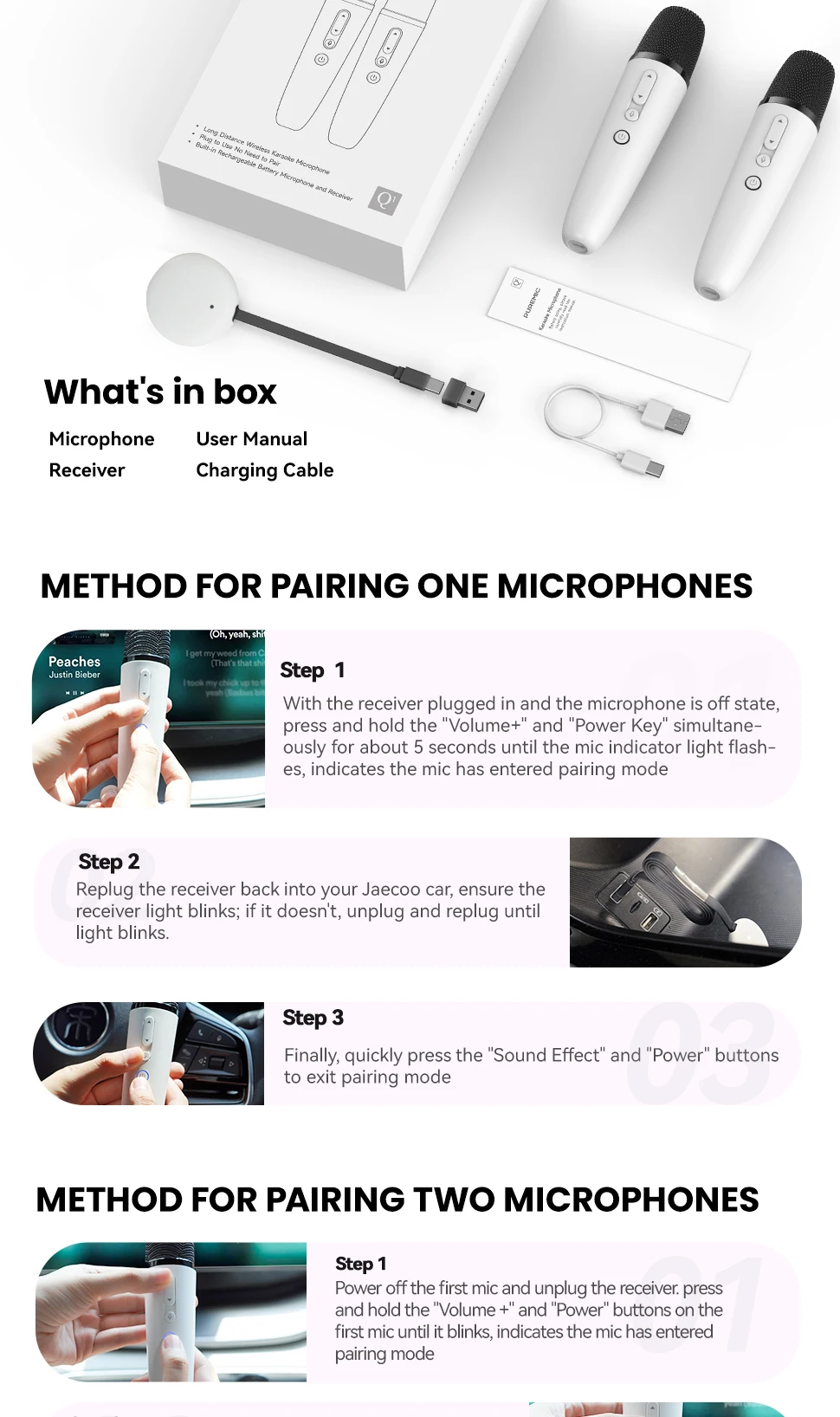
Method for Pairing Single Microphone
Step 1:
With the receiver plugged in and the microphone is off state, long press the "Voice Key" and "Power Key" simultaneously for more than 8 seconds, the microphone indicator light flashes, into the pairing state (microphone close to the receiver within half a mete, there should be no obstructions between them)
Step 2:
Re-plug the receiver and wait for the receiver indicator light blinks fast
Step 3:
When the receiver light is flashing, press the "Power Key" and "Voice Key" at the same time to exit the pairing mode. At this time, the microphone indicator light stays on, and the receiver indicator light stays on to indicate that the pairing is complete.
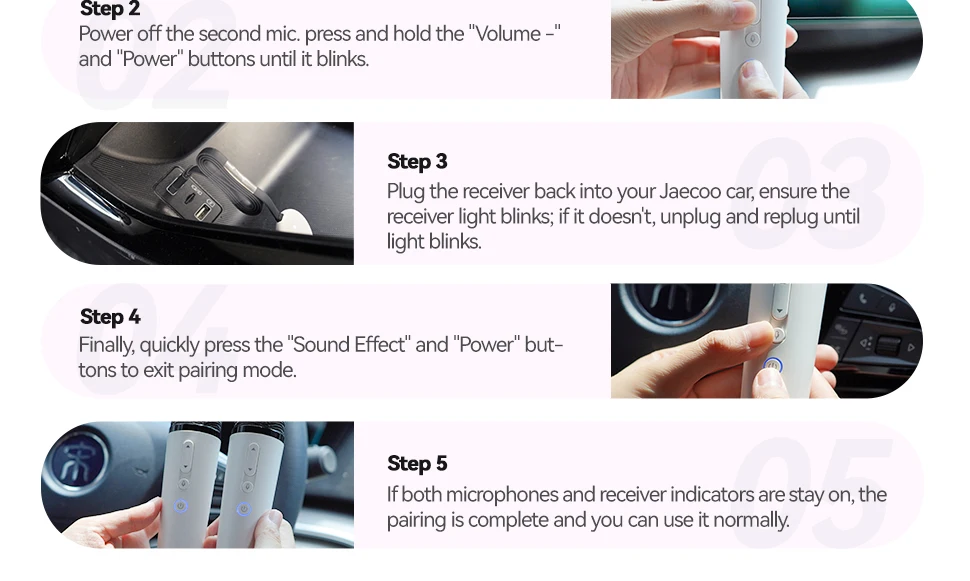
Method for Pairing Dual Microphones
Step 1
With the receiver plugged in and the microphone is off state, long press the "Volume + Key" and "Power Key" simultaneously of one microphone for more than 8 seconds, the mice indicator light flashes, into the pairing state
Step 2
The other microphone in the off state, at the same time long press "Volume- Key" and "Power Key" simultaneously for more than 8 seconds, the mic indicator light flashes, into the pairing mode (microphone close to the receiver within half a met, there should be no obstructions between them)
Step 3
Re-plug the receiver and wait for the receiver indicator light blinks fast
Step 4
Press the microphone in Step 1, and press the "Voice Key" and "Power Key" at the same time to exit the pairing mode; The same method as above for the microphone in Step 2.
Step 5
If both microphones and receiver indicators are stay on, the pairing is complete and you can use it normally.
(Pls noted one mic is volume+ and another mic is Volume-)
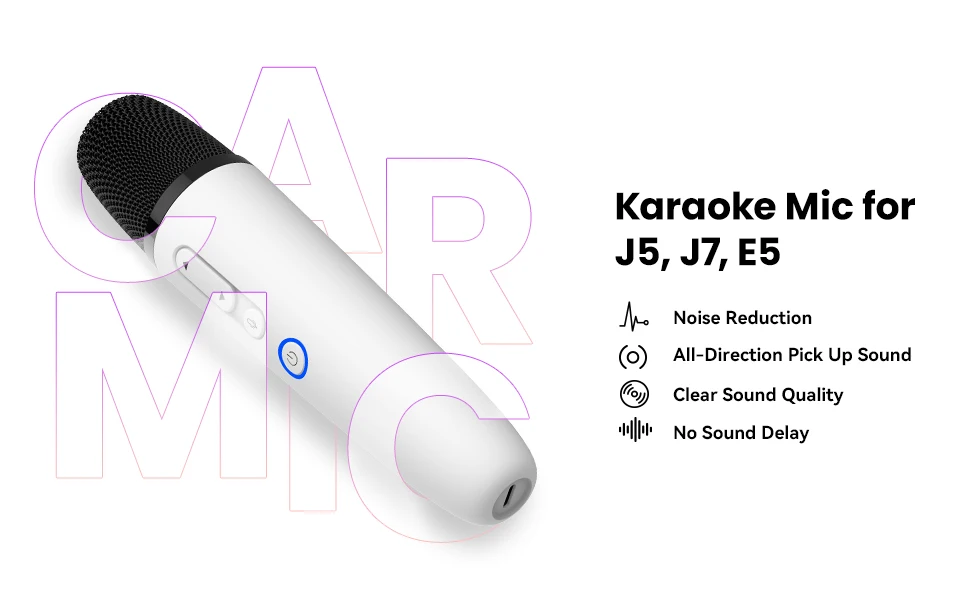
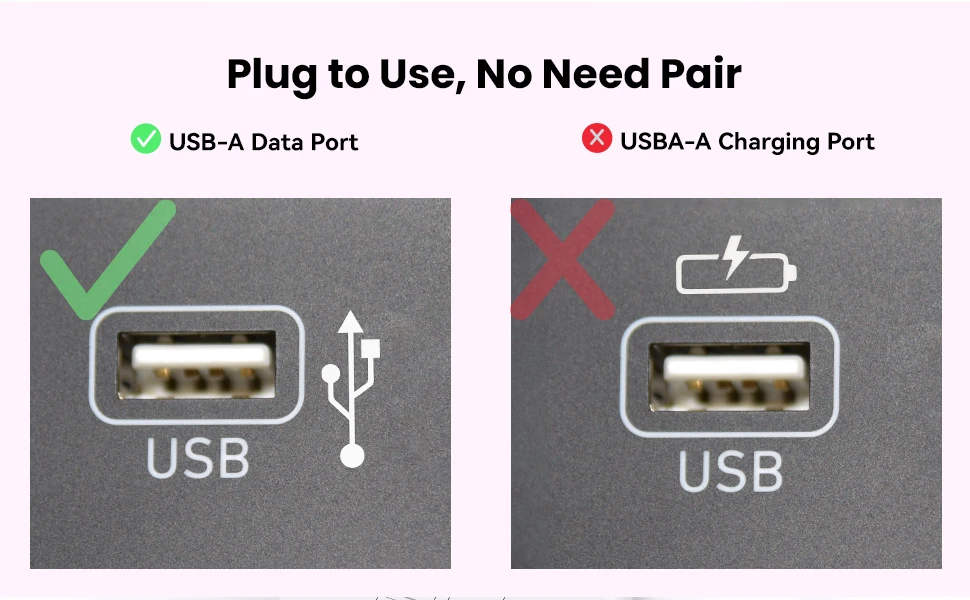
- USB-A & USB-C Ports: Works with J5, J7, O7 and E5 cars — as long as your car has the newest firmware and the "KTV Assistant or Karaoke Mixer" app installed. Whether your car has a USB-A data port or a USB-C port, we’ve got you covered with both jacks!
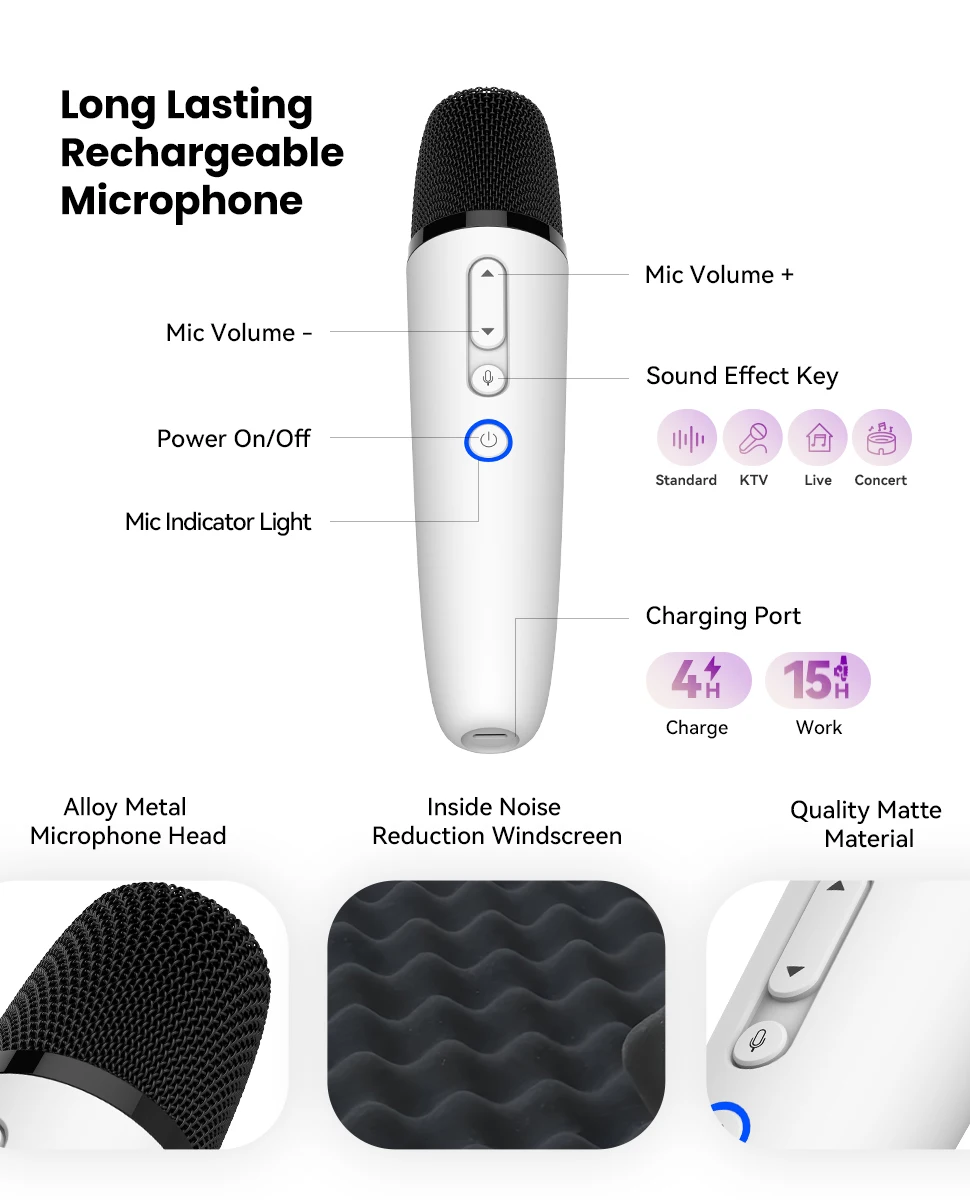
- Plug & Play, Super Easy: Just plug it into your car’s USB data port, turn on the mic, and start singing! Reverb is adjustable. 80% choose the 2-mic version for more fun — highly recommended!
- Works with All Apps: Compatible with apps like Stingray and YouTube. You can also use music apps with the vocal remove feature, or connect your phone to the car via Bluetooth and use your favorite Karaoke apps on your phone!
- Microphone
- Microphone Receiver
- Type-C Cable
- Portable Bag