
Product View







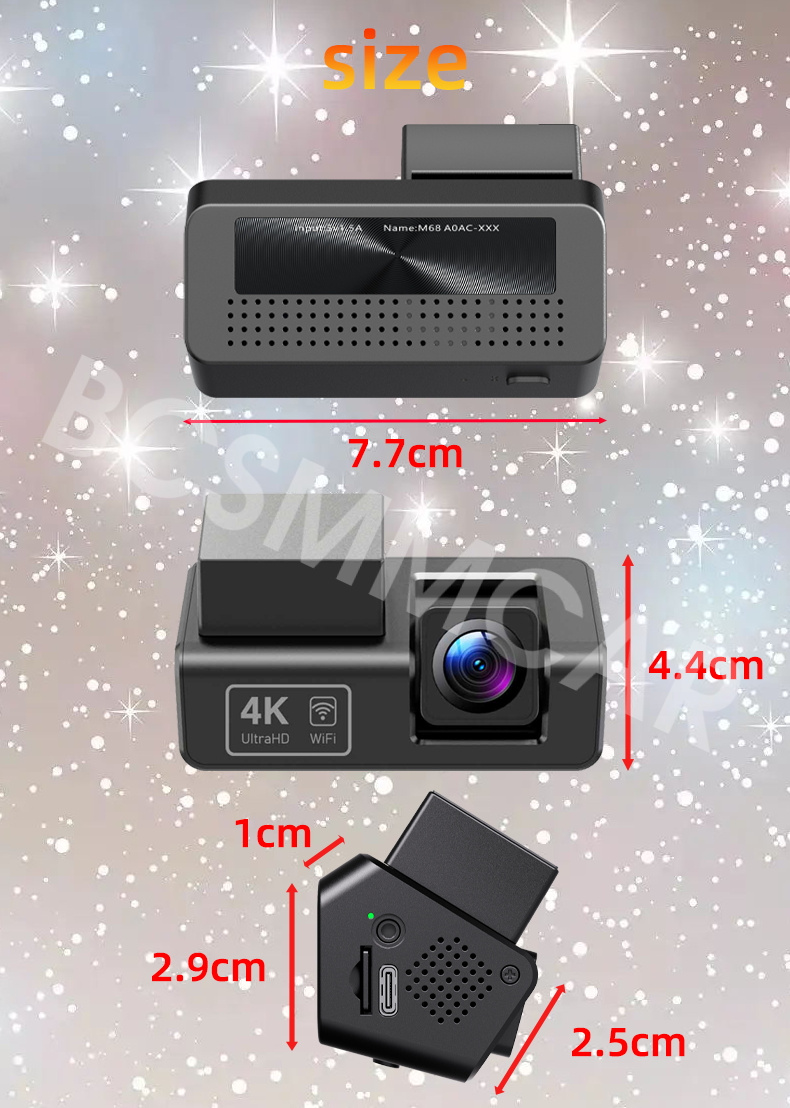

Detail
Display 4K on mobile app
But the playback on the computer is 1920 * 1080

Copyright © 2017 DataCaciques
Store Categories

Product View
Detail
Display 4K on mobile app
But the playback on the computer is 1920 * 1080
Item will be shipped within 1 business days upon receipt of payment, excluding weekends and public holidays.
If to USA,we will ship your order by USPS,it will take about 8-12 working days to you,and you can track it on line.
If to other country,we will ship your order by China Post or Singapore Registered Air Mail,it will take about 14-21 working days to you,you aslo can track it on line.
Delivery time is about 14-28 business days and it may take up to 8 weeks.
Payment should be completed within 5 days after buyer places the order,or else an unpaid case will be opened in order to cancel the transaction. If you can not pay in time, please contact us.
e-check from PayPal will only be processed once the payment clears.
All of the items will be shipped to buyer's EBAY address,please confirm your address on Ebay before you buy.Your order will be usually shipped out the same or next business days once the payment is made and cleared.
30-day Warranty with Exchange for defective, malfunctioned, incorrect or parts-missing items. Please notify us and return the item with all parts and accessories packed and marked "FOR EXCHANGE" within 14 days of receipt.
If defective, malfunctioned or parts-missing items are no longer available, a refund may be issued.
All returning postage costs will be the responsibility of the buyers under all circumstances.
If you encounter any problems about anything, please feel free to contact us and we will do our best to assist you solve the issue. If you are not satisfied in anyway, please feel free to let us know and give us a second chance to correct it before you decide to leave any neutral or negative feedback.
Please contact us through eBay link if you have any questions. We will reply you within 24- 48 hours. Please check you spam mail if no response for 48 hours.