USB 3.0 External Blu-ray Drive Portable 3D BD-Combo Optical Drive CD DVD Player CD Burner Reader for Laptop PC Windows 11/10 Mac
About this Product
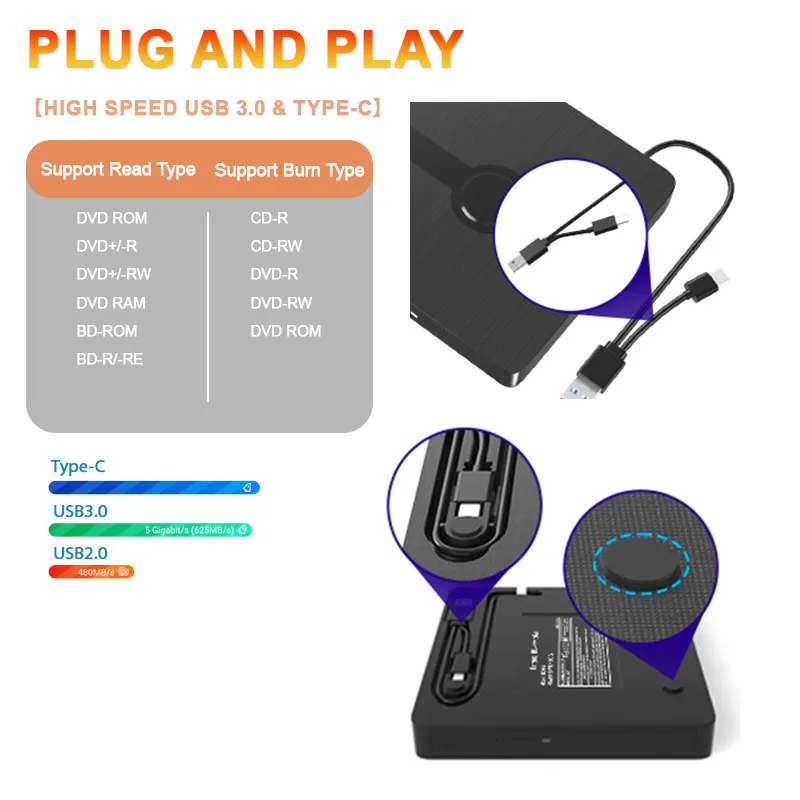
Computers often do not natively support DVD movie playing, so a third-party media player (such as VLC) must be downloaded and installed to watch DVDs using this BD/CD/DVD player. You can download and install a playing/burning software you like.
Recommendations are as follows:
Macgo blu-ray Player for MAC OS; PowerDVD for Windows; Leawo Blu ray Player is free one for all system.
No fee playing software: Any Media Player, Any DVD
No fee burning software for CD/DVDs: Nero
Please be aware that the playback/burning software for the external Blu-ray drive is not included and must be purchased separately to ensure proper functionality.
Note:
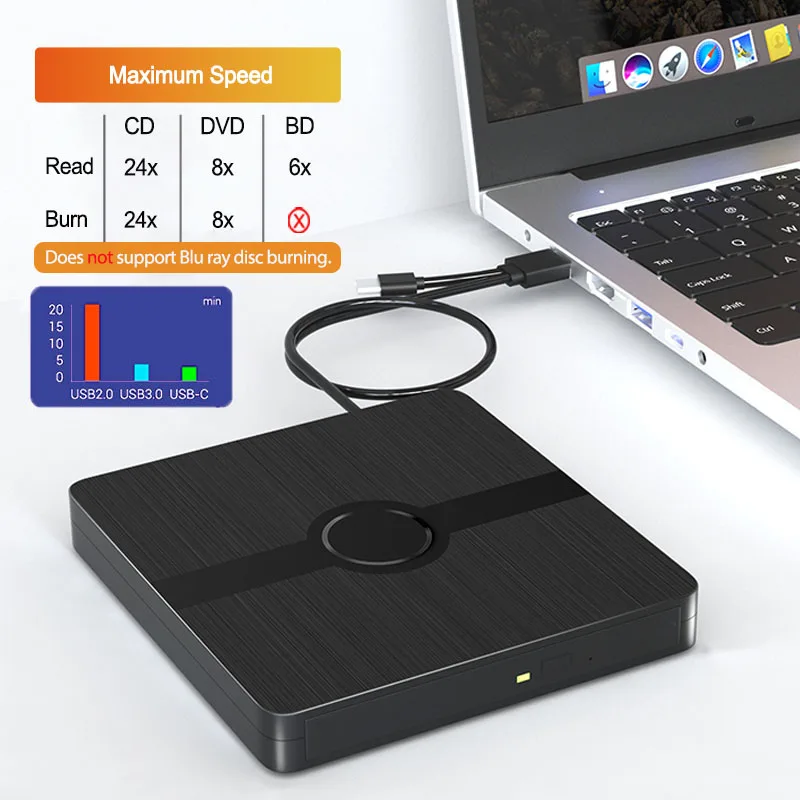
This product does not support burning Blu ray discs. And the Blu-ray playback software is not included.
When downloading Blu-ray playback software, Some software Windows and MAC OS are not compatible,please make sure Blu-ray playback software is compatible with your computer system.
This external dvd drive can't be used with TV, car, phone, tablet, Mac mini, projectors ,external hard drive and PS4/5.
Due to the limitation of Chrome OS, this drive can't be used with Chrome OS and Chromebook.
Quesion1:Optical drive display recognition failed.
A1. Pls check if the optical drive is being recognizes by your computer.
[For Windows OS] You can see the BD-ROM icon in Windows Explorer. Use the data cables on the back (bottom) of the optical drive to connect your computer's USB port or desktop computer host.Do not connect USB extension hub.
[For Mac OS] The Mac OS computer will not display the device icon until the disc is placed in the optical drive and the disc is read successfully.
A2. Pls check the Device Manager: If the optical drive displays a yellow exclamation mark or question mark, there may be a driver issue. You need to right-click and select 'Update Driver', or uninstall the driver and restart the computer, then connect the optical drive, and the system will reinstall the driver automatically.
Quesion2:The optical drive connection is successful, but the disc cannot be played.
【Step1】Set the region code (CDs do not have region code).
The disc can only be played when there on code of the DVD drive matchesthe DVD.
(Note: Only allows to change the region code 4-5 times)
The operating steps are on the last page of the manual.
【Step2】 Insert your CDs or DVDs, Use a media player.
If playing Blu ray disc, it is necessary to download Blu ray playback software in advance.
【Step3】Pop up the disc. (Right click on the folder and select the pop-up option)
If the above operation still failed, please contact us,thank you.


Troubleshooting Steps
If your cannot use this CD/DVD drive, please try the following suggestions:
1. Pls check if the optical drive is being recognizes by your computer.
[For Windows OS] You can see the BD-RE/RW icon in Windows Explorer. Use the data cables on the back (bottom) of the optical drive to connect your computer's USB port or desktop computer host. Do not connect USB extension hub.
[For Mac OS] The Mac OS computer will not display the device icon until the disc is placed in the optical drive and the disc is read successfully.
2. Pls check the Device Manager: If the optical drive displays a yellow exclamation mark or question mark, there may be a driver issue. You need to right-click and select 'Update Driver', or uninstall the driver and restart the computer, then connect the optical drive, and the system will reinstall the driver automatically.
3. Pls check the BIOS settings: Enter the computer's BIOS settings interface to see if the optical drive is disabled. If it is disabled, enable it.
4. Pls ensure that the optical drive is clean: As any dirt may prevent it from functioning correctly. It is recommended that a professional optical drive cleaner or cotton swab be used to gently clean the read-write head of the optical drive.
5. Unable to eject disc: Please right-click on the “BD-RE” folder, select the "Eject" option, wait a few seconds for recognition, and the disc will automatically eject.
- Ships directly from supplier within 1–3 business days.
- Typical delivery: 3–5 business days (up to 10 in rare cases).
- Tracking info provided for any delays.
Contact Us
Customer satisfaction is our top priority. If you experience any issues, please contact us so we can make it right. If you're happy with your purchase, leaving a positive review helps us and keeps prices low!