
Keyboard Adapter No Lagging for Android System Games with 3
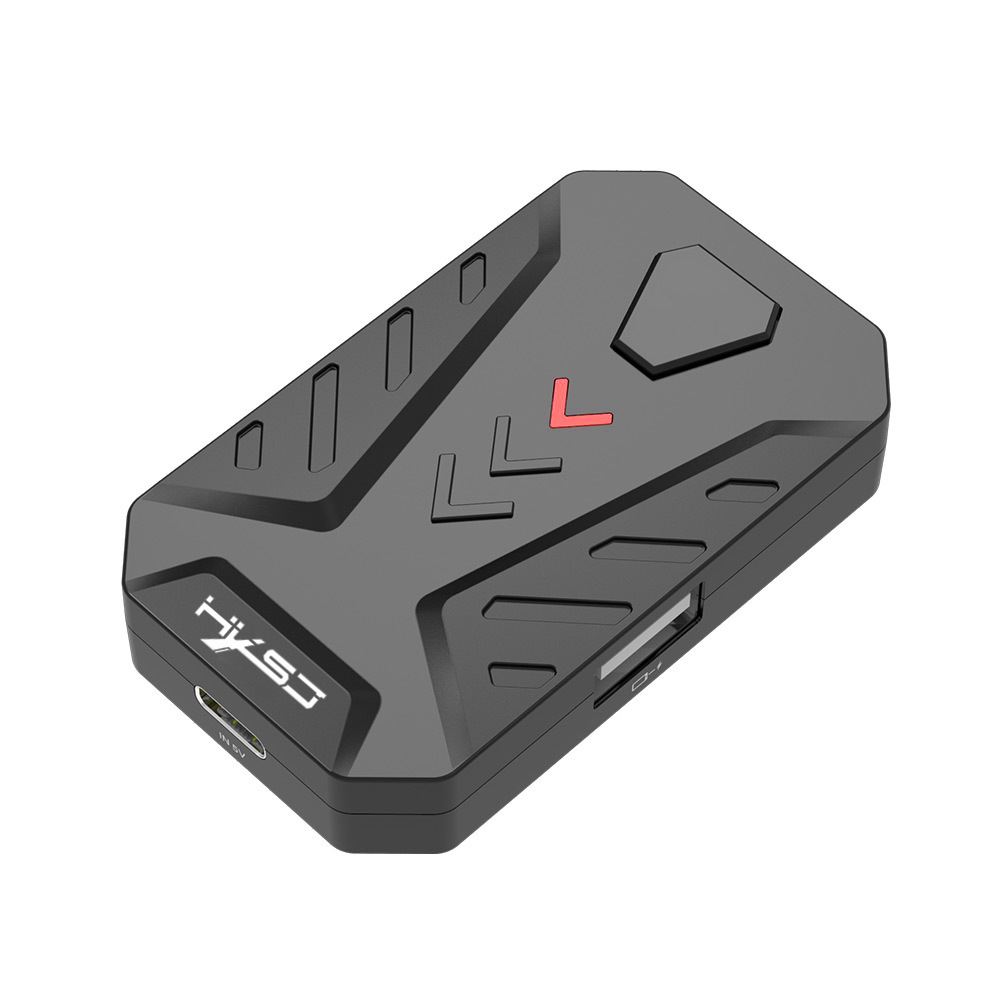
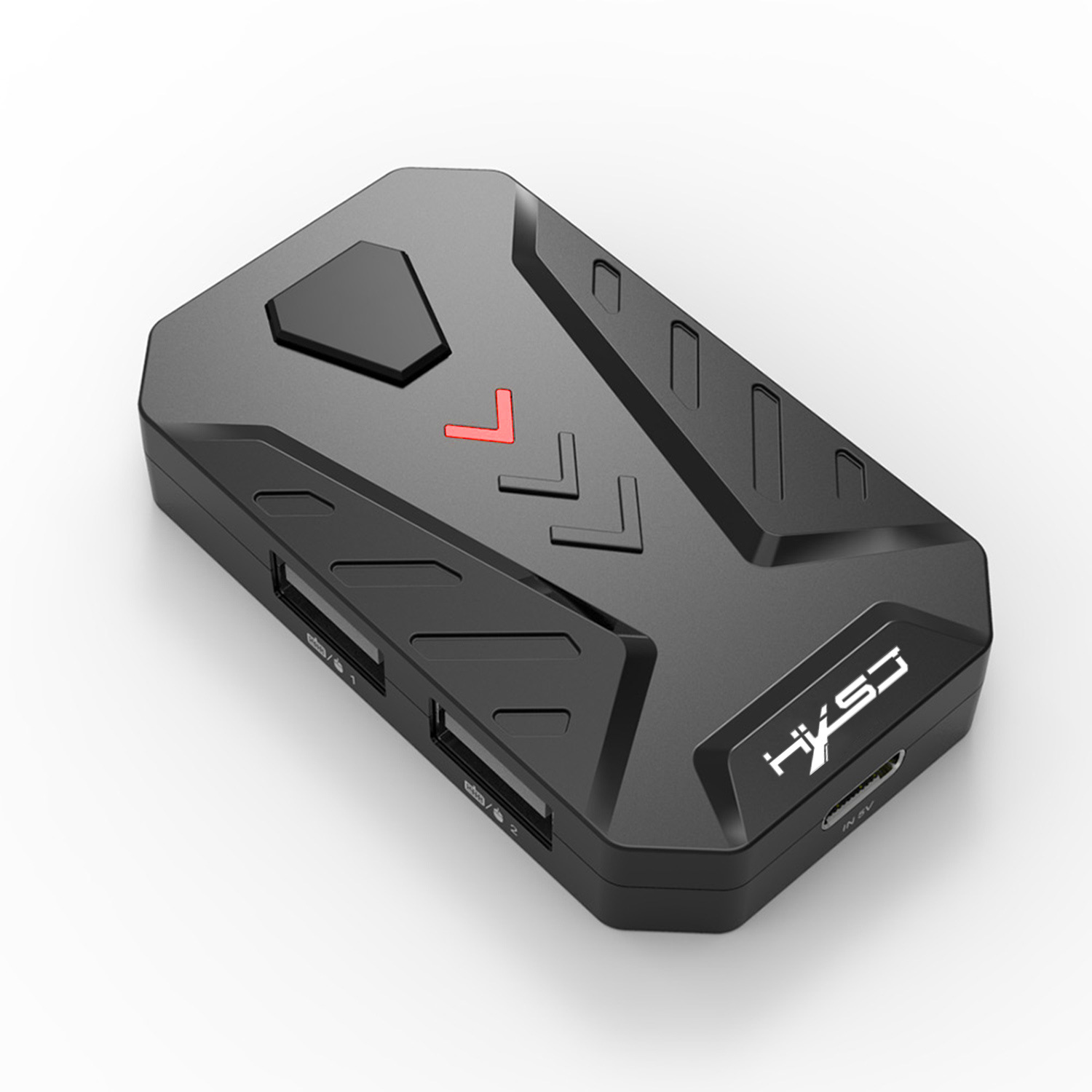
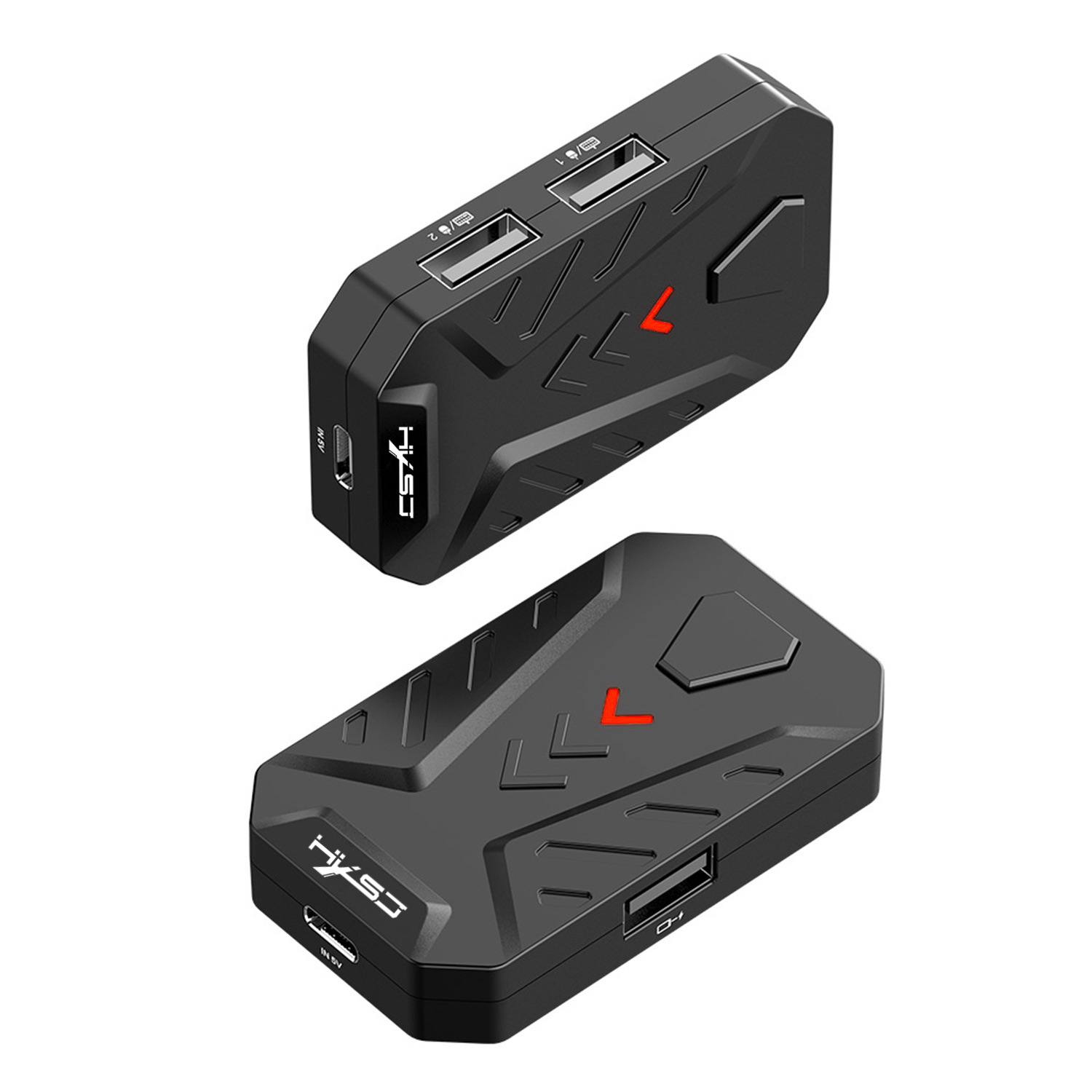
Features:
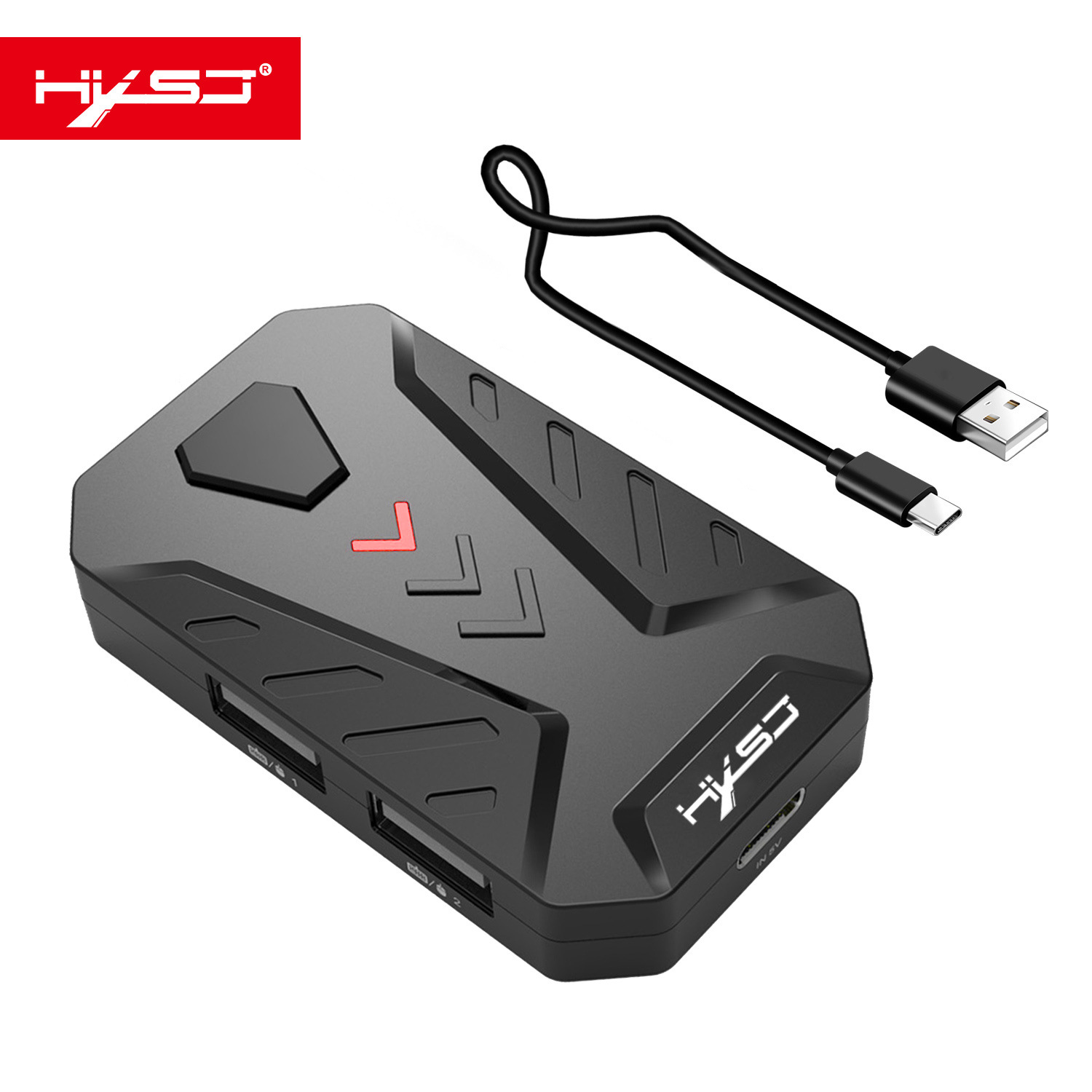
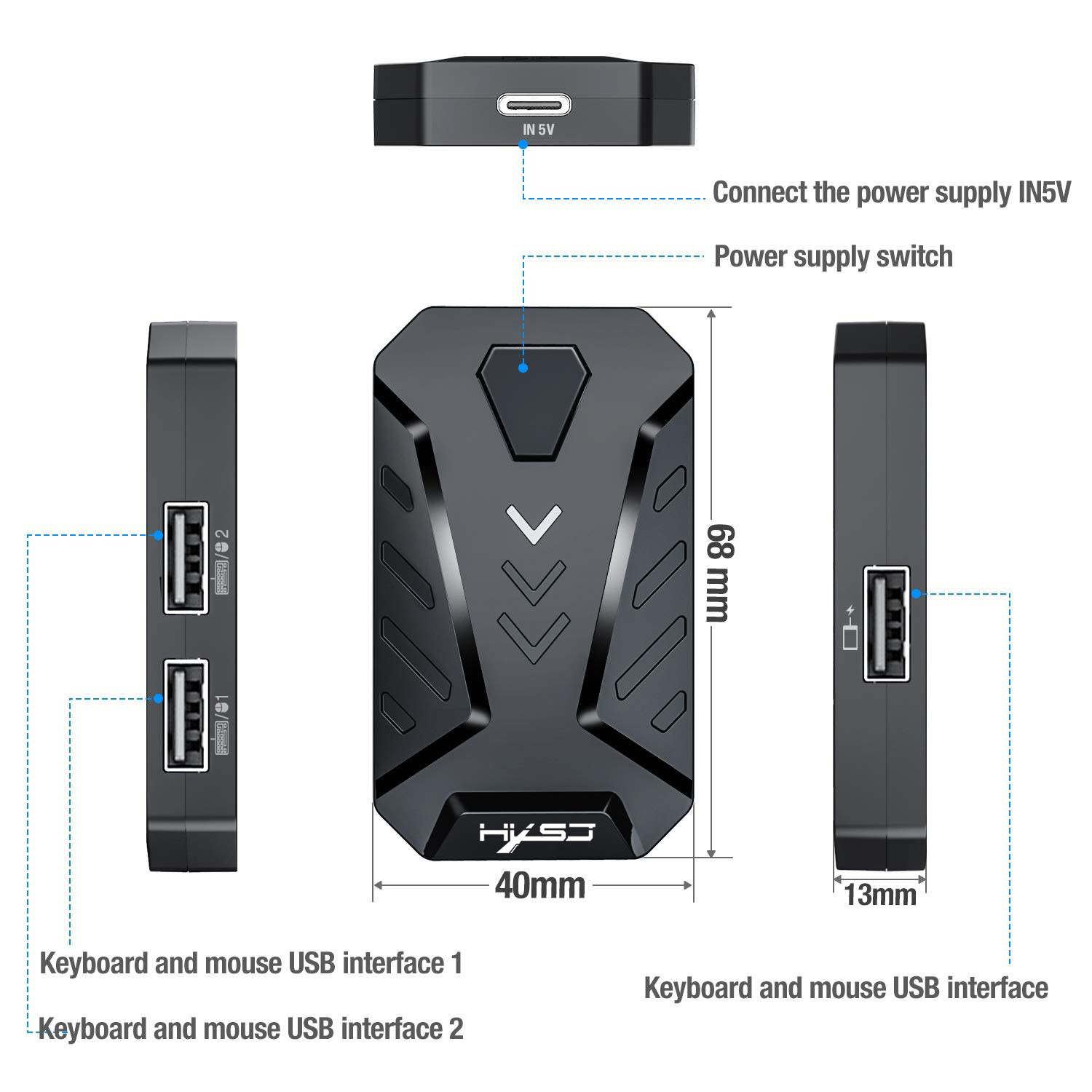
(1)Mouse or keyboard USB 1
(2)Mouse or keyboard USB 2
(3)Power switch
(4)Mobile phone interface
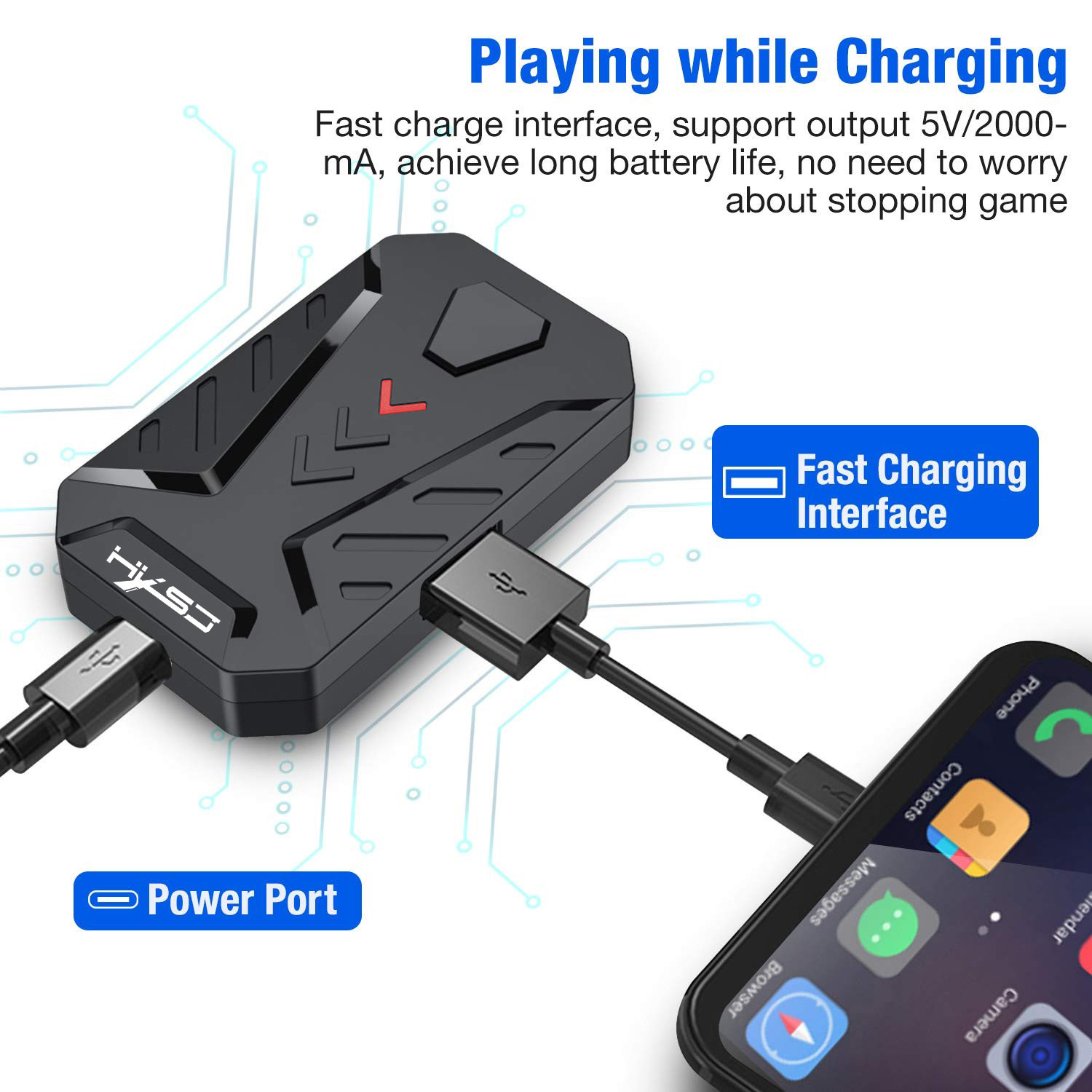
(5)Power port
Product Introduction:
Wired interface: USB
Keyboard and mouse interface: USB
Number of interfaces: 4PCS
Input voltage/current: 5V/2A
Datacable length: 80cm
Datacableinterface: TYPE-C
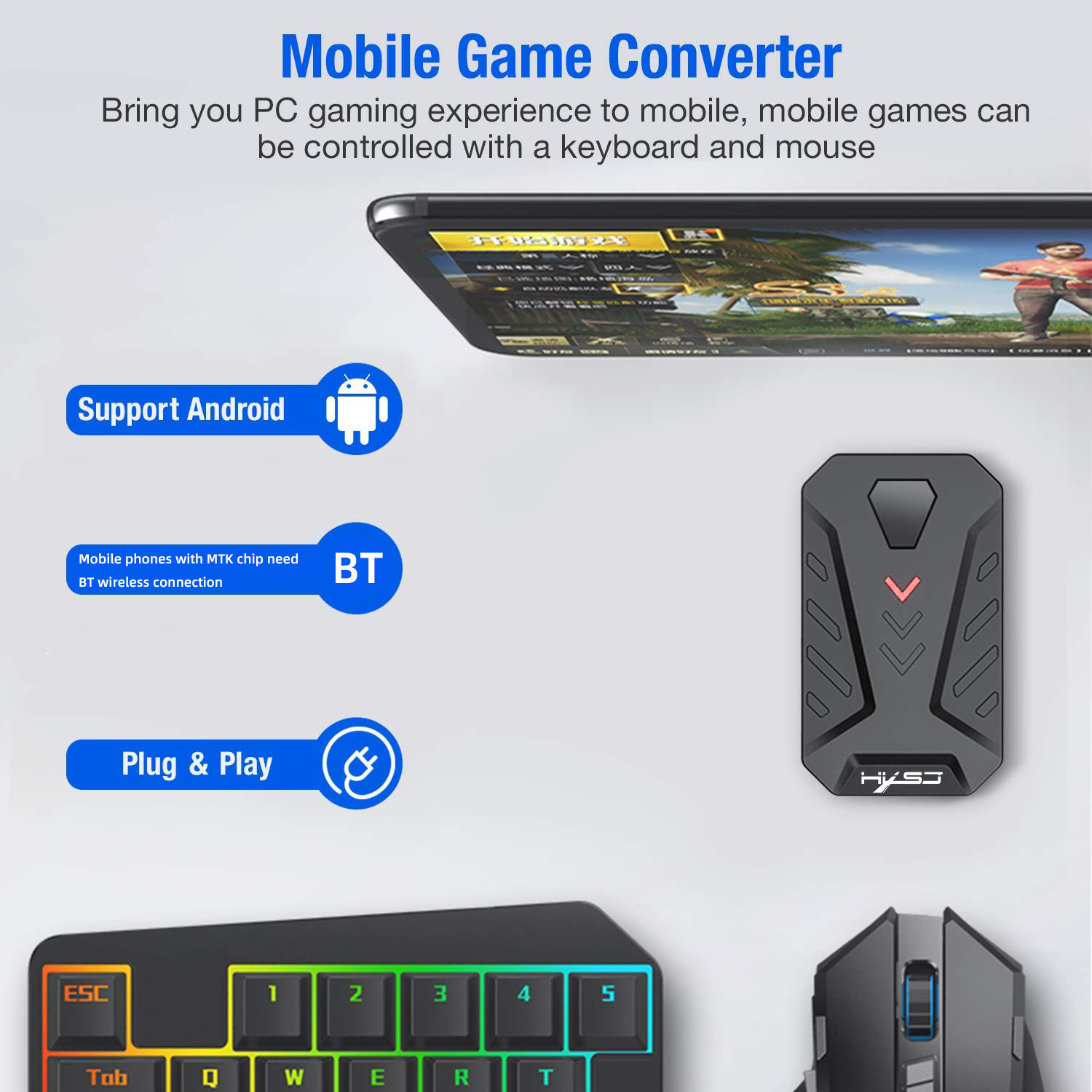
Adaptation system: Android 6 or above
Switch mode:
Ctrl+F3 (mapping BT mode (MediaTek))
Ctrl+F4 (wired mode (non-MediaTek))
BT name:
Mapping mode (MediaTek): LITE-A-xxx
Wired mode (non-MediaTek): LITE-U-xxx
LED light:
BT mapping mode (MediaTek purple light)
Wired mode (non-MediaTek red light)
Connection protocol:
BT mapping mode (MediaTek wireless BT transmission function)
Wired mode (non-MediaTek wired USB transmission function)
Switch key mode:
1: default plug-in automatic power on
2: Click to shut down
3: Click to turn on
4: Long press for 5 seconds to reset BT
Product weight: 21g
Product size: 68*40*13MM
Packing weight: 55g
Packing size: 114*100*37MM
Product packaging:
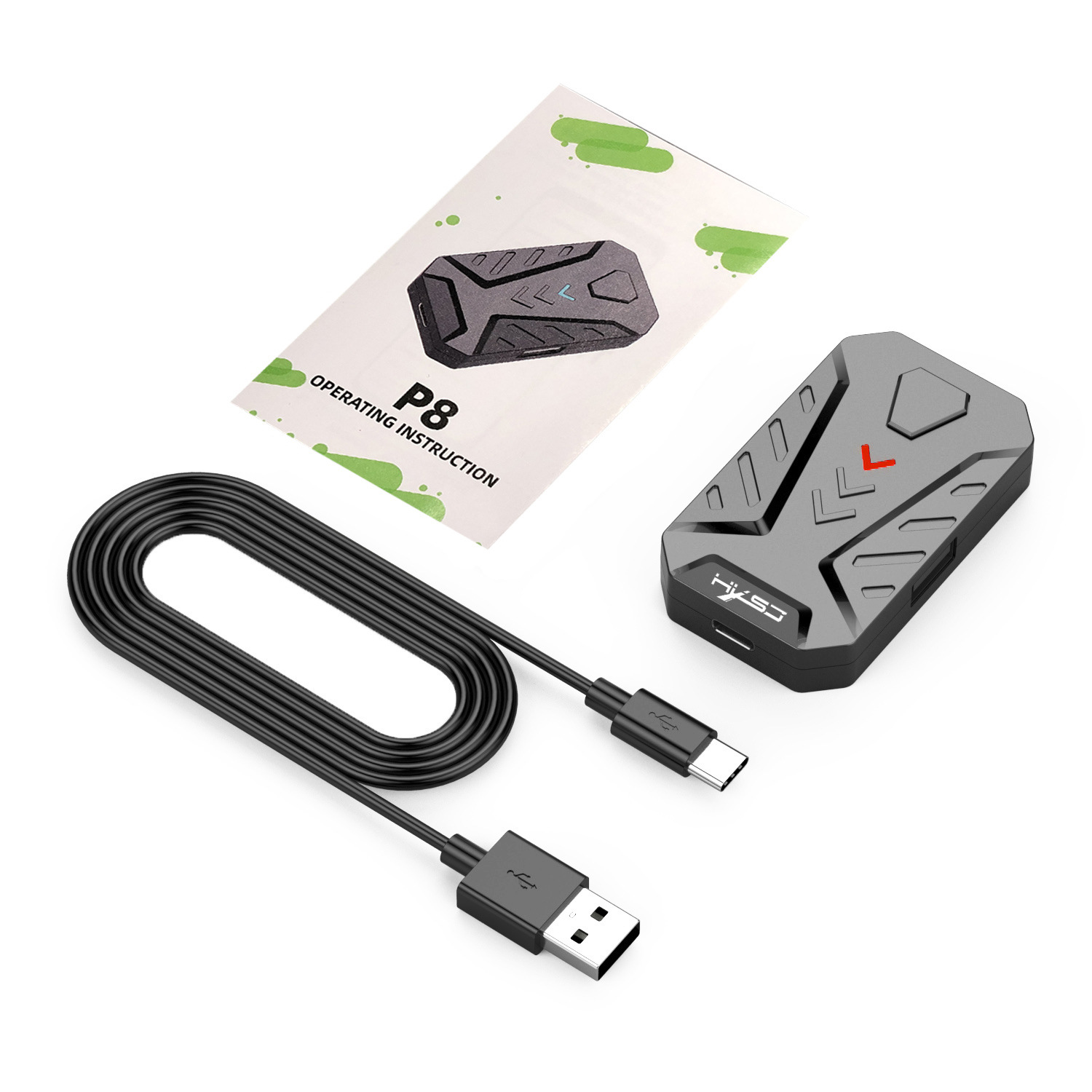
P8 converter for Android system*1
80cm TYPE-CDataCable*1
User English manual*1
How to use:
Wired connection use:
1:INATSLL THE APP
Step1: Scan QR code below to download 'geekgamer'
Step2: Operate 'geekgamer'
Step3: When open the 'geekgamer' will ask to allow permission to get the floating window for the app to work properly click 'allow'
Step4: Open the 'Floating Windows' to allow
Step5: Enter the home page click+Add Game'
Step6: Select the game that you want to play from the list. For example“PUBG'click 'Add'
2 :CONNECTTHE D EVICES
As shown in the instructions, connect the device to the phone, select 'charge only'and allow USB debugging
3 :WIRED CONNECTION MODE FOR ANDROID
Mediatek mobile phones do not work in this way,Bluetooth needs to be turned off when using.
Step1: Switch mode,Press the keyboard combination:Ctrl+F4, Mix Lite converter switch to 'Android wire mode', the status light will turn red.
Step2: click“ENTER'
NOTE:
Wired connection use ,for more instructions, please read the instructions carefully.
How to use:
MEDIATEK MOBILE PHONE:
This mode only applies to Mediatek mobile phones
Step1: Switch mode,Press the keyboard,Such as the picture of the manual:combination:Ctrl+F3, P8 converter switch to 'Mediatek model', the status light will turn purple.
Step2: Click 'Connect devices',Such as the picture of the manual.
Step3: Find the 'LITE-A-XX' BT and connect
Step4: Return to the APP's main interface ,and the device will be automatically activated.
Step5: If it is not activated, you need to click the 'Activation' option, follow the APP prompts to enter the 'Developer Options', and turn on the 'USB Debugging Function.


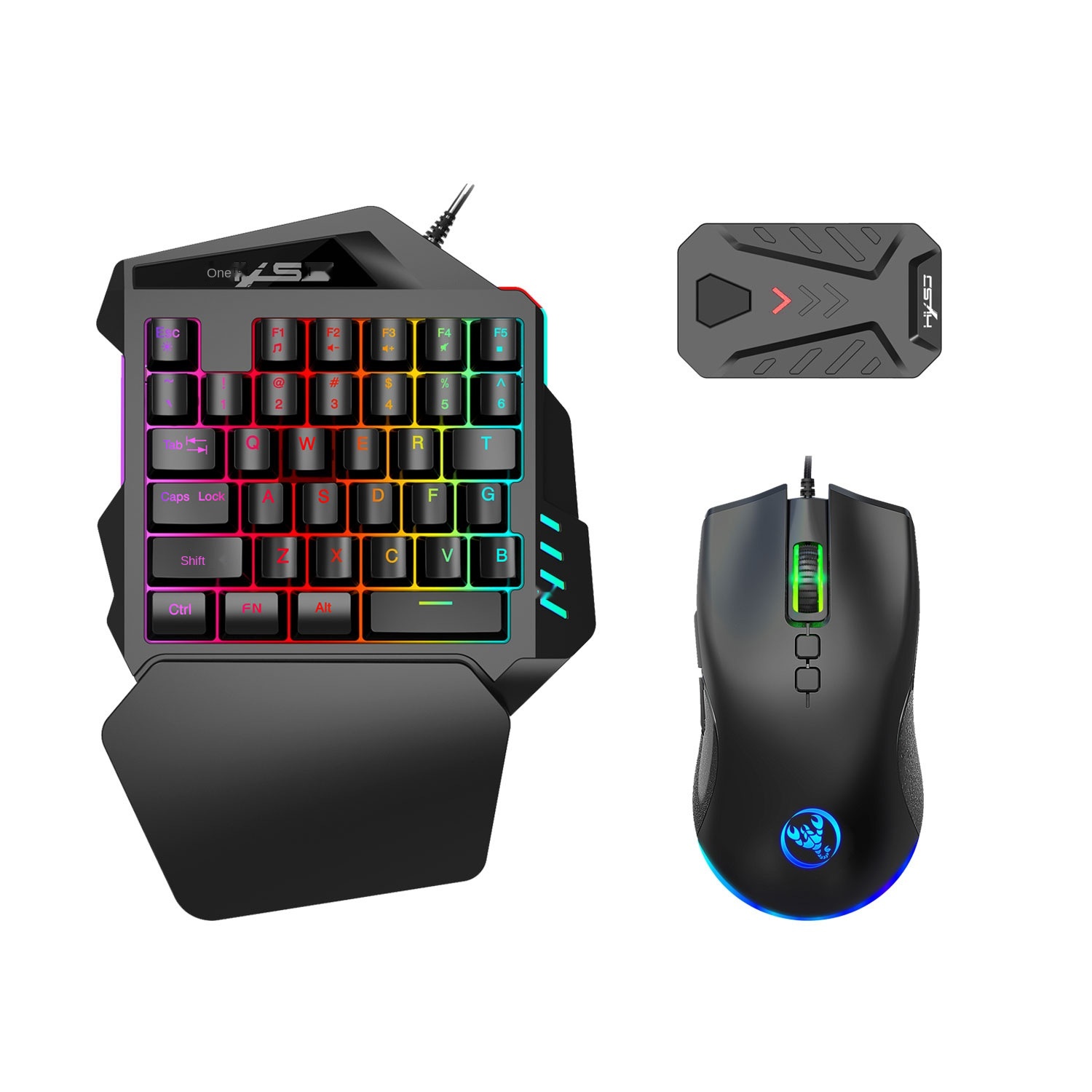
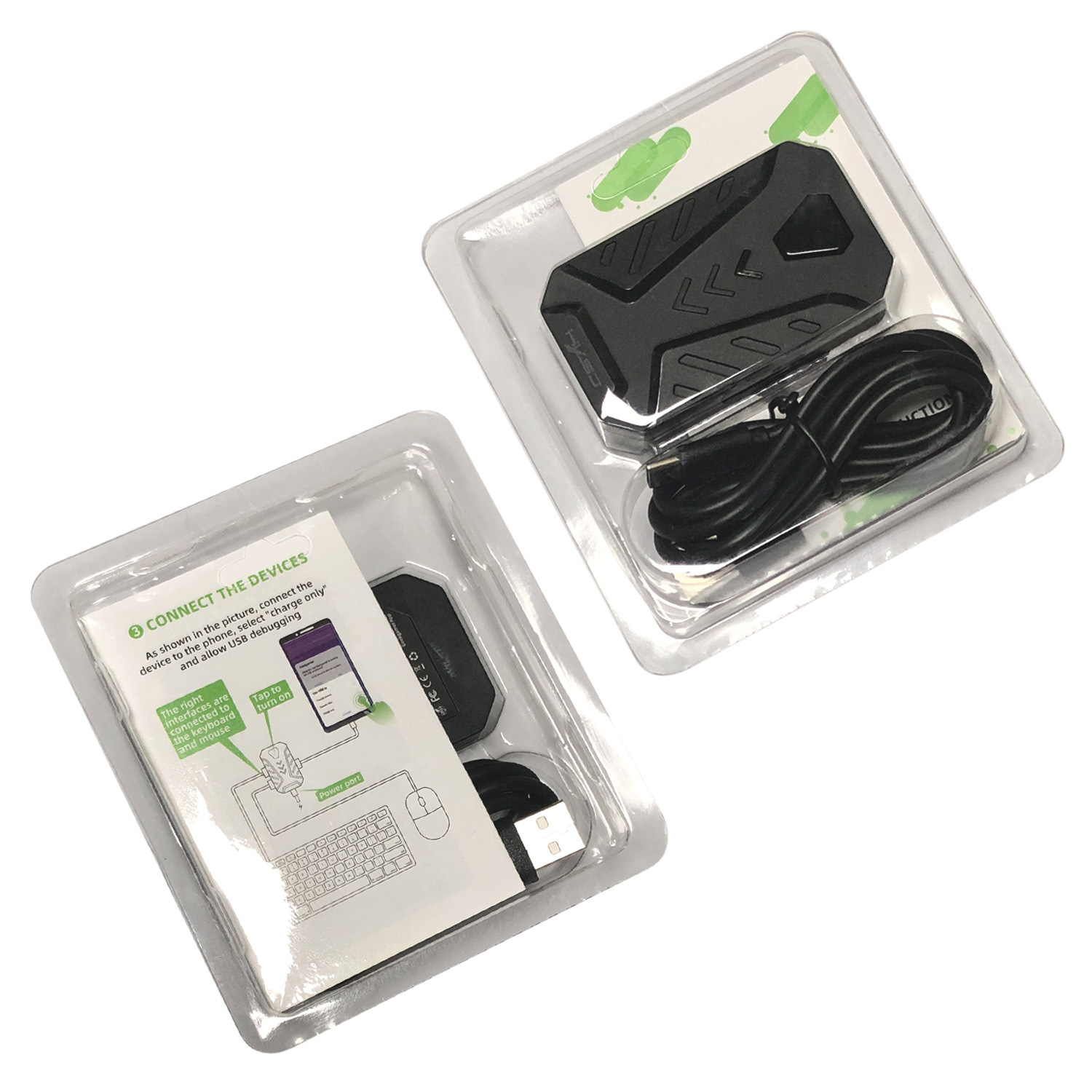
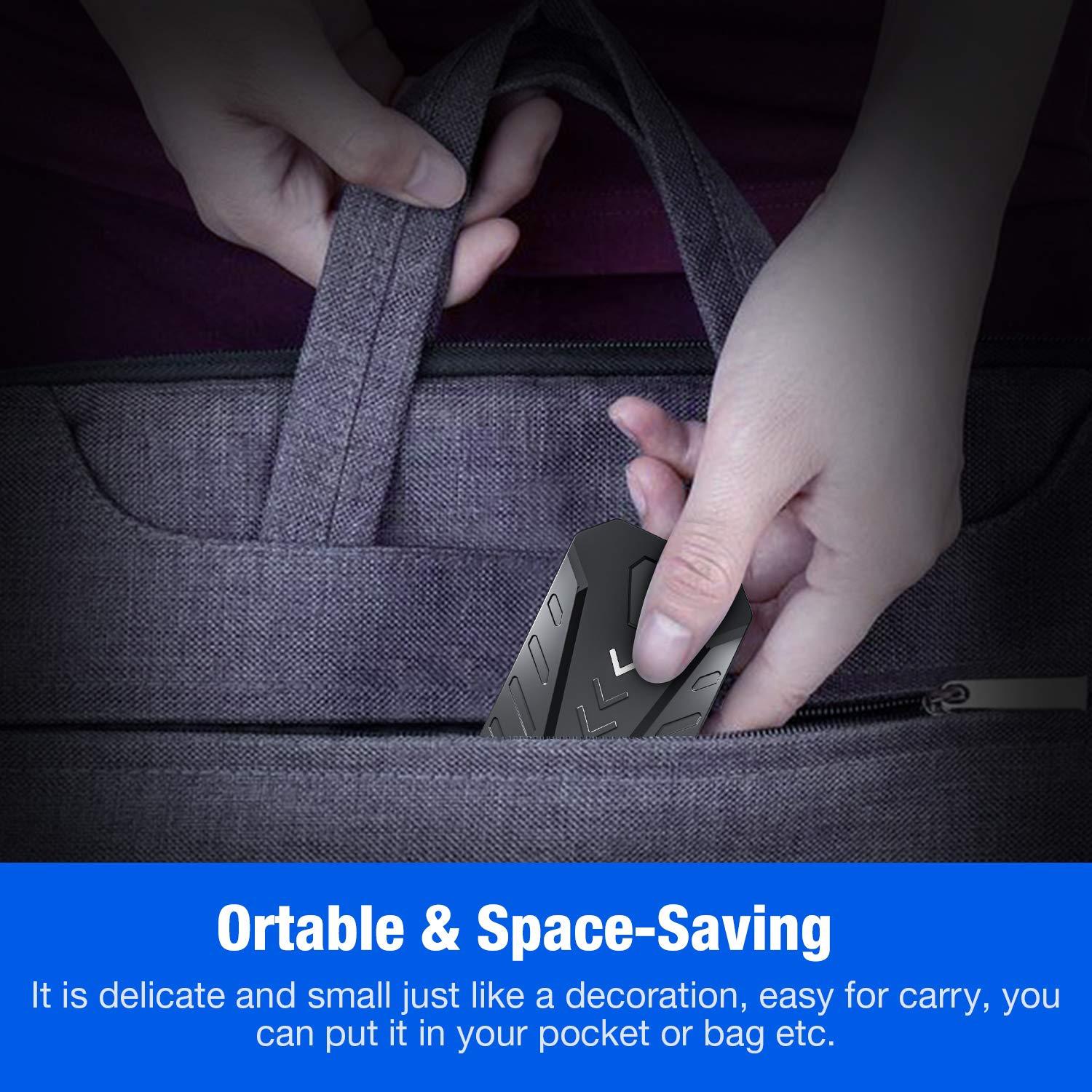
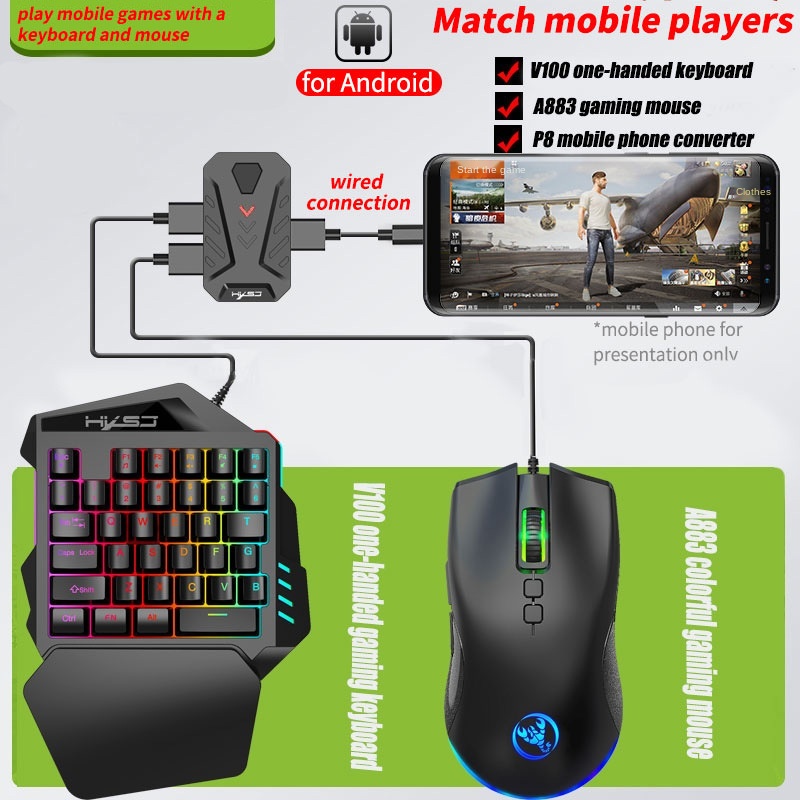
Description:
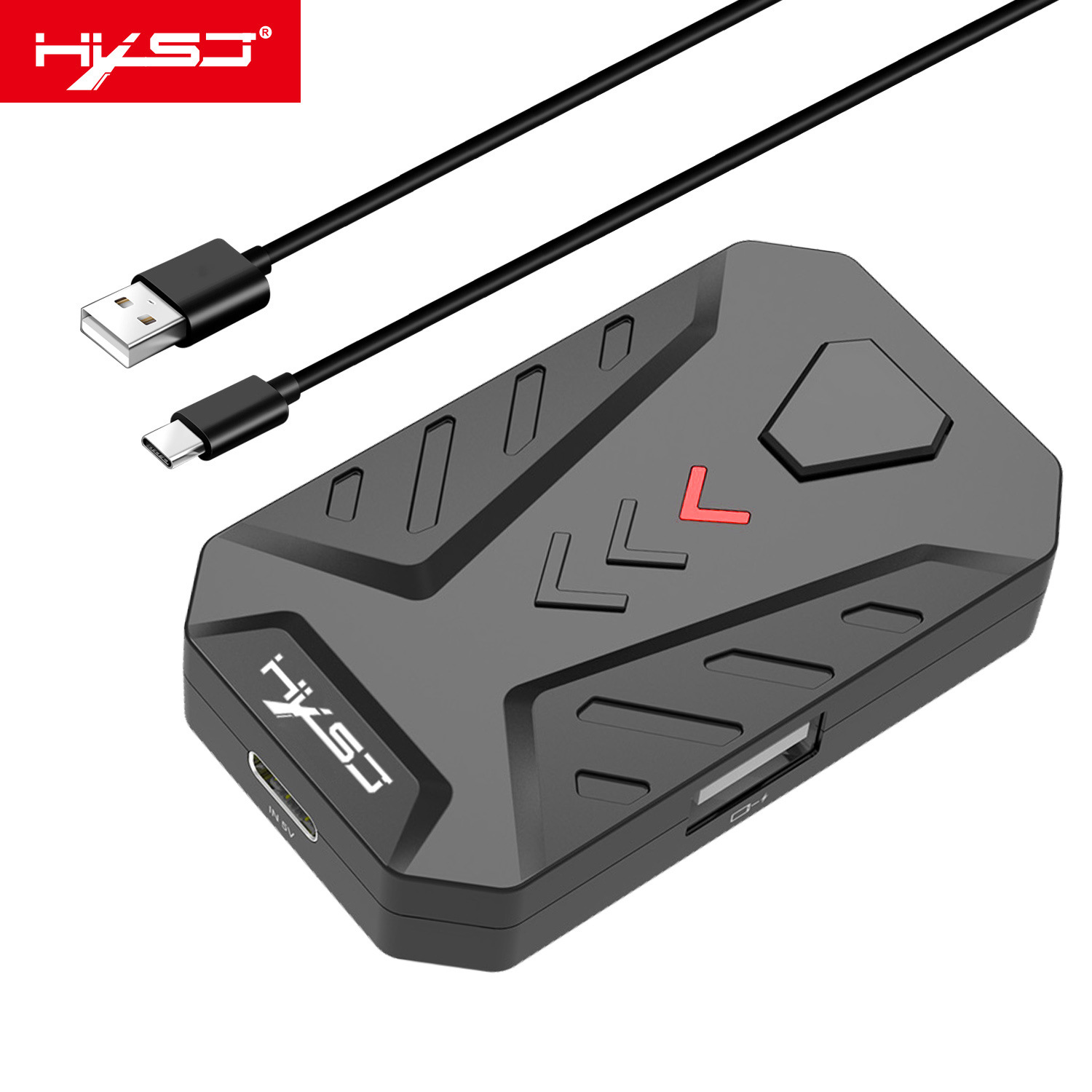
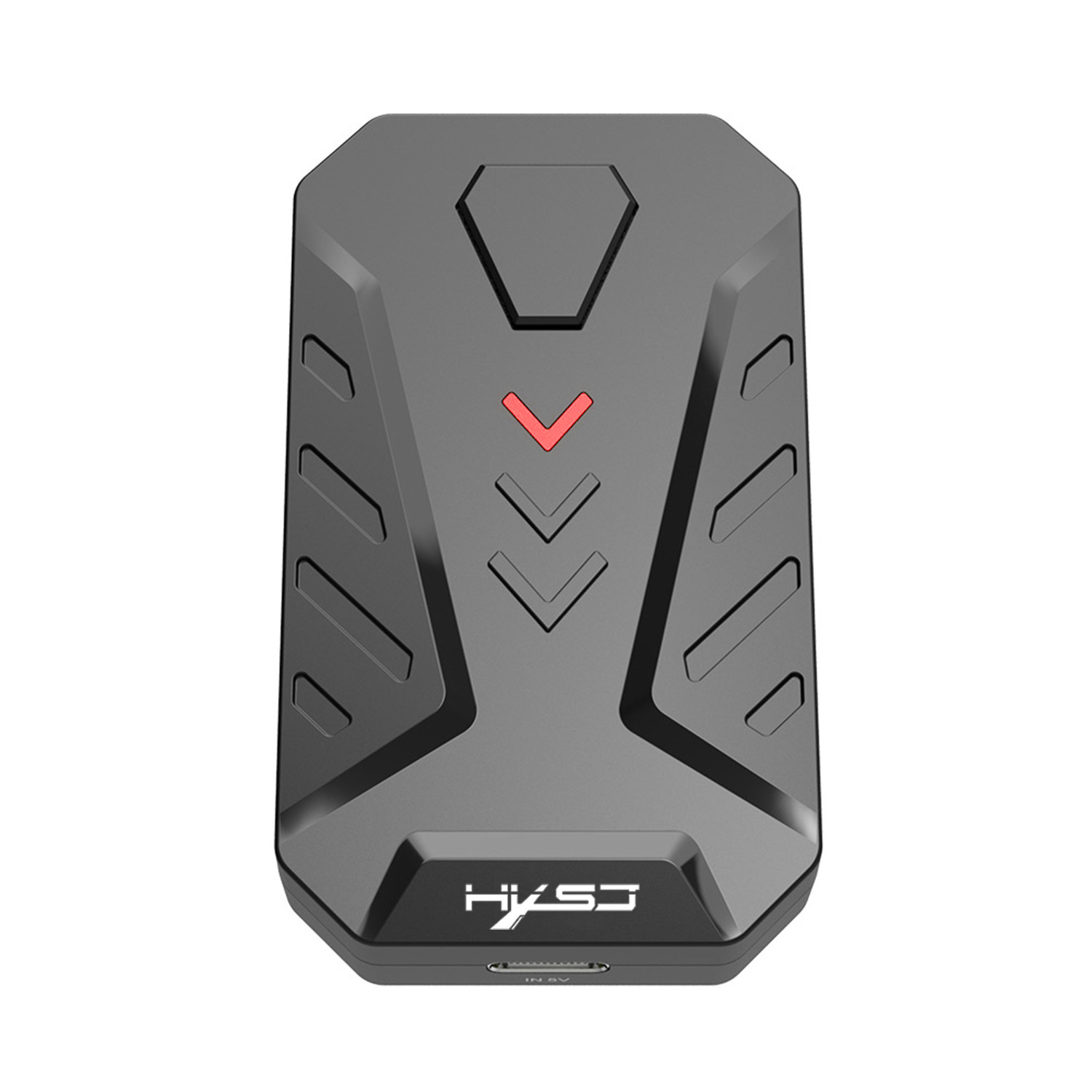
INTERFACE LAYOUT: or keyboard USB 1; or keyboard USB 2; power switch; mobile phone interface; power port. As shown in the instructions.
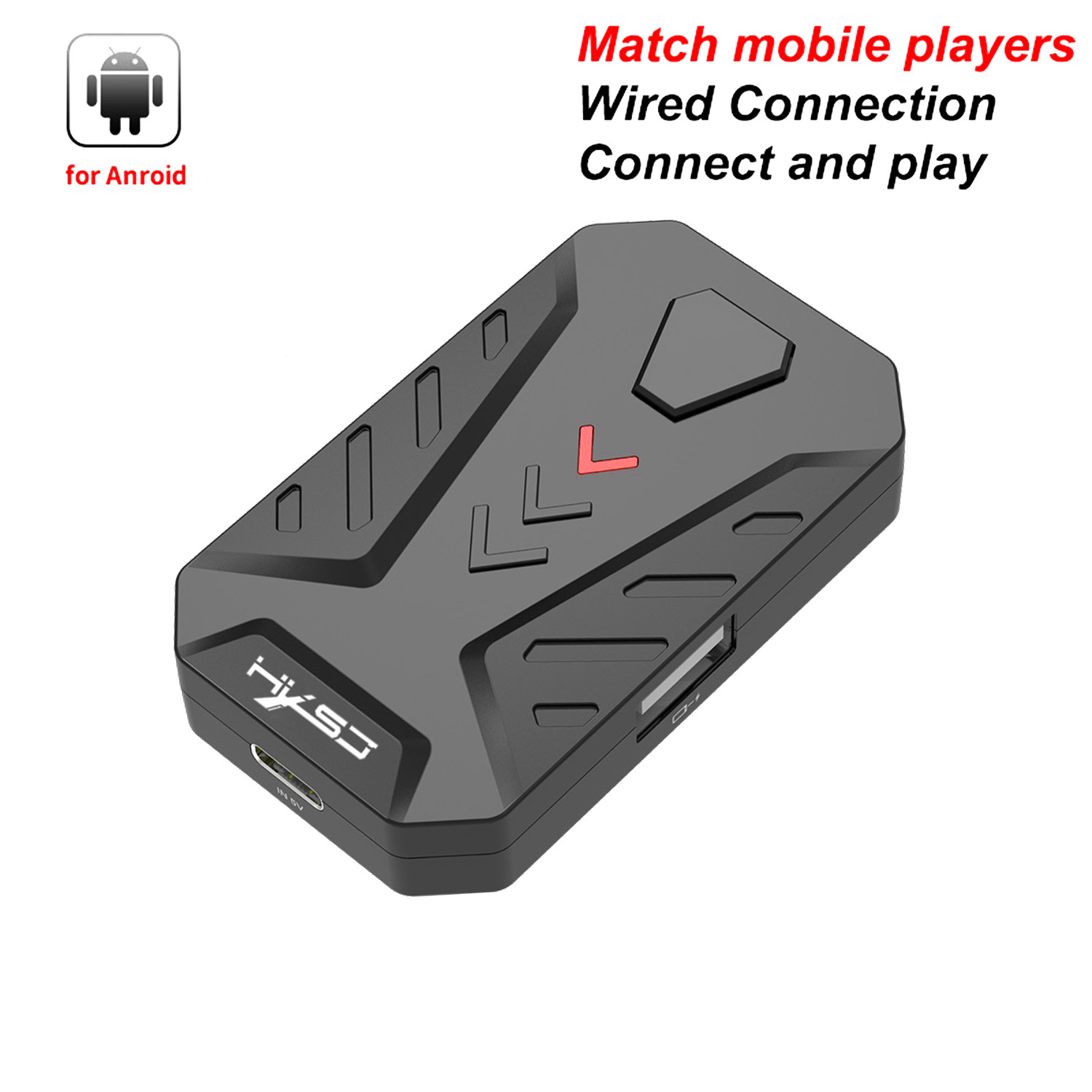
TYPE-C Wired Connection: Adaptation for Android system 6 or above. 1 TYPE-C data cable interface, with the number of 3 USB interfaces for the Wired, keyboard and . For more instructions, please read the instructions carefully.
Switch mode:Ctrl+F3 (mapping BT mode (MediaTek)); Ctrl+F4 (wired mode (non-MediaTek)).
BT name:Mapping mode (MediaTek): LITE-A-xxx; Wired mode (non-MediaTek): LITE-U-xxx.
LED light:BT mapping mode (MediaTek purple light); Wired mode (non-MediaTek red light).
Connection protocol:BT mapping mode (MediaTek wireless BT transmission function); Wired mode (non-MediaTek wired USB transmission function).
Specification:
Size: 68x40x13.3mm/2.68x1.57x0.52inches
Packing size: 114x100x37mm/4.49x3.94x1.46inches
Item weight: 21g
Packing weight: 55g
Input voltage/current: 5V/2A
Data cable length: 80cm
Switch key mode:
1: default plug-in automatic power on
2: Click to shut down
3: Click to turn on
4: Long press for 5 seconds to reset BT
Package Includes:
1Piece P8 Converter for Android System
1Piece 80cm TYPE-C Data Cable
1Piece User English Manual
1Piece Colorful Box
- If you are bidding or ordering more than one item, the items will be combined into one order automatically thus you can pay altogether. If you want not to combine, please buy one and immediately pay one separately.
- Please pay what you win in 7 days. Unpaid Dispute will be automatically open if payment is not received after 7 days. If you pay the bill after received unpaid dispute, please email us to close the unpaid dispute. Because the unpaid dispute will not be closed automatically, and we may ignore it.
- The buyer is responsible for any applicable import duties and local taxes. Please verify with your customs before making your purchase.
- Please verify your address during checkout. We are not responsible for any wrong or undeliverable addresses.
- We are committed to give you the best customer service possible. If for any reason you are unsatisfied with a purchase, please contact us and we'll assist you with a prompt solution. Please let us work on the issues. We'd like to settle any problem in a friendly manner. Please do not open a case on eBay or PayPal, or leave any negative or neutral feedbacks directly!
- We always reply to messages within 2 business days (off-duty at weekend). Due to the difference of time zone between Hong Kong and your location, sometimes the answer will be delayed. If you do not get a response from us after 2 business days, please check your junk or spam mailbox.
- Unsatisfied product can be returned within 30 days from the delivery date. We can offer a full refund or exchange, but we are not responsible for return shipping cost. Please contact us to get a RMA number before sending out your return.
-
Feedback:
1. Since your feedback is very important to our business's development, we sincerely invite you to leave positive feedback with four 5-Detailed Selling Rating (DSR) to us basing on your satisfaction with our commodity and service. It's just take you 1 minute.2. Unfortunately, If you are planning to give us a neutral/negative feedback because of your bad buying experience with us, please contact us at any time so as to clear up your discontent and resolve the problem.
Featured Products