Description
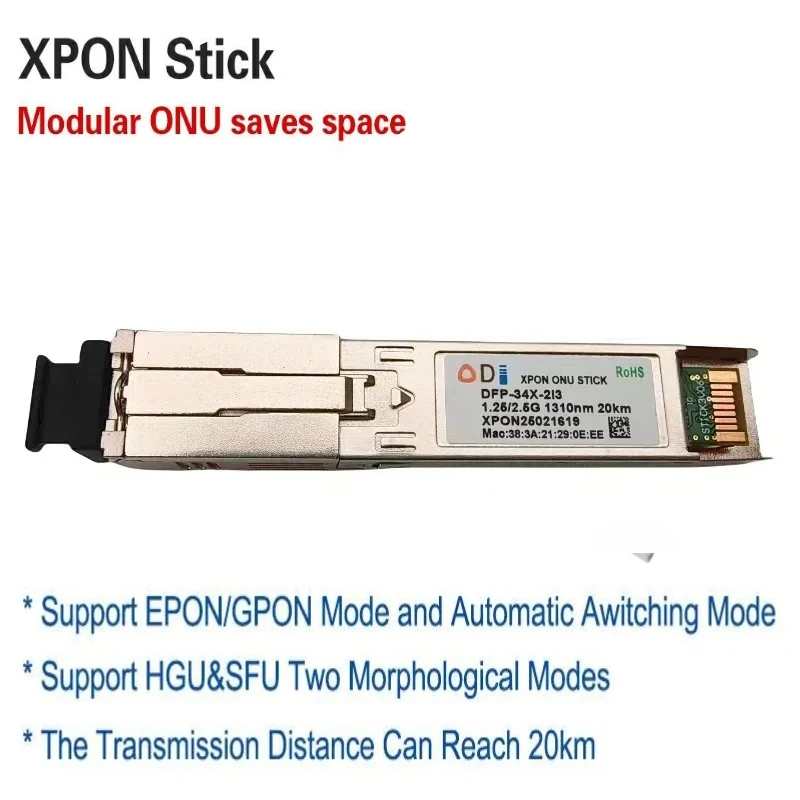
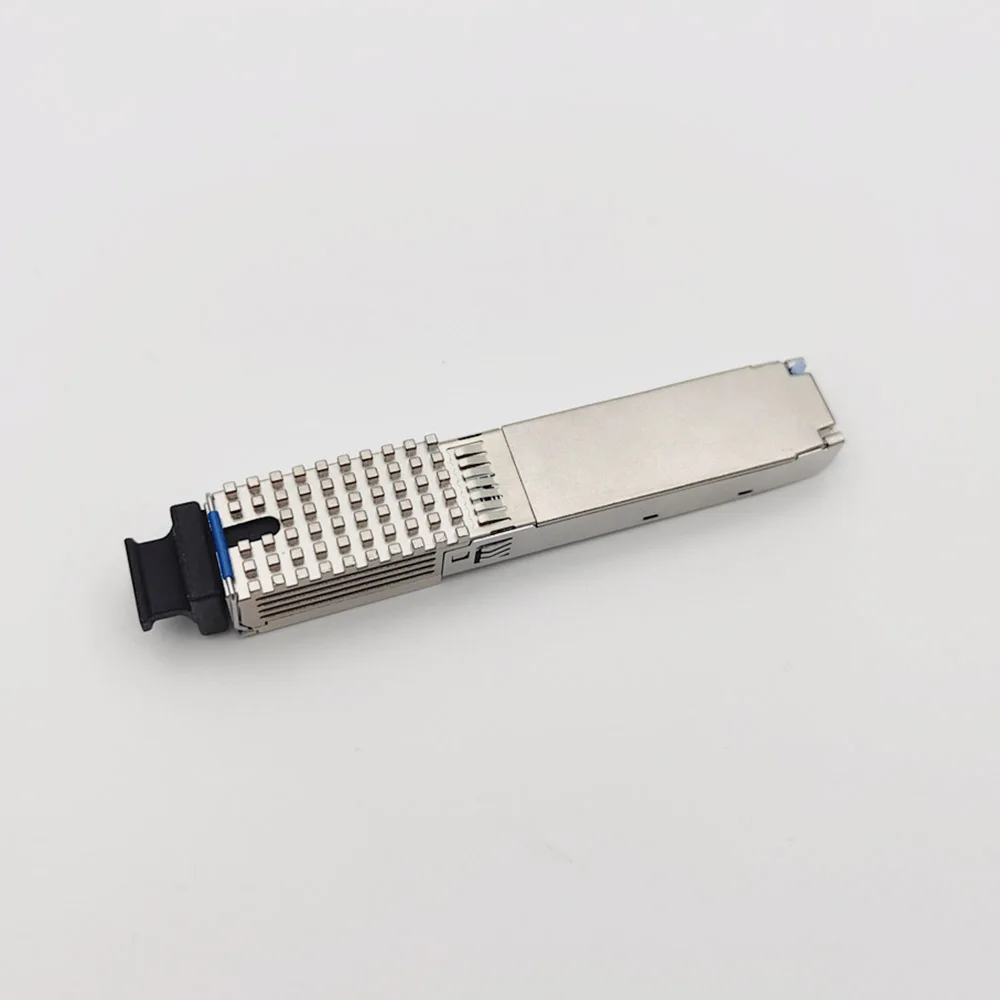
XPON 1.25G/2.5G SFP ONU Stick With MAC SC Connector DDM pon module
XPON=XPON 1.25G/2.5G ,It can use for Epon and Gpon at the same time
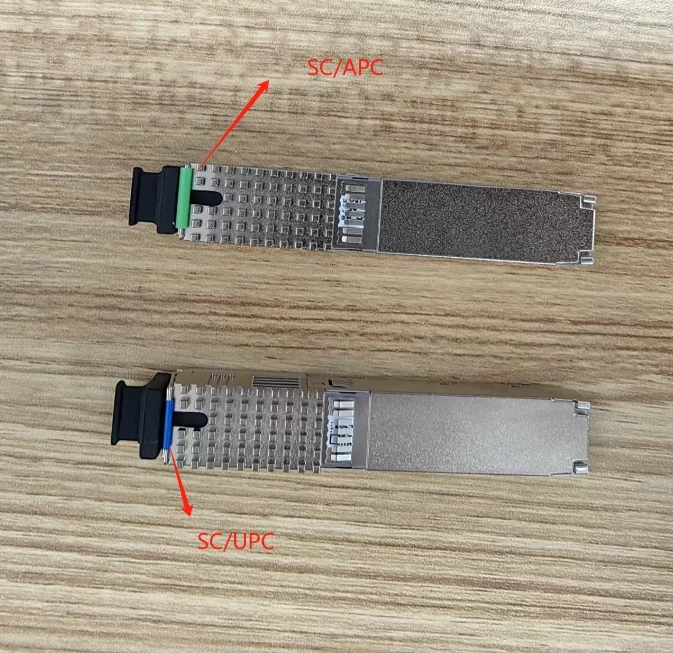
Connector:SC/UPC (If you need SC/APC ,Please leave us message )
Product Overview
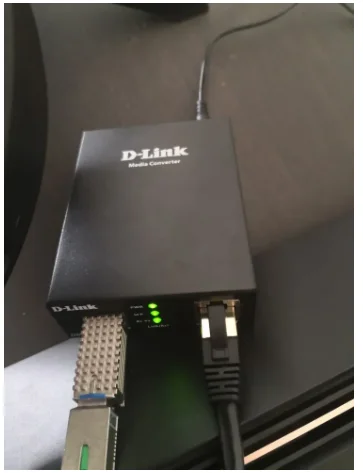
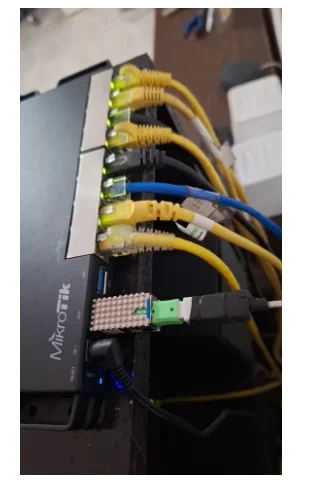
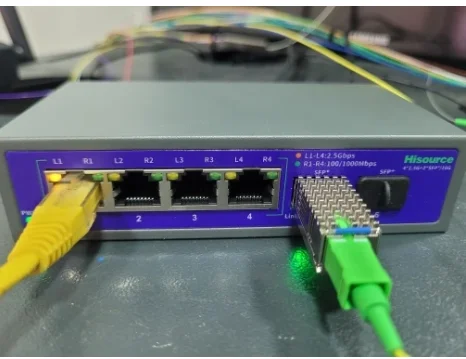
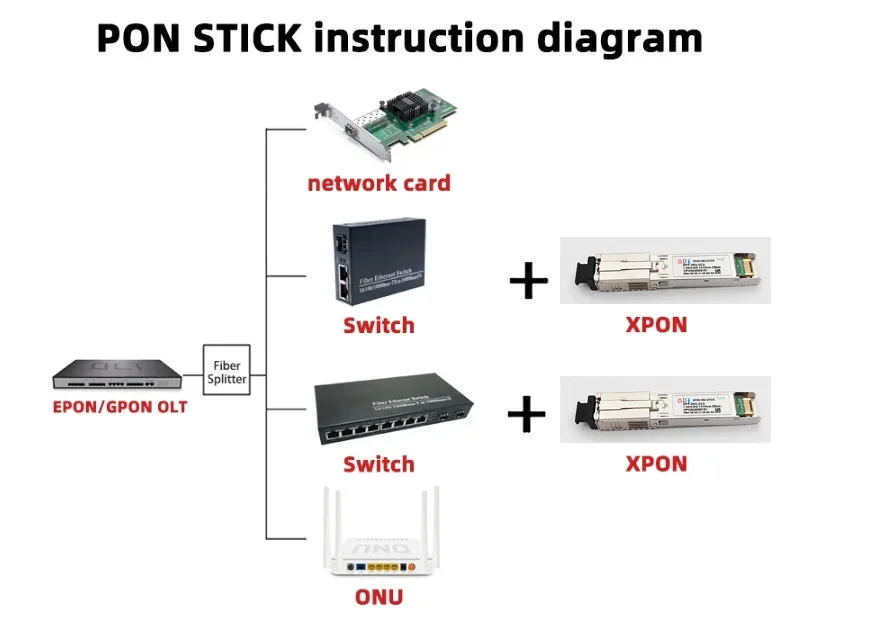
PAC-XPON-STICK is a miniature XPON SFP ONU device that can be plugged into the SFP optical port of a switch or routing device to provide XPON network access to the device. In principle, the
PAC-XPON-STICK is an optical module, but it has a built-in CPU, flash memory, and a system, so it can be used as an optical cat.
Key Features
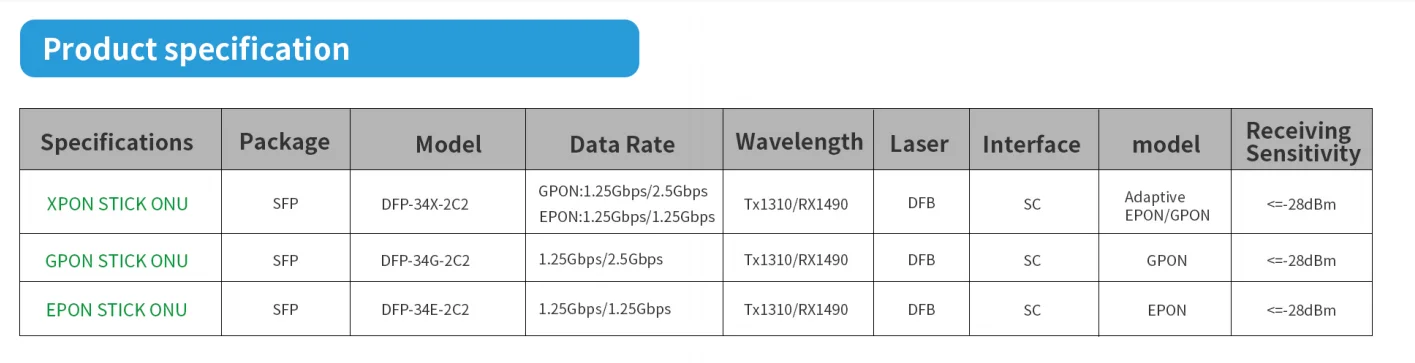
1. 1490 nm wavelength downstream,1310 nm wavelength upstream
2. GPON: 2.5Gb/s line rate downstream, 1.25 Gb/s line rate upstream
EPON: 1.25Gb/s line rate downstream, 1.25 Gb/s line rate upstream
3.
Complies with SFP Multi-Source Agreement (MSA) SFF-8074i
4. Digital Diagnostic Monitor(DDM) interface compatible with SFF-8472
5. Complies with ITU-T G.984.2, G.984.2 Amendment 1
6. Complies with ITU-T G.988 ONU management and control interface (OMCI)
7.
Class I laser safety standard IEC-60825 compliant
8.
RoHS compliance
Technical Parameter
Item | PAC-XPON-STICK |
Interface | 1*PON |
PON | Physical Interface: PON Port |
type: SC/UPC ( if you need SC/APC ,Please leave message ) | |
Size | 8.2mm x 6.8mm x 75mm |
weight | <19g |
Environment | Operating temperature:-40°C~85°C (I Temp) |
Operating temperature:0°C~70°C (C Temp) | |
Storage humidity:5%~95% (non-condensing) | |
Power Supply | 3.3V |
Power Consumption | <2.5W |
PON Function | GPON/EPON adaptive |
Mode | SFU |
Optionally support some functions of HGU(DCHP/PPPoE/NAT) | |
Configure MAC address | Support |
Configure SN | Support |
Configure Vendor ID | Support |
Configure PVID | Support |
DDMI | Support |
Management | Http/telent/SSH/TR069 |
SFP MSA Standard | Support |
VLAN | VLAN transport transmission |
VLAN swtich function |
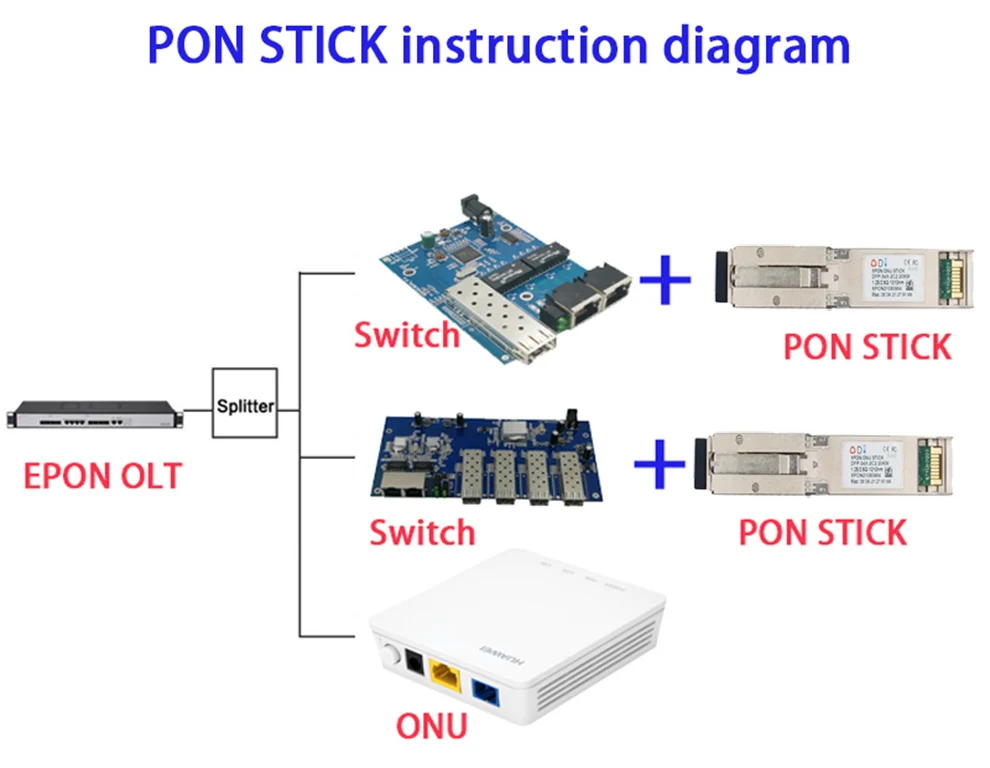
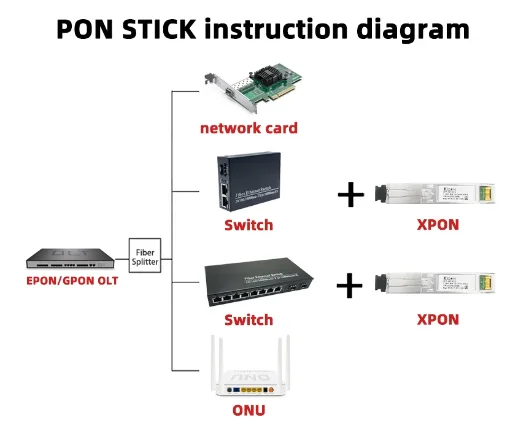
It is a 'PON on a Stick*' that an entire FTTH ONU in a slightly oversized SFP.lt can be plugged into networking equipment.
Allowing the data interfaces on a switch, router, etc. to be customized for different fiber environ-ments and distance requirements.
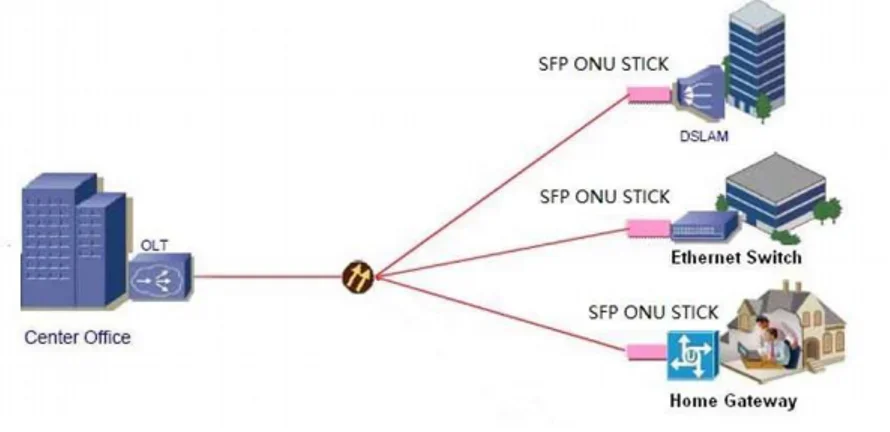
1GE ONT software version is SFU default,You dont need to do any configuration via ont web.Support port mode of VLAN configuration and u could configure port vlan of ont via olt.After reset ont,there is no wan connection.
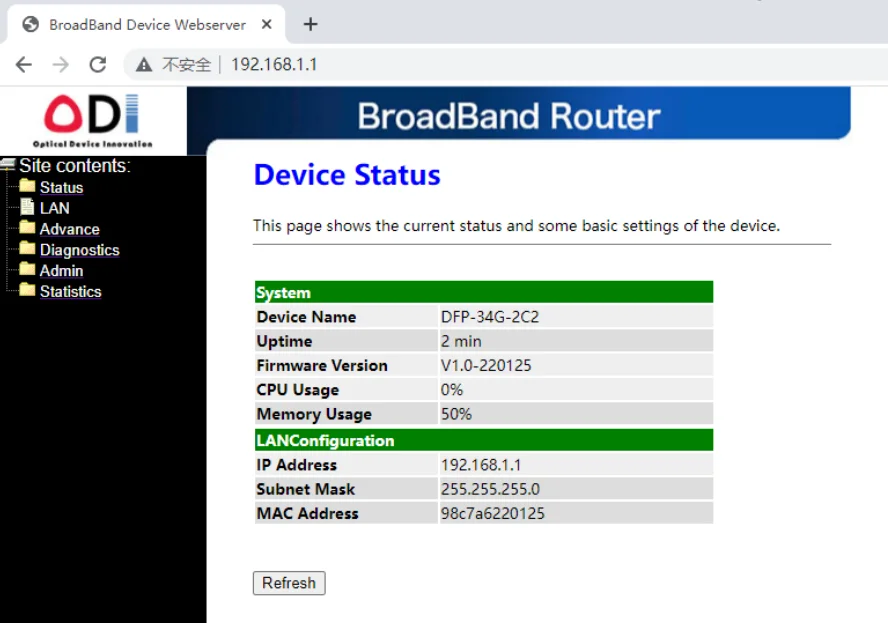
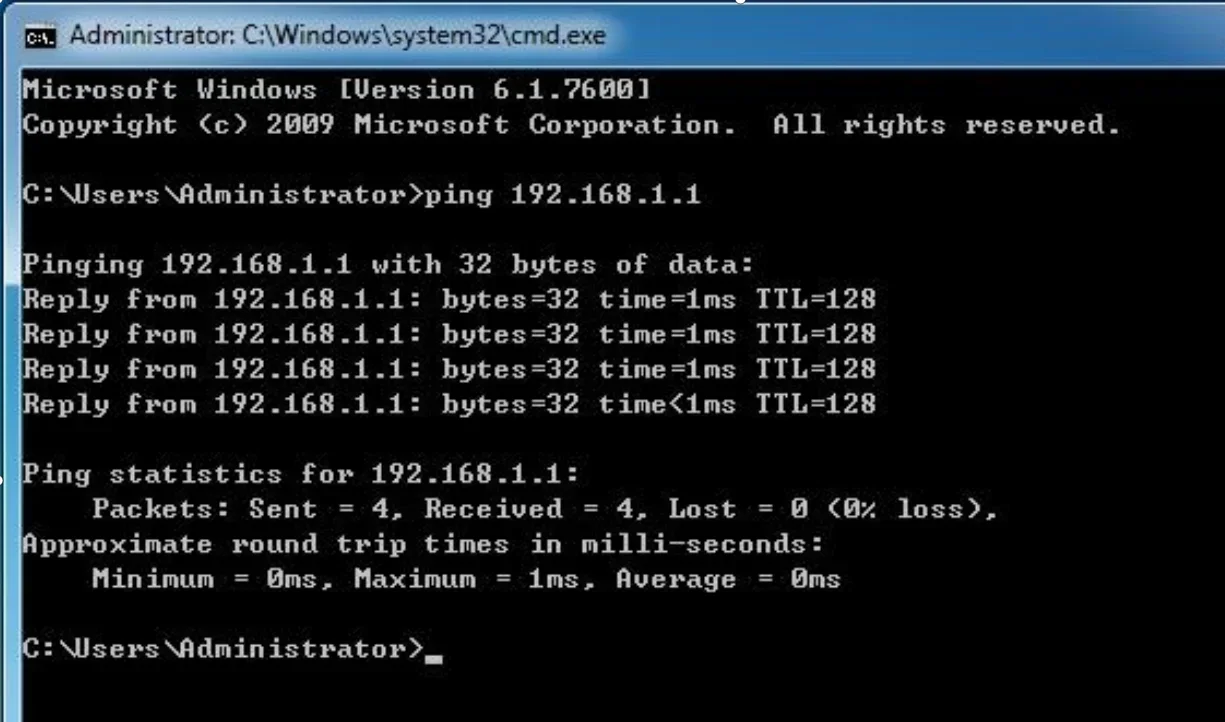
【Figure 1】 |
Please don’t power off the ONT in the process of manage the ONT by the WEB interface.
2 Login ONT
Step 1 Open the explore browser and input the IP address:http://192.168.1.1. (ONT defaultIP)
Step 2 You need the user name and password for login.The default username and password are on the label of the ONT bottom.Default administrator user name and password is “admin” and “admin”
【Figure 2】
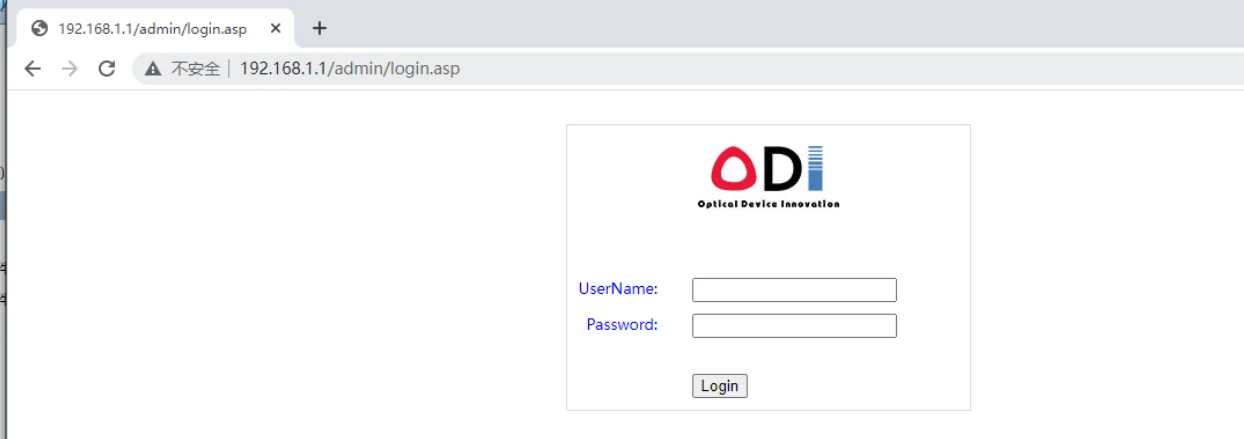
After you login the ONT as the administrator,you can check,configure and change the configuration of the ONT.Some of configuring and changing will take effect only after restart the ONT.
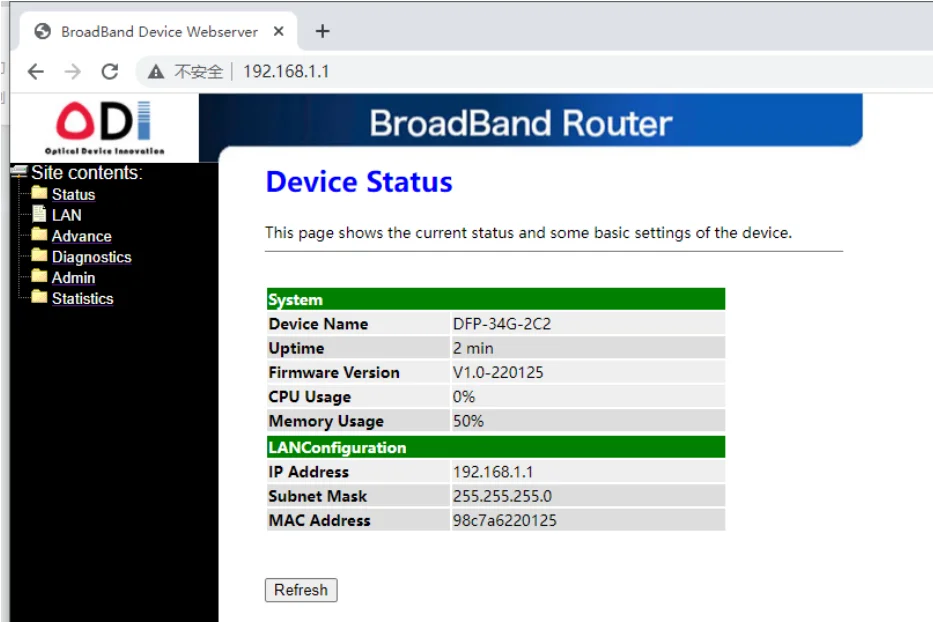
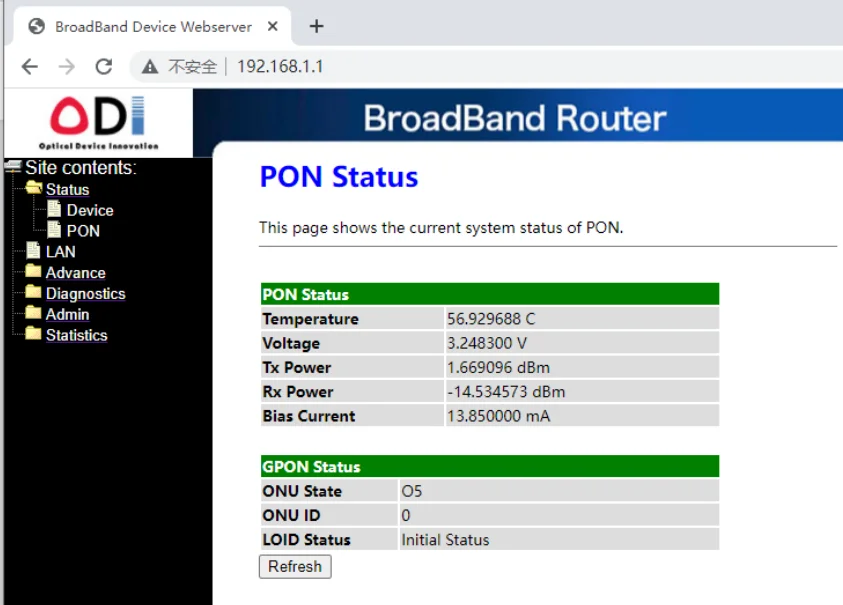
Login success,a “Device Status” windows will show as bellow.
3 ONTAuthentication
Inthenavigationtreeontheleft,selectAdmin>GPONSetting.Inthe
pane on the right, you can view or change the authentication mode for the registration of the ONT on the OLT, as shown in Figure.
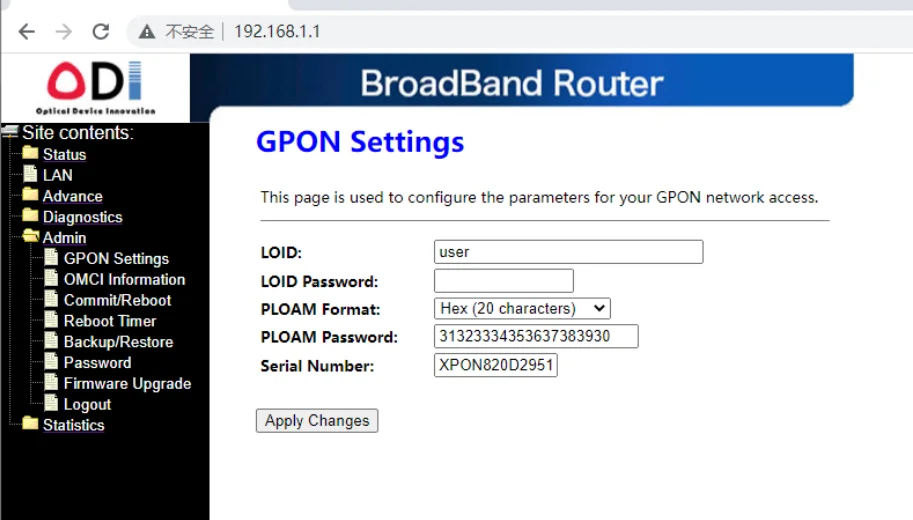
Click Apply to apply the configuration
Note: Suggest you use the Chrome Internet Explorer to avoid display problem.
You can modify:
1.MAC address via LLID index 0 after inserting EPON optical fiber
2.GPON SN via Serial Number after inserting GPON optical fiber
3.PLOAM password/LOID/LOID password after inserting GPON optical fiber
Once reset , these settings will be restore to default
There is another way to modify via commands in telnet:
1.enable telnet service in windows system
2.telnet 192.168.1.1
3.login account: admin/admin
4.flash set ELAN_MAC_ADDR XXXX //Modify MAC address
flash set GPON_SN XXXX //Modify GPON SN
flash set LOID XXXX
flash set LOID_OLD XXXX //Modify Loid
flash set LOID_PASSWD XXXX
flash set LOID_PASSWD_OLD XXXX //Modify Loid password
flash set GPON_PLOAM_PASSWD XXXX //Modify ploam
flash default cs //reset
reboot
4 LANConfiguration
In the navigation tree on the left,choose Advanced Setup>LAN Port Work Mode.In the pane on the right,determine whether the LAN port worksmode.
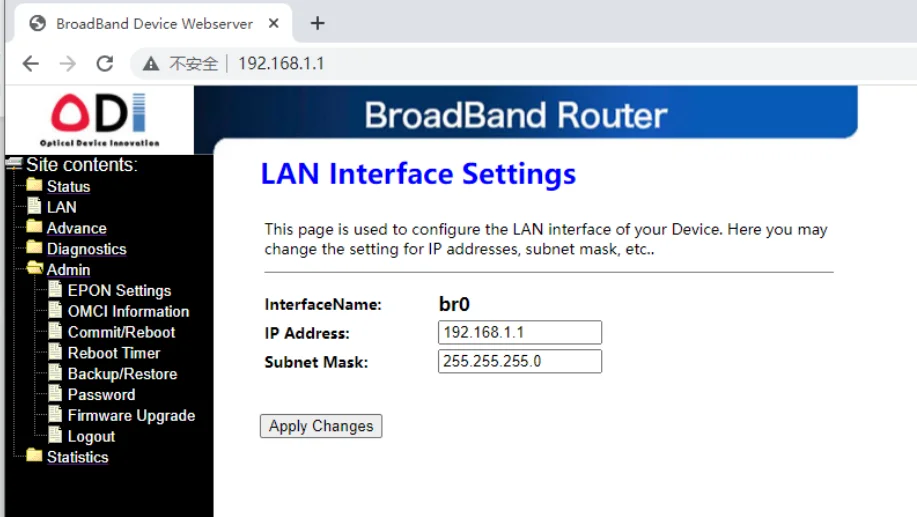
You can modify management ip address at this page
Management
1Reboot &Commit
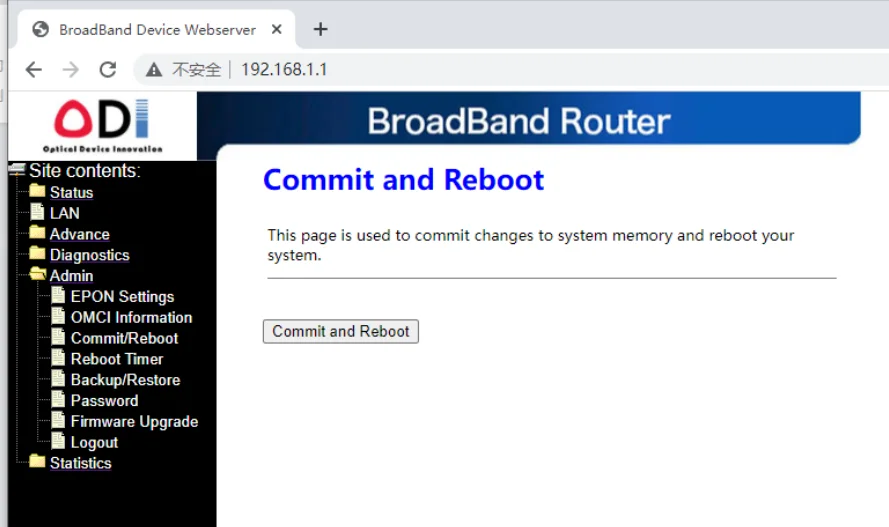
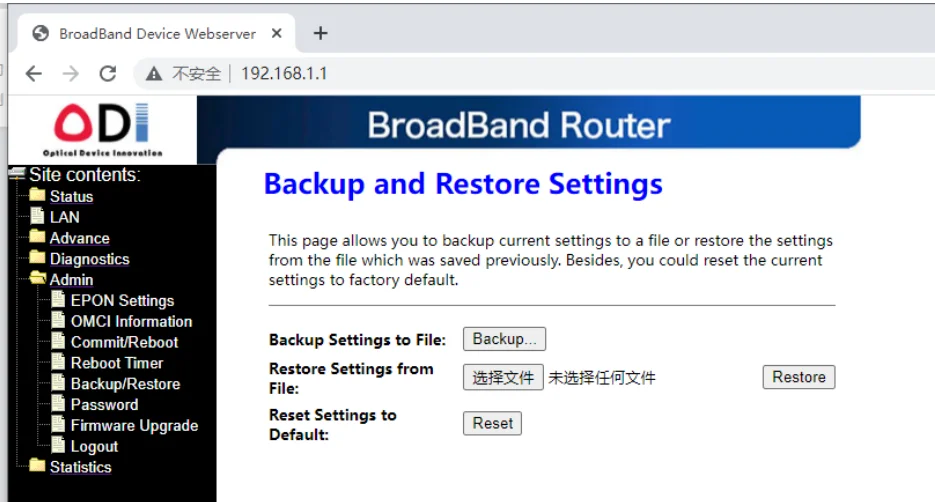
2Restore Default &Backup
Selected admin-> Backup/Restore
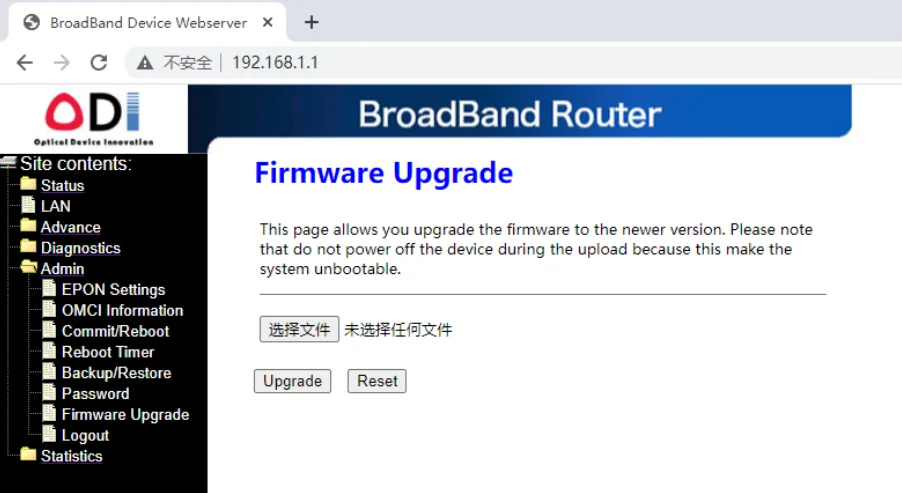
3Update software
Selected admin -> Firmware software -> Selected update file, Upgrade to the latest software version of the application
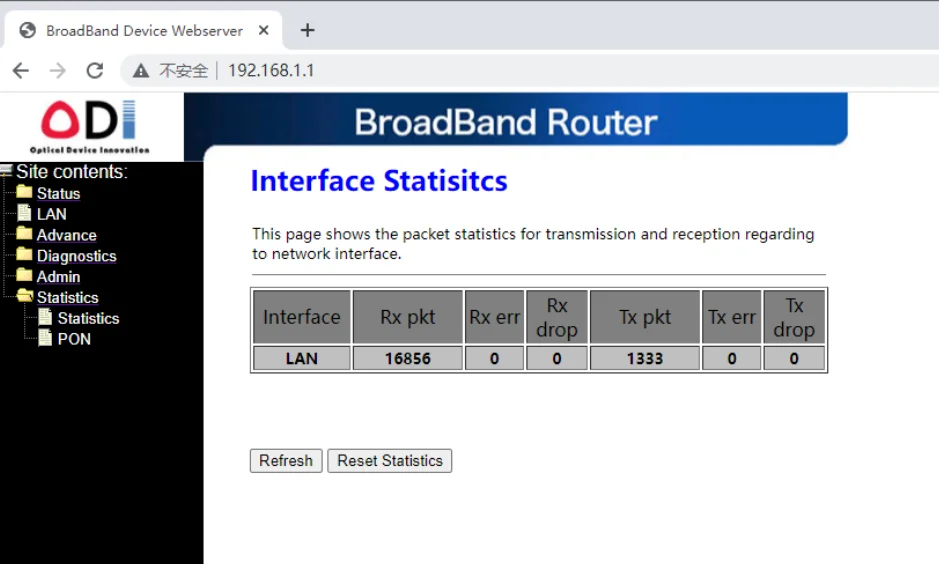
Statistic
It shows LAN statistics and PON interface statistic