

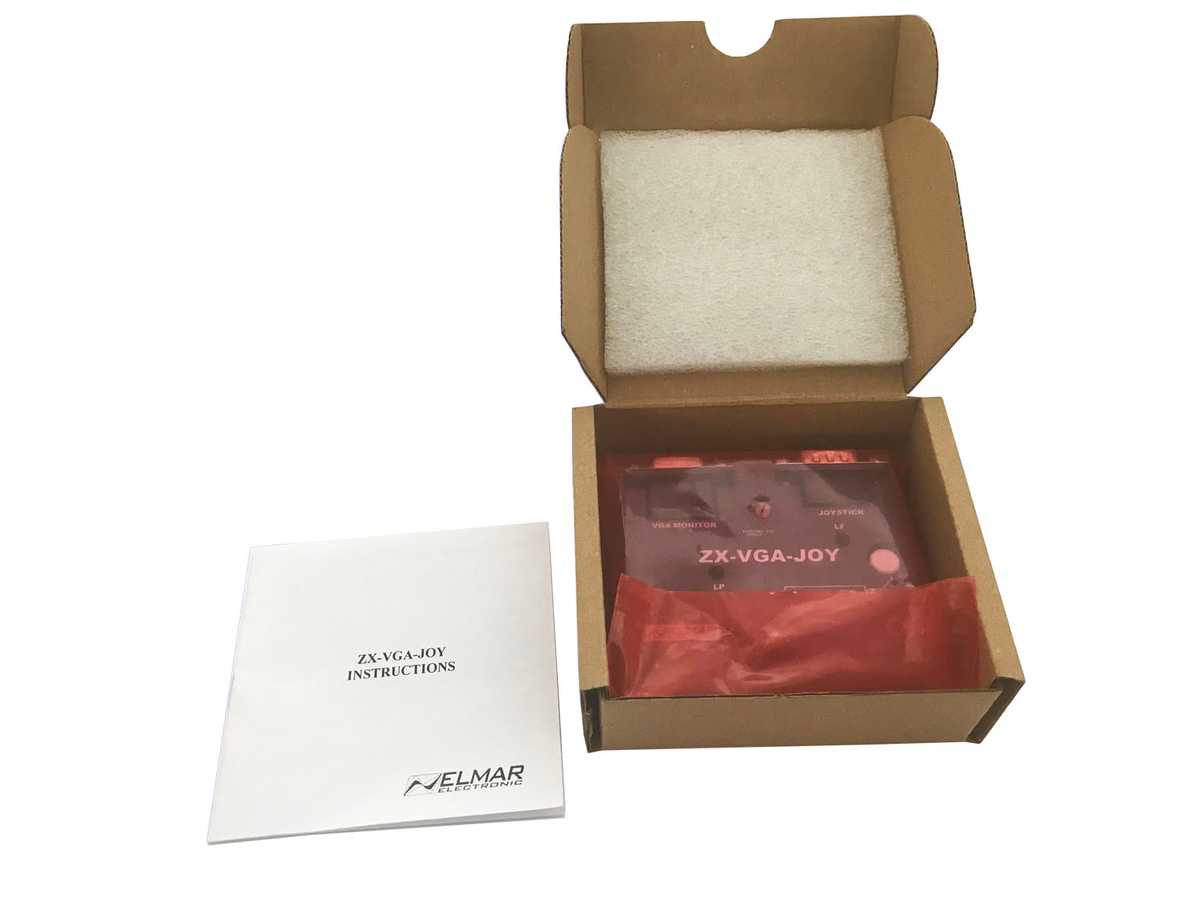
ZX-VGA-JOY Interface for ZX Spectrum (VGA and Joystick)
Spectrum users have been waiting for this interface for a long time.
Finally it's here: ZX-VGA-JOY
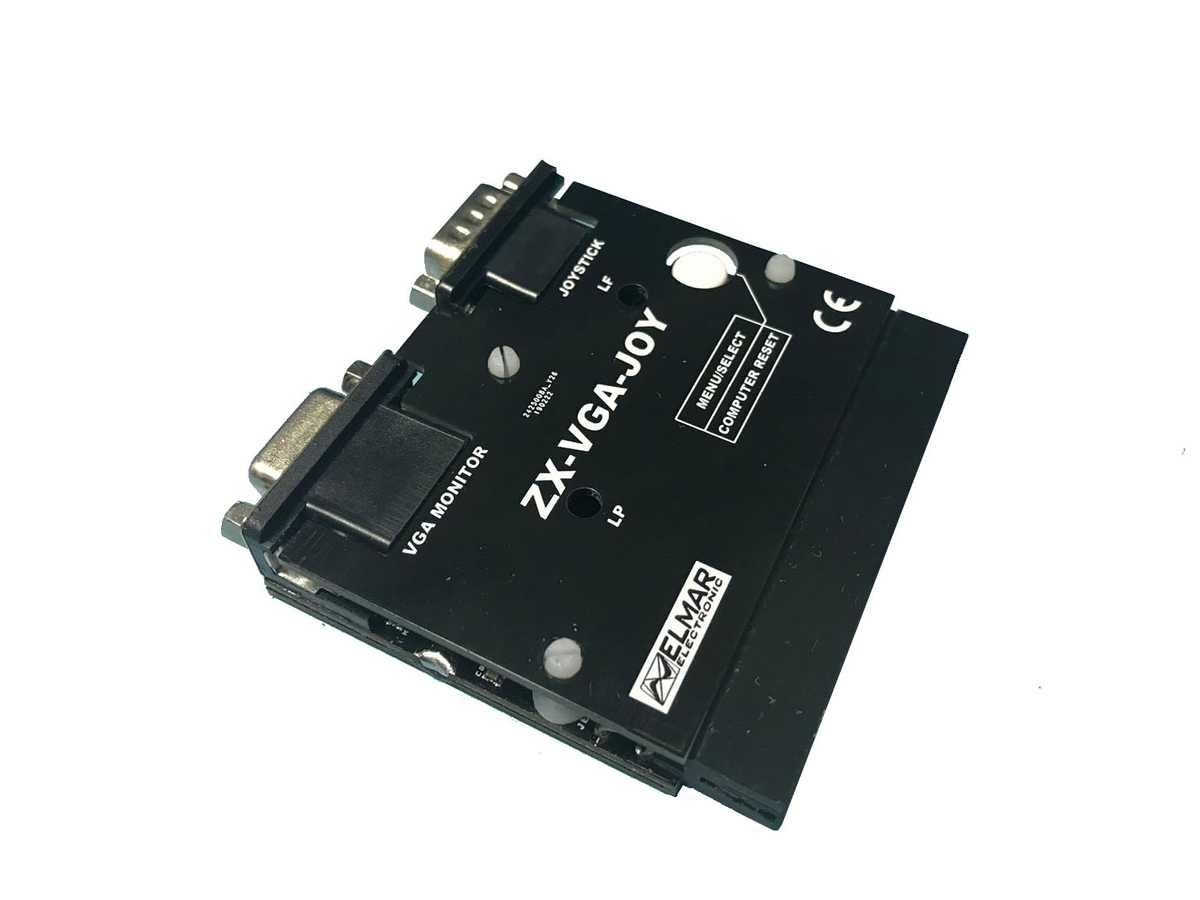
Now every Spectrum can easily be connected to a VGA monitor. As far as we know, the interface works with every monitor. There are 7 screen modes:
640 x 480 60Hz
640 x 480 75Hz
640 x 480 85Hz
800 x 600 60Hz
It is NOT a CONVERTER, which means that the image is created directly with the signals from the computer and is completely clear without any conversion losses.
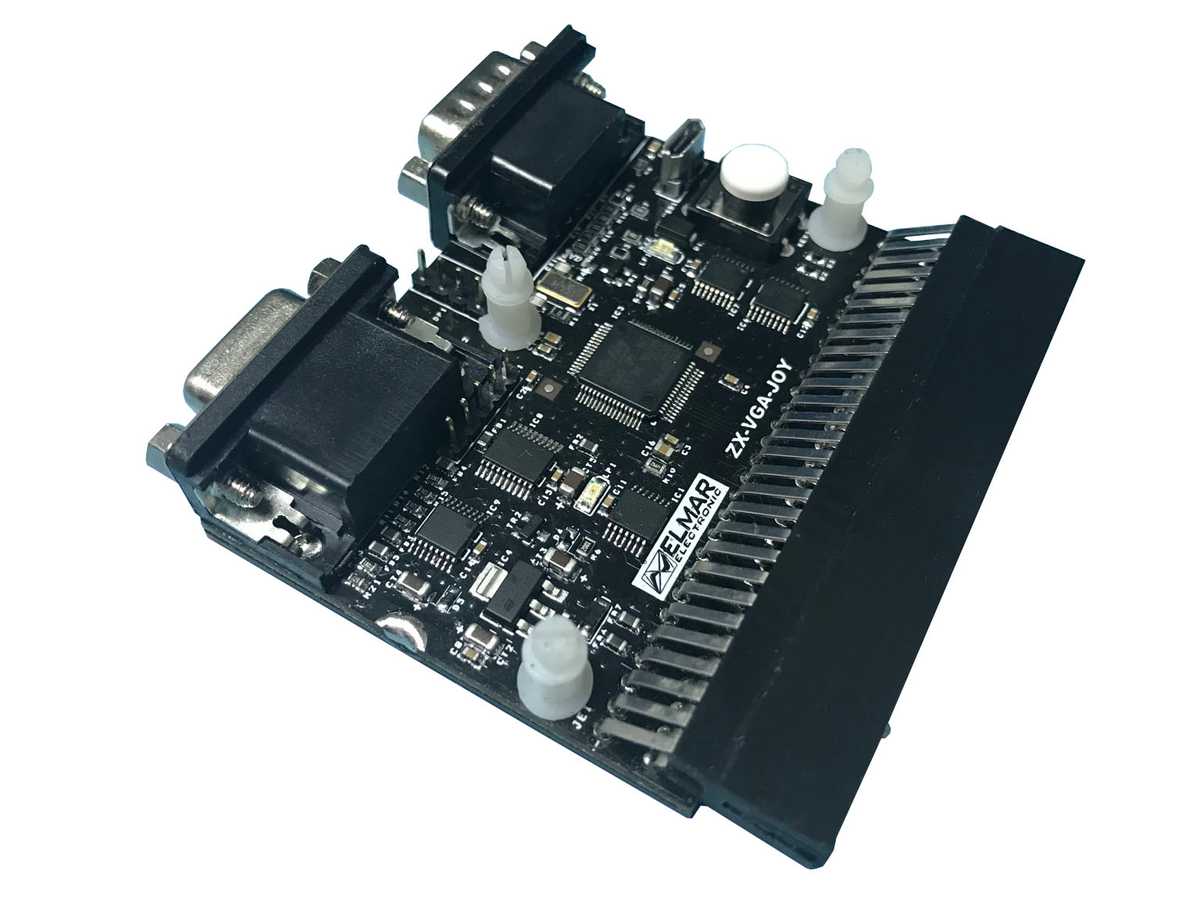
The interface is simply plugged into the Spectrum expansion port.
Furthermore, the interface has a Kempston joystick port and a reset button. The interface is configured via the built-in software.
The ZX-VGA-JOY includes:
- - Professional stable black case
- - Connections for joystick and USB (for updates)
- - Reset button
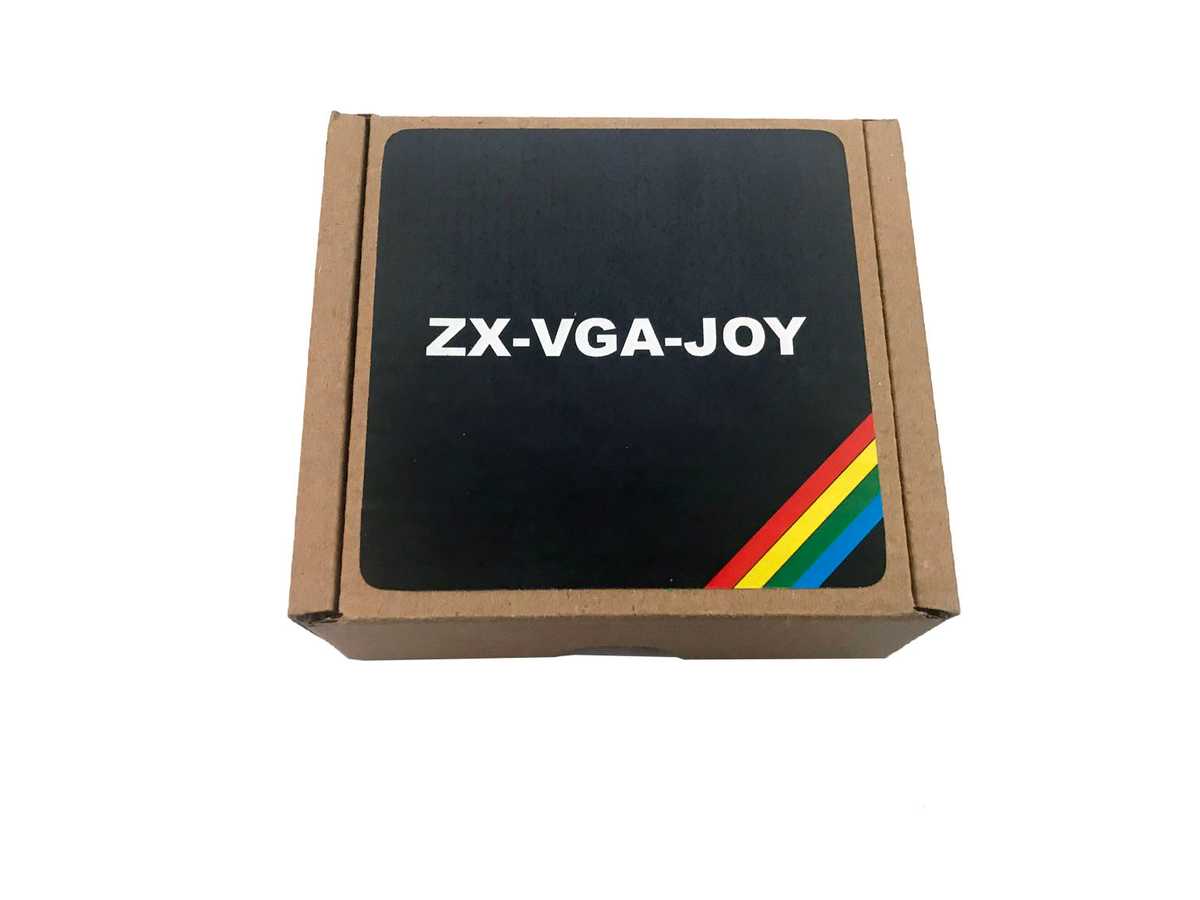
In the set is a detailed manual.
You still need a simple VGA monitor cable, which is normally available on every monitor.

Proven Quality from EU dealer
Immediate shipping and invoice with VAT
thousands of satisfied customers
Choose your shipment in the checkout
Spectrum users have been waiting for this interface for a long time.
Finally it's here: ZX-VGA-JOY
Now every Spectrum can easily be connected to a VGA monitor. As far as we know, the interface works with every monitor. There are 7 screen modes:
640 x 480 60Hz
640 x 480 75Hz
640 x 480 85Hz
800 x 600 60Hz
It is NOT a CONVERTER, which means that the image is created directly with the signals from the computer and is completely clear without any conversion losses.
The interface is simply plugged into the Spectrum expansion port.
Furthermore, the interface has a Kempston joystick port and a reset button. The interface is configured via the built-in software.
The ZX-VGA-JOY includes:
- - Professional stable black case
- - Connections for joystick and USB (for updates)
- - Reset button
In the set is a detailed manual.
You still need a simple VGA monitor cable, which is normally available on every monitor.
Checkout
Use the eBay checkout and pay on eBay. Please ensure that your address information is correct, especially the shipping address. Choose your shipping method; we offer several options. Pay on eBay.
Shipping
Pick up
After notification by phone, you can pick up your item in our warehouse.
Please note our opening times for picking up your order: Mon-Fri: 8 a.m.-5 p.m.
Sintech has been your competent partner for over 30 years when it comes to spare parts and accessories in the field of smartphones, tablet PCs, smartwatches, game consoles and retro PCs.
You can find our contact information at the bottom under "Seller's Legal Information"
Tab 6 - Das Wichtigste auf einen Blick
Bitte den Text, den Sie ändern möchten doppelt anklicken oder markieren und beginnen zu tippen.
Um Bilder zu tauschen bitte das Bild anklicken und "Bild einfügen" in der Toolbar auswählen.
Zum Verlinken von Buttons und "Passend-Dazu"-Artikeln Text und Bild durch Doppelklicken markieren (für Buttons und die "Passend-Dazu"-Artikel rechts) und anschließend den Link über den Menüpunkt "Link einfügen" in der Toolbar hinterlegen.
Mehr Informationen in der Anleitung weiter unten
Lorem ipsum dolor sit amet
Lorem ipsum dolor sit amet, consetetur sadipscing elitr, sed diam nonumy eirmod tempor invidunt ut labore et dolore magna aliquyam erat, sed diam voluptua. At vero eos et accusam et justo duo dolores et ea rebum. Stet clita kasd gubergren, no sea takimata sanctus est Lorem ipsum dolor sit amet. Lorem ipsum dolor sit amet, consetetur sadipscing elitr, sed diam nonumy eirmod tempor invidunt ut labore et dolore magna aliquyam erat, sed diam voluptua. At vero eos et accusam et justo duo dolores et ea rebum. Stet clita kasd gubergren, no sea takimata sanctus est Lorem ipsum dolor sit amet. Lorem ipsum dolor sit amet, consetetur sadipscing elitr, sed diam nonumy eirmod tempor invidunt ut labore et dolore magna aliquyam erat, sed diam voluptua. At vero eos et accusam et justo duo dolores et ea rebum. Stet clita kasd gubergren, no sea takimata sanctus est Lorem ipsum dolor sit amet.Lorem ipsum dolor
Lorem ipsum dolor sit amet, consetetur sadipscing elitr, sed diam nonumy eirmod tempor invidunt ut labore et dolore magna aliquyam erat, sed diam voluptua. At vero eos et accusam et justo duo dolores et ea rebum. Stet clita kasd gubergren, no sea takimata sanctus est Lorem ipsum dolor sit amet. Lorem ipsum dolor sit amet, consetetur sadipscing elitr, sed diam nonumy eirmod tempor invidunt ut labore et dolore magna aliquyam erat, sed diam voluptua. At vero eos et accusam et justo duo dolores et ea rebum. Stet clita kasd gubergren, no sea takimata sanctus est Lorem ipsum dolor sit amet. Lorem ipsum dolor sit amet, consetetur sadipscing elitr, sed diam nonumy eirmod tempor invidunt ut labore et dolore magna aliquyam erat, sed diam voluptua. At vero eos et accusam et justo duo dolores et ea rebum. Stet clita kasd gubergren, no sea takimata sanctus est Lorem ipsum dolor sit amet.Lorem ipsum dolor sit
Lorem ipsum dolor sit amet, consetetur sadipscing elitr, sed diam nonumy eirmod tempor invidunt ut labore et dolore magna aliquyam erat, sed diam voluptua. At vero eos et accusam et justo duo dolores et ea rebum. Stet clita kasd gubergren, no sea takimata sanctus est Lorem ipsum dolor sit amet. Lorem ipsum dolor sit amet, consetetur sadipscing elitr, sed diam nonumy eirmod tempor invidunt ut labore et dolore magna aliquyam erat, sed diam voluptua. At vero eos et accusam et justo duo dolores et ea rebum. Stet clita kasd gubergren, no sea takimata sanctus est Lorem ipsum dolor sit amet. Lorem ipsum dolor sit amet, consetetur sadipscing elitr, sed diam nonumy eirmod tempor invidunt ut labore et dolore magna aliquyam erat, sed diam voluptua. At vero eos et accusam et justo duo dolores et ea rebum. Stet clita kasd gubergren, no sea takimata sanctus est Lorem ipsum dolor sit amet.Lorem ipsum dolor sit
Lorem ipsum dolor sit amet, consetetur sadipscing elitr, sed diam nonumy eirmod tempor invidunt ut labore et dolore magna aliquyam erat, sed diam voluptua. At vero eos et accusam et justo duo dolores et ea rebum. Stet clita kasd gubergren, no sea takimata sanctus est Lorem ipsum dolor sit amet. Lorem ipsum dolor sit amet, consetetur sadipscing elitr, sed diam nonumy eirmod tempor invidunt ut labore et dolore magna aliquyam erat, sed diam voluptua. At vero eos et accusam et justo duo dolores et ea rebum. Stet clita kasd gubergren, no sea takimata sanctus est Lorem ipsum dolor sit amet. Lorem ipsum dolor sit amet, consetetur sadipscing elitr, sed diam nonumy eirmod tempor invidunt ut labore et dolore magna aliquyam erat, sed diam voluptua. At vero eos et accusam et justo duo dolores et ea rebum. Stet clita kasd gubergren, no sea takimata sanctus est Lorem ipsum dolor sit amet.Lorem ipsum dolor sit
Lorem ipsum dolor sit amet, consetetur sadipscing elitr, sed diam nonumy eirmod tempor invidunt ut labore et dolore magna aliquyam erat, sed diam voluptua. At vero eos et accusam et justo duo dolores et ea rebum.- Stet clita kasd gubergren
- no sea takimata sanctus est
- Lorem ipsum dolor sit amet.
Lorem ipsum dolor sit amet, consetetur sadipscing elitr, sed diam nonumy eirmod tempor invidunt ut labore et dolore magna aliquyam erat, sed diam voluptua. At vero eos et accusam et justo duo dolores et ea rebum. Stet clita kasd gubergren, no sea takimata sanctus est Lorem ipsum dolor sit amet.
What distinguishes us
Quality
Since all of our products are already tested extensively in production, we can always guarantee you good quality.
Fast
Our products are dispatched within one working day after receipt of payment. We also answer support inquiries as soon as possible.
Support
If you have any questions about our products, please contact our support by email or phone. We're here to help.

|
powered by PlentyONE The all-in-one platform for successful e-commerce. |