International Buyers - Please Note:
a) Import duties, taxes and charges are not included in the item price or shipping charges. These charges are the buyer’s responsibility.
b) Please check with your country’s customs office to determine what these additional costs will be prior to bidding/buying.
Autel Wireless Diagnostic Interface Bluetooth VCI Device for Maxisys Tool
Description:
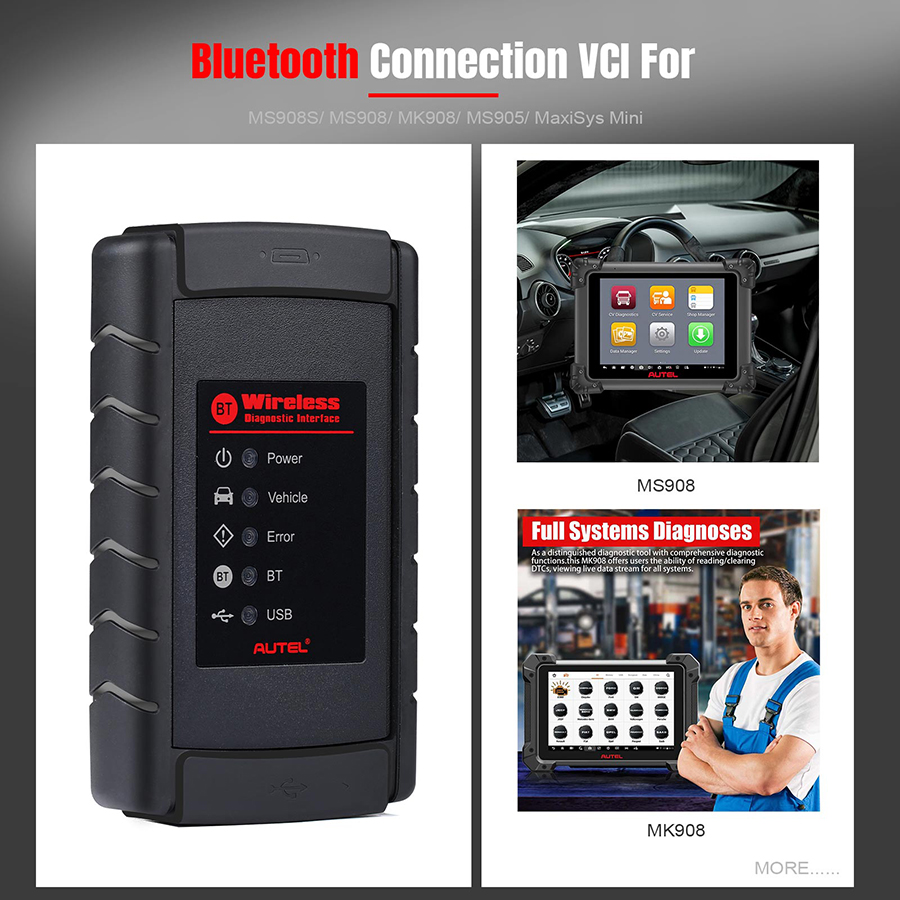
The Bluetooth Diagnostic Interface is a multi-brand device which comes with the MaxiSys tool kit. It is designed to connect wirelessly with the MaxiSys Display Tablet, as well as standalone PCs, as a vehicle communication interface (VCI) for vehicle data transmission. Thanks to the wireless Bluetooth technology, with which you are allowed to work freely around the vehicle.
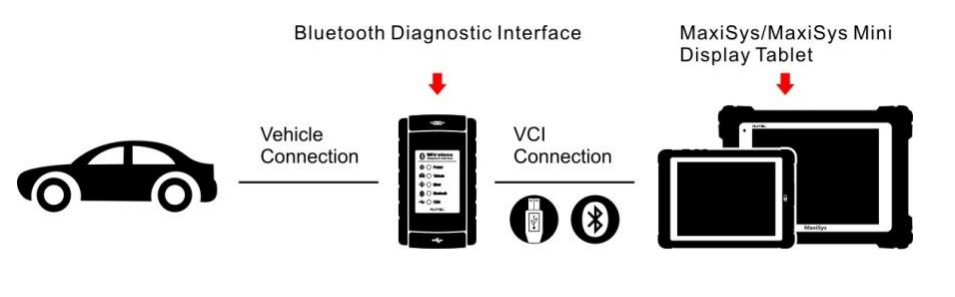
This interface device can communicate with vehicles' electronic control units (E-C-Us), guaranteeing performance and speed that redefine multi-brand diagnostics. The development of this interface has been focused on reducing the communication time, and ensuring the tool is practical to use.
The MaxiSys diagnostic platform combines the VCI device and the display tablet with technical information into a single p-rogram, ensuring quick and simple access to the vehicle to perform comprehensive diagnostics applications.
Autel Wireless VCI Features:
1. Supports comprehensive diagnosis and reading of control modules.
2. Designed to connect wirelessly with the MaxiSys Display Tablet, as well as standalone PCs via a USB 2.0 full-speed connection.
3. Features convenient wireless Bluetooth technology, which allows you to work freely around the vehicle.
4. Reduces the communication time, and guarantees performance and speed that redefine multi-brand diagnostics.5.
5. Support Update online.
6. Works with Autel Maxisys mini, MS905, MaxiSys Pro, MS908, MS908S, MK908 scanner.
Product Function:
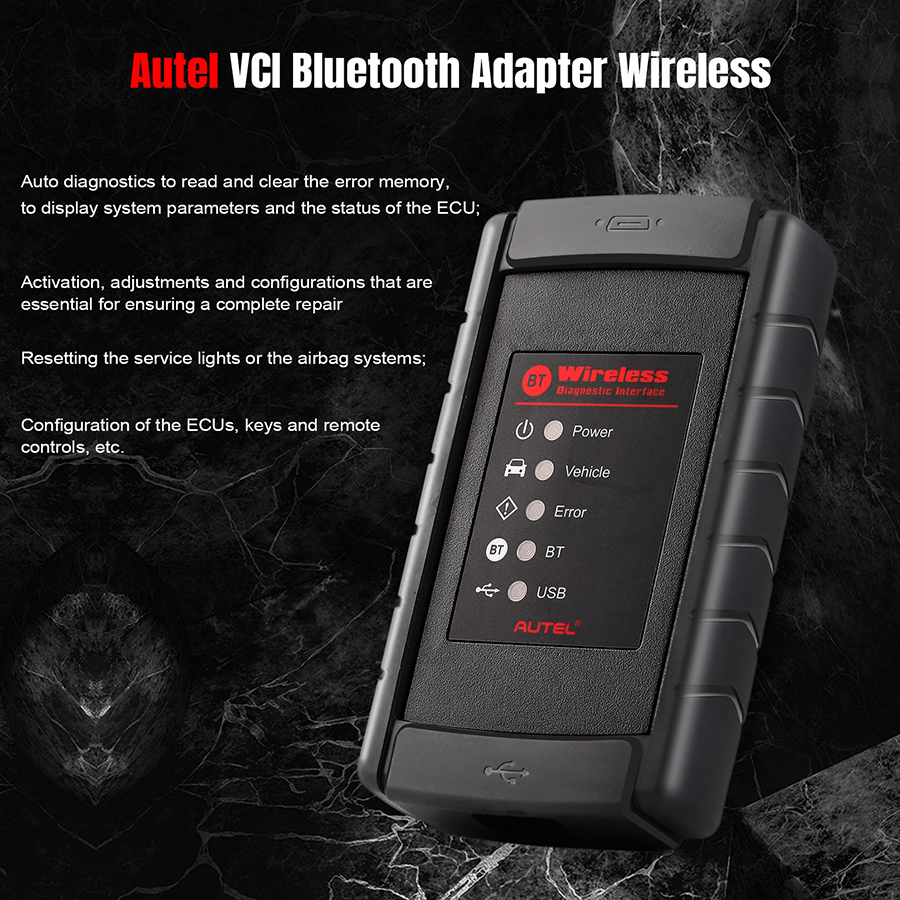
Auto diagnostics to read and clear the error memory, to display system parameters and the status of the E-C-U;
Activation, adjustments and configurations that are essential for ensuring a complete repair;
Resetting the service lights or the airbag systems;
Configuration of the E-C-Us, keys and remote controls, etc.
Capabilities
When used in conjunction with the display table or the OEM softwares from the PC, the Bluetooth Diagnostic Interface device is able to perform the following functions:
1. Auto diagnostics to read and clear the error memory, to display system parameters and the status of the E-CU;
2. Activation, adjustments and configurations that are essential for ensuring a complete repair;
3. Resetting the service lights or the airbag systems;
4. Configuration of the E-CUs, keys and remote controls, etc.
Wireless Communication
The Bluetooth Diagnostic Interface supports Bluetooth communication. It can transmit vehicle data to the MaxiSys Display Tablet without a physical connection. The working range of the transmitter through Bluetooth communication is about 755 feet (about 230m). A signal lost due to moving out of range automatically restores itself when the display unit is brought closer to the VCI unit.
For detailed information about VCI connection with the MaxiSys display tablet, please refer to the MaxiSys User Manual.
USB Connectivity
The VCI device also provides a direct connection to the MaxiSys display tablet or a PC via a USB 2.0 full-speed connection. All of the electronics are contained in the device shell, making it a compact and rugged vehicle communication tool.
Power Source
The Bluetooth Diagnostic Interface operates on 12-volt vehicle power, which it receives through the vehicle data connection port.
The unit powers on whenever it is connected to an OBD II/EOBD compliant data link connector (DLC).
It can also be powered through connection with a PC via the USB cable, so there's no need to connect the device to the vehicle when performing firmware update through the PC
Functional Description
The Bluetooth Diagnostic Interface device package, which includes the unit, user manual, and a CD with driver p-rogram and update agent, comes along with the MaxiSysTM/ MaxiSys MiniTM tool kit. Please refer to the MaxiSys User Manual for additional information
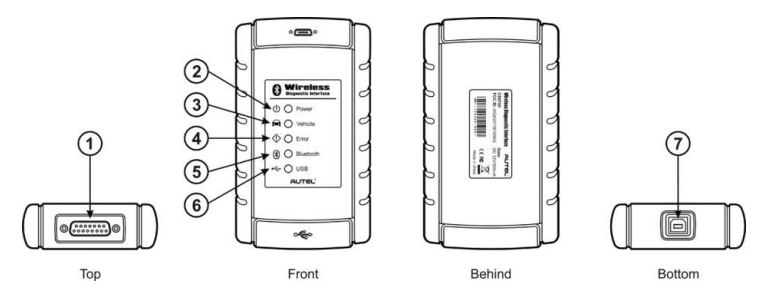
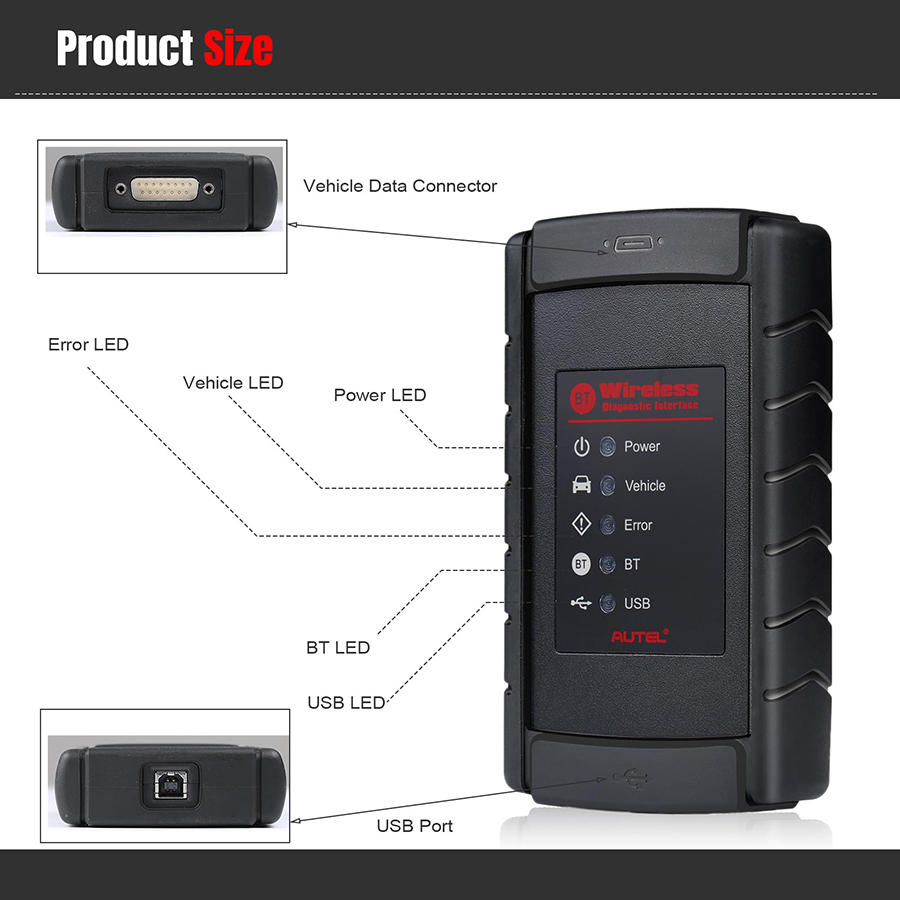
1. Vehicle Data Connector (DB15-Pin)
2. Power LED
3. Vehicle LED
4. Error LED
5. Bluetooth LED
6. USB LED
7. USB Port
Vehicle Data Connector
The vehicle connector connects the device to the vehicle's DLC via a standard DB15 – Pin OBD II cable.
Status LEDs
There are 5 status LEDs on the front panel of the VCI device, which indicates its working status as well as the hardware conditions, and are very useful for troubleshooting the device's communication or connection to the Vehicle, display tablet and/ or the PC. See Table 1 for detailed description of the status LEDs.
LED
Description
Power
Illuminates solid green when powered on.
Vehicle
Flashes Green when communicating with the vehicle's network.
Error
Illuminates solid red when serious hardware failure occurs;
also flashes red when performing firmware update
Bluetooth
Illuminates solid green when connected with the MaxiSys display tablet through Bluetooth communication;
also flashes green when transmitting data between the vehicle and the display tablet.
USB
Illuminates solid green when the device is properly connected,
and communicating with the MaxiSys display tablet or the PC via the USB cable
USB Port
The USB port provides the easiest connection between the device and the display tablet or the PC via a USB cable, and is used to control the device from the software application running on the PC.
Product Troubleshooting
This part describes problems that you may encounter while using the VCI device.
1. Vehicle Linking Error
A communication error occurs if the interface device fails to communicate with the vehicle's control module when performing diagnostic procedures. You need to do the following check-ups:
1). Verify that the ignition is ON.
2). Check if the interface device's OBD II connector is securely connected to the vehicle's DLC.
3). Turn the ignition off and wait for about 10 seconds. Turn the ignition back to on and continue the operation.
4). Verify the control module is not defective.
2. PC Communication Error
1). Verify the interface device is powered, and the green power LED is illuminated.
2). Check if there is any firewall software interfering with the connection port.
3). Check if the green status light is illuminated for USB communication.
If these issues have been addressed, verified, and you are still having trouble, please contact technical supports for assistance. Refer to the MaxiSys User Manual for additional information.
Specifications:
Communications: Bluetooth V.2.1 + EDR/USB 2.0
Wireless Frequency: 2.4 GHz
Input Voltage Range: 12 VDC
Supply Current: 200 mA @ 12 VDC
Operating Temperature: 0°C to 50°C (ambient)
Storage Temperature: -20°C to 70°C (ambient)
Package List:
1pc x Autel Wireless Diagnostic Interface
1pc x USB Cable
International Buyers - Please Note:
a) Import duties, taxes and charges are not included in the item price or shipping charges. These charges are the buyer’s responsibility.
b) Please check with your country’s customs office to determine what these additional costs will be prior to bidding/buying.
Autel Wireless Diagnostic Interface Bluetooth VCI Device for Maxisys Tool
Description:
The Bluetooth Diagnostic Interface is a multi-brand device which comes with the MaxiSys tool kit. It is designed to connect wirelessly with the MaxiSys Display Tablet, as well as standalone PCs, as a vehicle communication interface (VCI) for vehicle data transmission. Thanks to the wireless Bluetooth technology, with which you are allowed to work freely around the vehicle.
This interface device can communicate with vehicles' electronic control units (E-C-Us), guaranteeing performance and speed that redefine multi-brand diagnostics. The development of this interface has been focused on reducing the communication time, and ensuring the tool is practical to use.
The MaxiSys diagnostic platform combines the VCI device and the display tablet with technical information into a single p-rogram, ensuring quick and simple access to the vehicle to perform comprehensive diagnostics applications.
Autel Wireless VCI Features:
1. Supports comprehensive diagnosis and reading of control modules.
2. Designed to connect wirelessly with the MaxiSys Display Tablet, as well as standalone PCs via a USB 2.0 full-speed connection.
3. Features convenient wireless Bluetooth technology, which allows you to work freely around the vehicle.
4. Reduces the communication time, and guarantees performance and speed that redefine multi-brand diagnostics.5.
5. Support Update online.
6. Works with Autel Maxisys mini, MS905, MaxiSys Pro, MS908, MS908S, MK908 scanner.
Product Function:
Auto diagnostics to read and clear the error memory, to display system parameters and the status of the E-C-U;
Activation, adjustments and configurations that are essential for ensuring a complete repair;
Resetting the service lights or the airbag systems;
Configuration of the E-C-Us, keys and remote controls, etc.
When used in conjunction with the display table or the OEM softwares from the PC, the Bluetooth Diagnostic Interface device is able to perform the following functions:
1. Auto diagnostics to read and clear the error memory, to display system parameters and the status of the E-CU;
2. Activation, adjustments and configurations that are essential for ensuring a complete repair;
3. Resetting the service lights or the airbag systems;
4. Configuration of the E-CUs, keys and remote controls, etc.
Wireless Communication
The Bluetooth Diagnostic Interface supports Bluetooth communication. It can transmit vehicle data to the MaxiSys Display Tablet without a physical connection. The working range of the transmitter through Bluetooth communication is about 755 feet (about 230m). A signal lost due to moving out of range automatically restores itself when the display unit is brought closer to the VCI unit.
For detailed information about VCI connection with the MaxiSys display tablet, please refer to the MaxiSys User Manual.
USB Connectivity
The VCI device also provides a direct connection to the MaxiSys display tablet or a PC via a USB 2.0 full-speed connection. All of the electronics are contained in the device shell, making it a compact and rugged vehicle communication tool.
Power Source
The Bluetooth Diagnostic Interface operates on 12-volt vehicle power, which it receives through the vehicle data connection port.
The unit powers on whenever it is connected to an OBD II/EOBD compliant data link connector (DLC).
It can also be powered through connection with a PC via the USB cable, so there's no need to connect the device to the vehicle when performing firmware update through the PC
Functional Description
The Bluetooth Diagnostic Interface device package, which includes the unit, user manual, and a CD with driver p-rogram and update agent, comes along with the MaxiSysTM/ MaxiSys MiniTM tool kit. Please refer to the MaxiSys User Manual for additional information
1. Vehicle Data Connector (DB15-Pin)
2. Power LED
3. Vehicle LED
4. Error LED
5. Bluetooth LED
6. USB LED
7. USB Port
Vehicle Data Connector
The vehicle connector connects the device to the vehicle's DLC via a standard DB15 – Pin OBD II cable.
Status LEDs
There are 5 status LEDs on the front panel of the VCI device, which indicates its working status as well as the hardware conditions, and are very useful for troubleshooting the device's communication or connection to the Vehicle, display tablet and/ or the PC. See Table 1 for detailed description of the status LEDs.
|
LED |
Description |
|
Power |
Illuminates solid green when powered on. |
|
Vehicle |
Flashes Green when communicating with the vehicle's network. |
|
Error |
Illuminates solid red when serious hardware failure occurs; also flashes red when performing firmware update |
|
Bluetooth |
Illuminates solid green when connected with the MaxiSys display tablet through Bluetooth communication; also flashes green when transmitting data between the vehicle and the display tablet. |
|
USB |
Illuminates solid green when the device is properly connected, and communicating with the MaxiSys display tablet or the PC via the USB cable |
USB Port
The USB port provides the easiest connection between the device and the display tablet or the PC via a USB cable, and is used to control the device from the software application running on the PC.
Product Troubleshooting
This part describes problems that you may encounter while using the VCI device.
1. Vehicle Linking Error
A communication error occurs if the interface device fails to communicate with the vehicle's control module when performing diagnostic procedures. You need to do the following check-ups:
1). Verify that the ignition is ON.
2). Check if the interface device's OBD II connector is securely connected to the vehicle's DLC.
3). Turn the ignition off and wait for about 10 seconds. Turn the ignition back to on and continue the operation.
4). Verify the control module is not defective.
2. PC Communication Error
1). Verify the interface device is powered, and the green power LED is illuminated.
2). Check if there is any firewall software interfering with the connection port.
3). Check if the green status light is illuminated for USB communication.
If these issues have been addressed, verified, and you are still having trouble, please contact technical supports for assistance. Refer to the MaxiSys User Manual for additional information.
Specifications:
Communications: Bluetooth V.2.1 + EDR/USB 2.0
Wireless Frequency: 2.4 GHz
Input Voltage Range: 12 VDC
Supply Current: 200 mA @ 12 VDC
Operating Temperature: 0°C to 50°C (ambient)
Storage Temperature: -20°C to 70°C (ambient)
1pc x Autel Wireless Diagnostic Interface
1pc x USB Cable