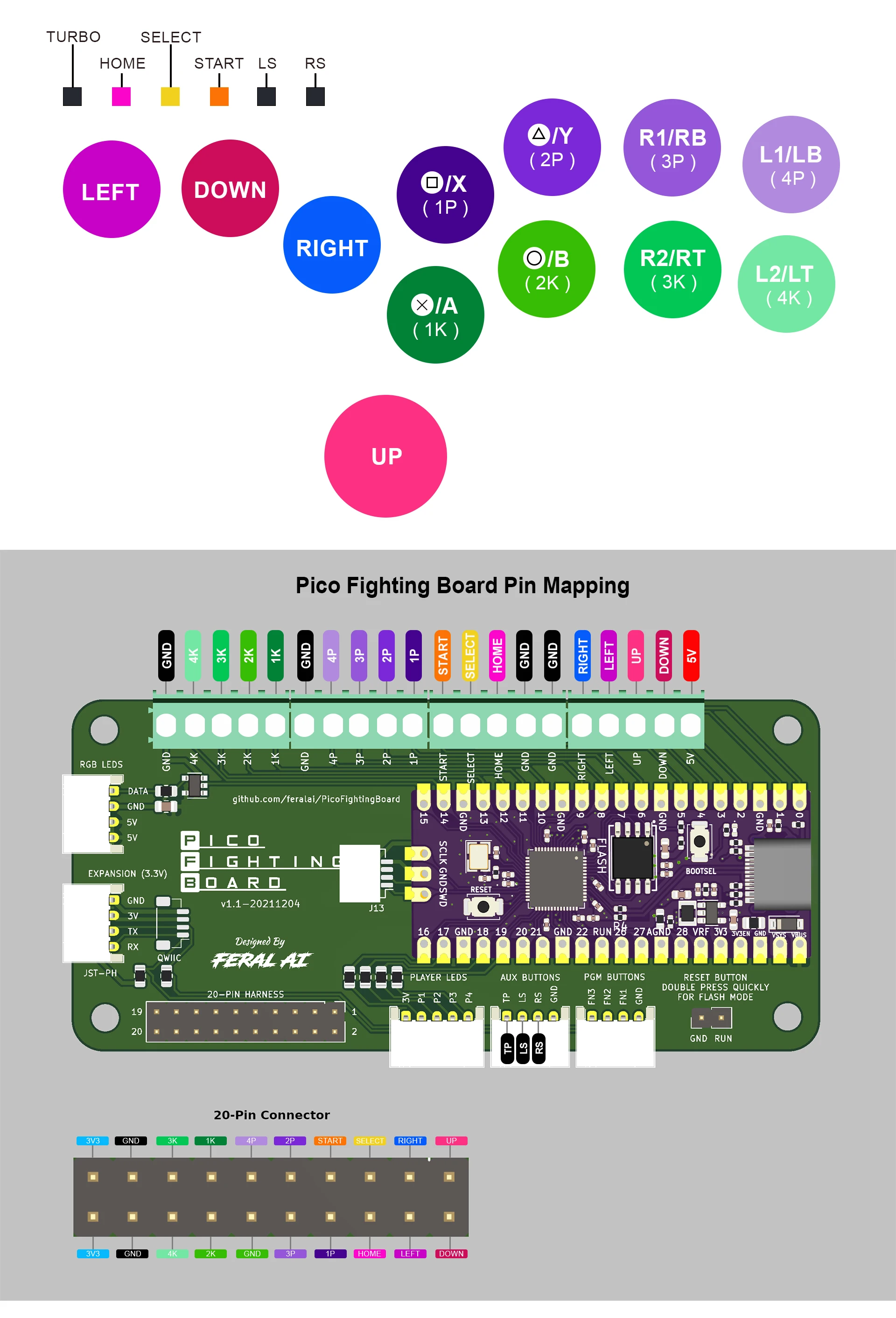
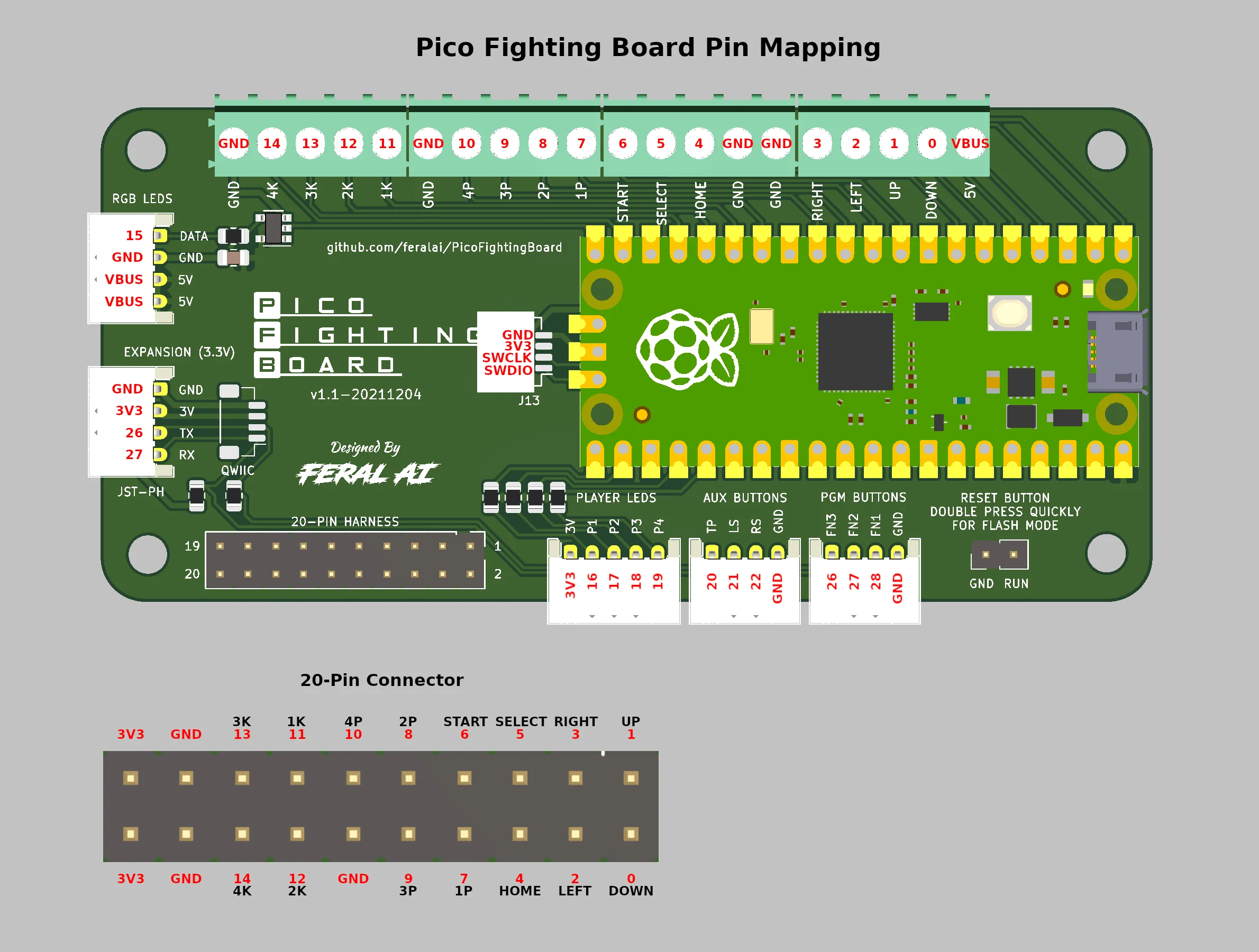
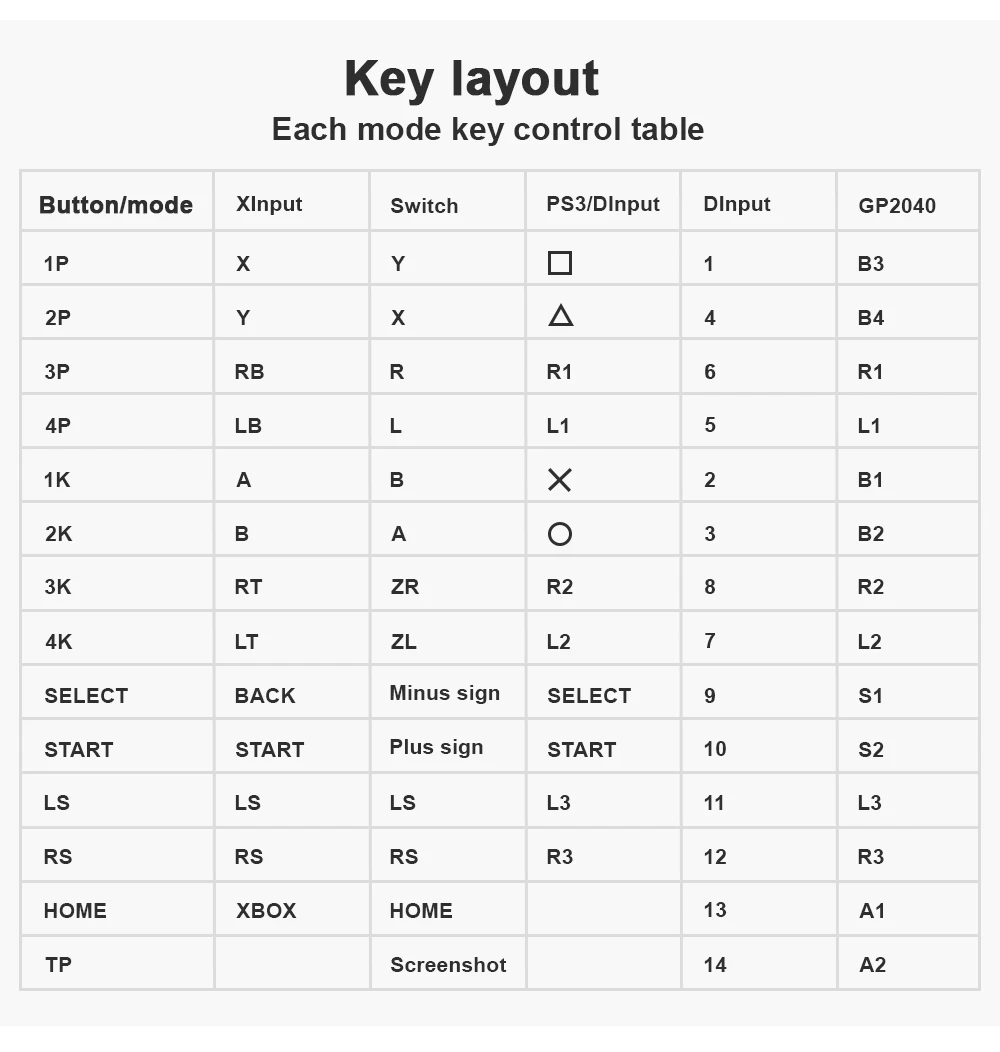
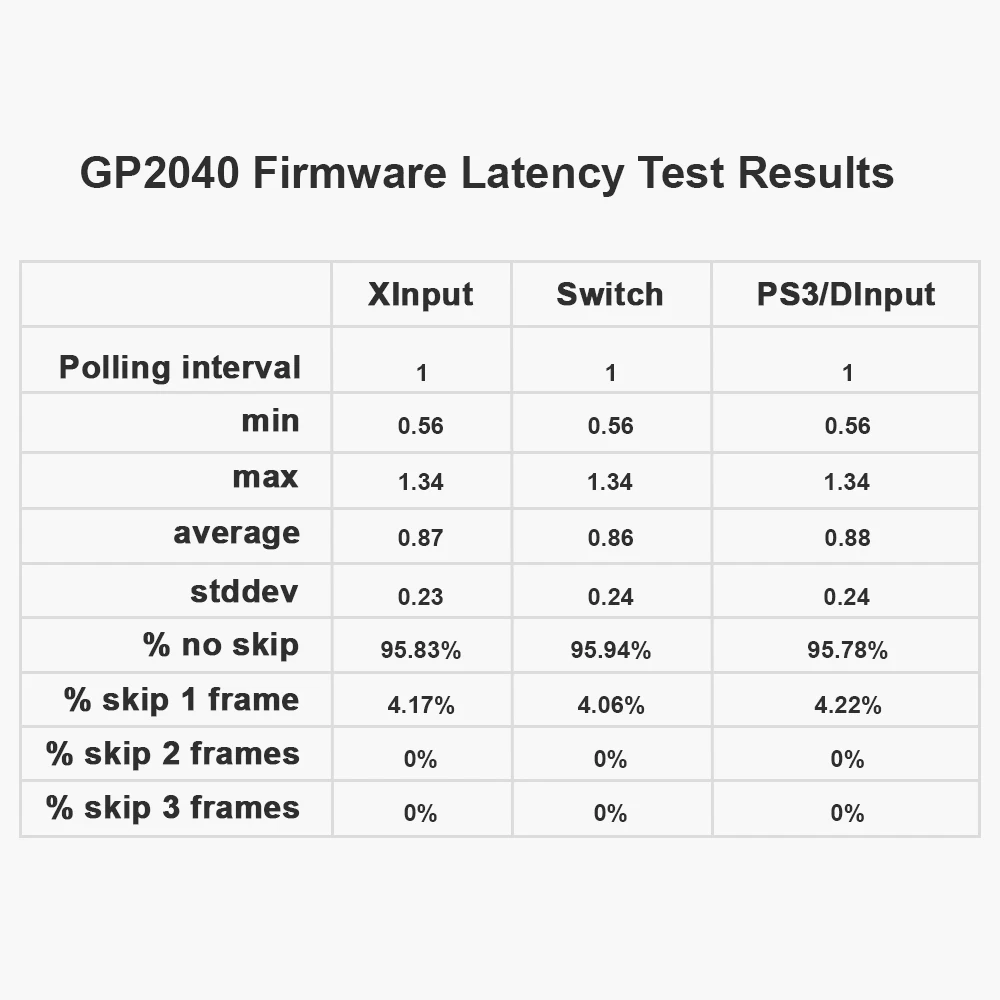
Fighting Board GP2040-CE Based on Raspberry Pico Gamepad Arcade Joystick For Nintendo Switch PS3 PC Main Control Module Keyboard
*Based on the open source project:
https://github.com/FeraIAI/PicoFightingBoard
Input Mode
To select input mode, hold one of the following buttons when plugging in your controller:
-
1P - PS3/DInput
-
1K - Nintendo Switch
-
2k - PC/XInput
D - Pad Modes
To select the active d-pad mode,while the controller is plugged in press:
-
SELECT + START + DOWN - Normal D-pad operation
-
SELECT +START + LEFT - Left analog stick emulation
-
SELECT + START + RIGHT - Right analog stick emulation
SOCD Modes
To select the active SOCD mode, while the contorller is plugged in press:
-
HOME + START + DOWN - Neutral (U+D=N, L+R=N)
-
HOME +START +UP - Up Priority (U + D =U, L+R=N)
-
HOME + START+ LEFT - Last Input Priority
RGB LEDs
The Pico Fighting Board supports WS2812 and similar RGB LEDs.
1. SELECT+START+1P - Next Animation
2. SELECT+START+1K - Previous Animation
3. SELECT+START+2P - Brightness UP
4. SELECT+START+2K - Brightness Down
5. SELECT+START+3D - LED Parameter Up
6. SELECT+START+3k - LED Parameter Down
7. SELECT+START+4P - Pressed Parameter Up
8. SELECT+START+4K - Pressed Parameter Down
Firmware Updates
The Pico Fighting Board comes preinstalled with the latest GP2040 firmware. lf you'd like to update to the latest firmware, perform the following steps:
-
Download the latest version of GP2040 for the Pico Fighting Board from:
https://github.com/FeralAl/GP2040/releases
-
Unplug your Pico Fighting Board from the computer.
-
Press and hold the white BOOTSEL button on the Pico while plugging into the computer. Alternatively, if you have a button connected to the reset header you may double press the buttonquickly to enter flash mode.
-
Copy the GP2040-PicoFightingBoard. uf2 file to the RPI-RP2 drive that appeared when connectingthe PFB.
-
Once the update is complete the Pico Fighting Board will restart and again be detected as a controller.
Advanced Configuration
The GP2040 firmware has a built-in configuration app which runs from a local webserver on the Pico. To access the configuration app from a computer.
-
Hold START while plugging the controller into a computer.
-
Open a browser and navigate to http://192.168.7.1
*You now have access to adjust controller settings, configure RGB LEDs, reset settings, etc.
Links
-
Pico Fighting Board - https://github.com/FeralAl/PicoFightingBoard
-
GP2040 Firmware - https://github.com/FeralAl/GP2040GP2040
-
Usage Guide - https://gp2040.info/#/usage