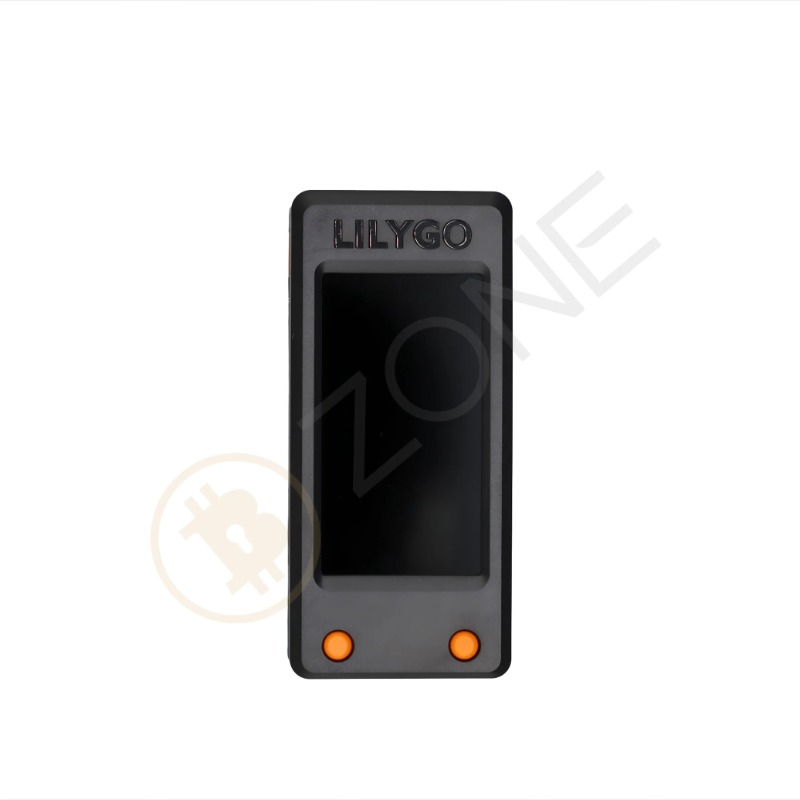
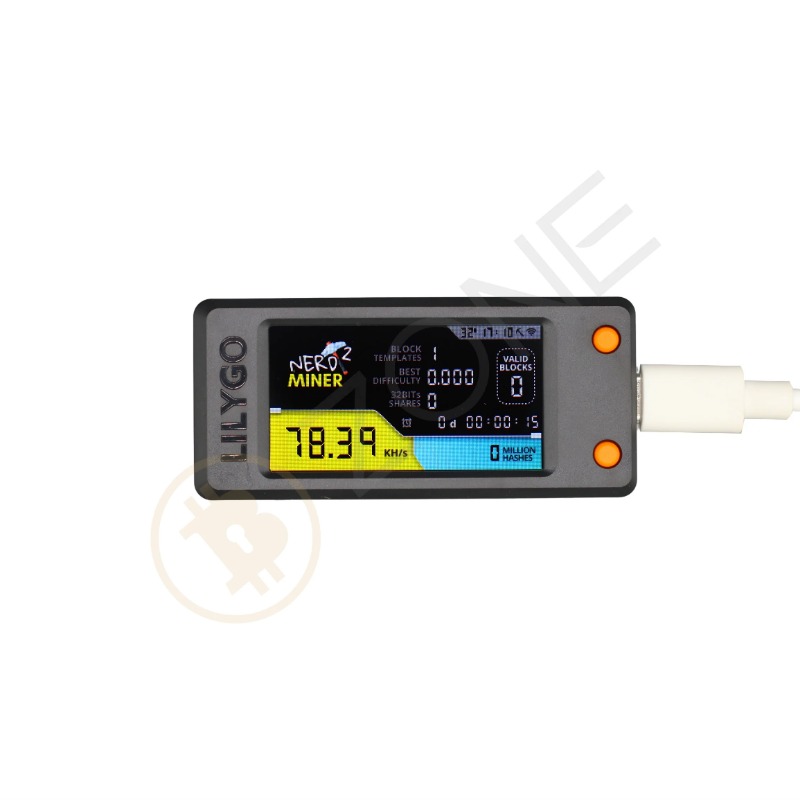
78KH/S(±10%)
1W/h(±10%)
9x4x5(cm)
100g
ethernet
0~35 ℃ (Place in an environment with good air circulation)
KAS Hashrate
Wall Power
Specifications
Nerdminer btc lottery ,Draw every 10 minutes ,win 6.5 bitcoins
Dimension
Net Weight
Connection
Operating Temp
Configuring the NerdMiner
1. On your computer or mobile phone, connect to the Wi-Fi network provided by your Nerdminer device. You can achieve this by either scanning the QR code displayed on the screen or manually scanning for the Wi-Fi network and logging in using the credentials below:
The SSID is: NerdMinerAP:
The Password is: MineYourCoins
2. Open a web-browser, you should be automatically re-directed to a set-up page. If you aren’t automatically re-directed simply manually navigate to 192.168.4.1 in a the browser.
you should see this screen: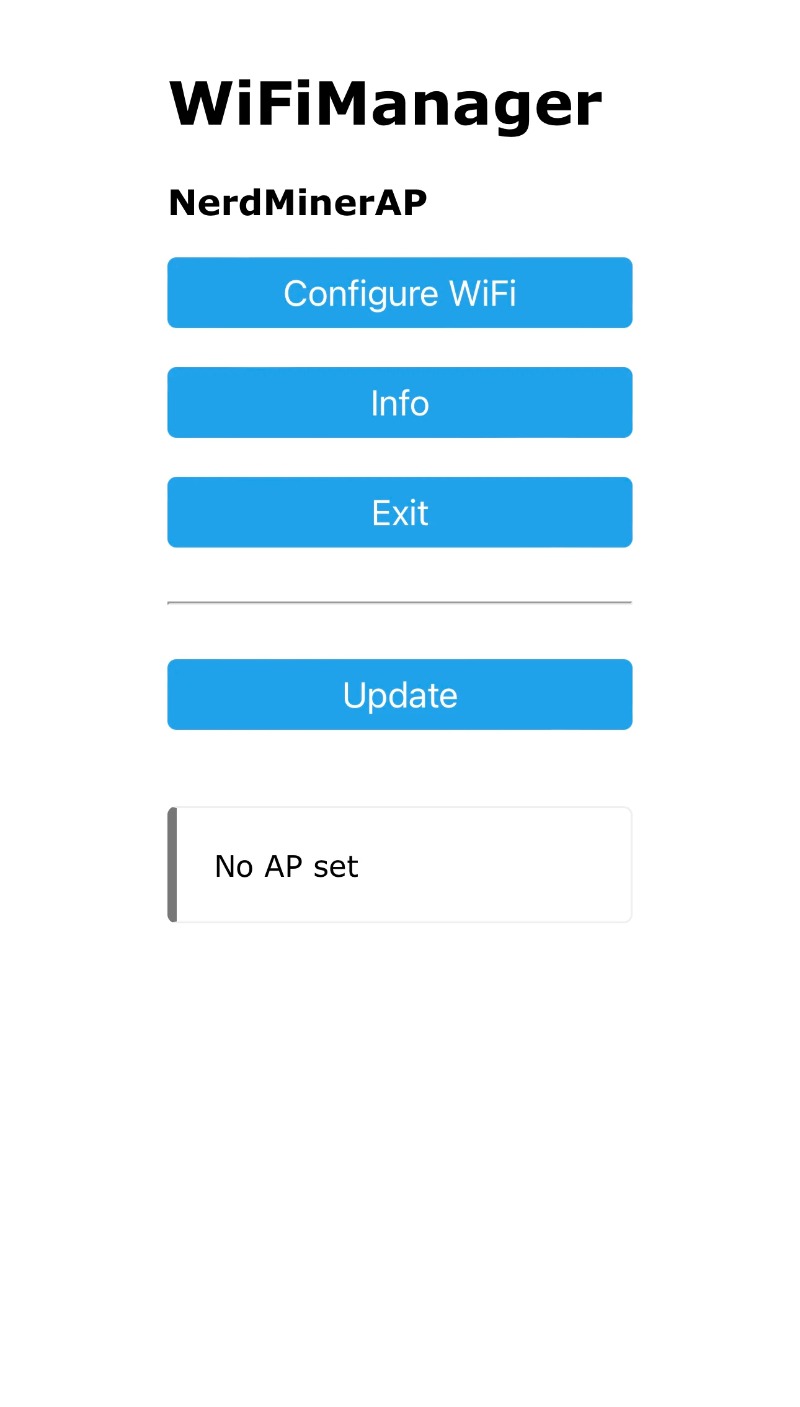 3. Click the “Configure Wi-Fi” option and provide the requested information on the screen. This includes selecting your Wi-Fi network, entering the Wi-Fi network password, and specifying the bitcoin address for receiving mined bitcoin in the event of discovering a block, we suggest a seg-wit address starting bc1q (Note; taproot addresses starting bc1p don't currently work with the default public-pool). The pool settings are pre-set to public-pool.io, but you can customize them according to your preferences, though it’s usually advisable to keep the default settings.
The fields annotated with red text on the image below are the 3 fields you need to configure.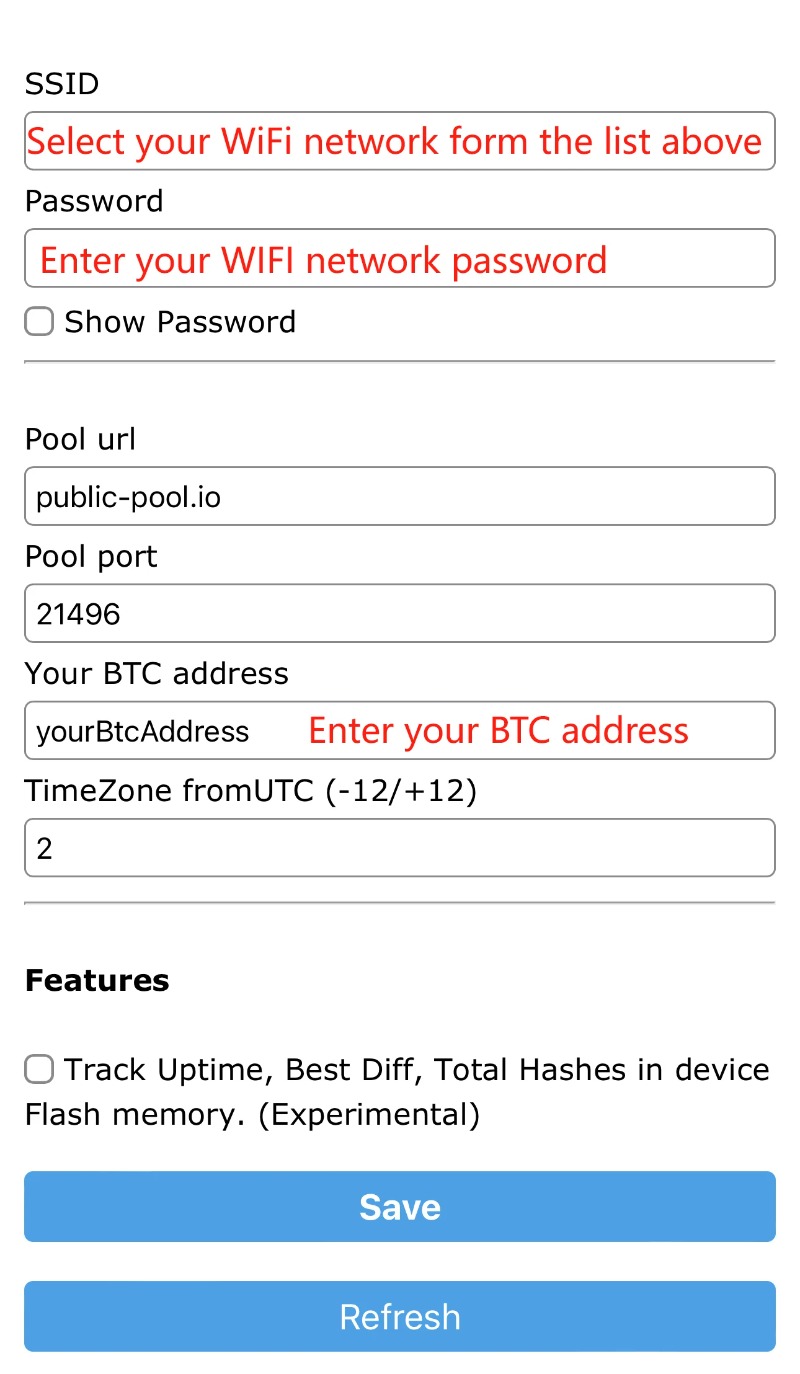 4. In the rare event that you discover a valid block, you will receive the full block reward to the address provided. (excluding a small fee that will be directed towards the solo mining pool, this differs between pools but expect around 2%).
5. Once you have entered all the necessary information, click “Save,” wait for a moment, and then restart your device.
6. You should now be able to view the Nerdminer main screen. Where you should see how many KH/S your NerdMiner is producing. (Expect around 55KH/S, may differ slightly depending on firmware) Use the buttons to navigate as described below:
Top Button
Single click: Enables screen switching (only functional with firmware version 1.5 or higher).
Press and hold for 5 seconds: Initiate a reset of your configurations and restarts the device.
Hold and power up: Activates the configuration mode, granting access to modify the current configuration via Wi-Fi or adjust/verify
settings
Bottom Button
Single click: Turns the screen off and on.
Double click: Alters the orientation (default is USB-C positioned to the right).
Centre Button
Hard Reset: Caution! Only press this button if you intend to erase all data on your device.