External CD DVD Drive, Ultra Slim CD Burner USB 3.0 with 4 USB Ports and 2 TF/SD Card Slots, Optical Disk Drive for Laptop Mac, PC Windows 11/10/8/7 Linux OS
What's in the box
External CD/DVD Drive for Laptop * 1
USB A to USB C Power Supply Cable * 1
Drive Storage Bag * 1
User Manual * 1
About this item
- 【EXTERNAL CD DRIVE FOR LAPTOP】- Considering that most of the latest laptops have not been added to the built-in CD/DVD drive, so you can’t insert CDs or DVDs directly into your laptop to listen to music, watch movies, data backup or install systems. The external CD drive that ORIGBELIE newly released is a good solution. No need for additional drivers. PLUG and PLAY. The CD Rom external drive for laptop has strong error correction, anti-skid and quiet capabilities.
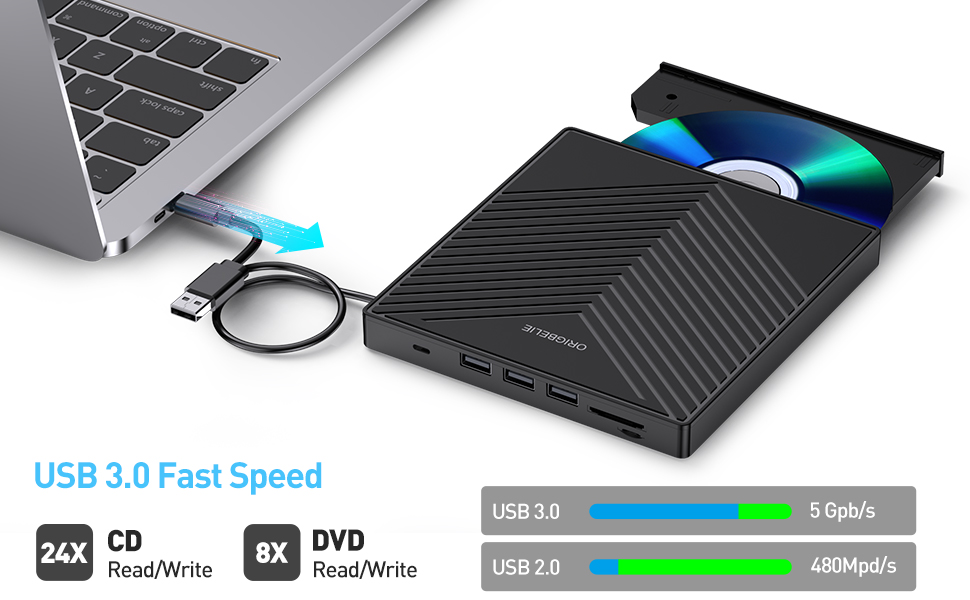
- 【USB 3.0 HIGH-SPEED DATA TRANSFER】- CD Burner with high speed USB 3.0 technology, many of the port cluster connectors are labelled by blue colour and backward compatible with USB 2.0 / 1.1. USB 3.0 is an updated version of USB 2.0 which provides higher data transfer rates up to 5 Gigabits/S (625MB/S). it is approximately 10 times faster than USB 2.0. Besides that, The cd drive offers Max 8x DVDR Read Speed and Max 24x CD Write/Read speed, faster than you expected.
- 【SUPPORT CD & DVD BURNING】- The optical drive supports reading and writing of CD±R/RW, CD-ROM, DVD±R/RW, DVD-RAM, VCD, and SVCD. In addition, This USB-A and USB-C external disk drive supports different devices such as Macbook, iMac, Notebook, Desktop, and Laptop, etc. It's compatible with Windows 11/10 /8 /7 /XP , Vista 7 / 8, Linux, Mac OS10.6 or above. (Cars, TVs, Tablets, Smartphones, Projectors and Blu-ray disk are not supported;Windows 11 requires media player and network)
- 【8 IN 1 USB HUB】- Our external drive can not only burn and read CD DVD, but also can be used as a external laptop usb hub, including 1 USB 3.0 port, 3 USB 2.0 port, 1 TF slot ,1 SD card slot and 1USB C Port, compatible with usb hard drive, limited/wireless mouse & keyboard, computer radiator and other usb computer accessories, The card slot are perfect for transferring photo and video files by your camera from cards to your computer(Note: SD port and TF port cannot be used at the same time)
- 【ULTRA SLIM & PORTABLE DESIGN】- This external disk drive is very slim and lightweight and the embedded data cable is easy to use and organize, skip-proof rubber pad prevents sliding on the desktop, so you can easily carry in your laptop bag ideal for home, office, or anywhere you go. It is also a good idea to give it to hobbyists who collect CDs and DVDs. (We provide up to 2-year after-sales.)
- Abandoning optical drives allows computer manufacturers to create thinner and more compact laptops. Most of the new notebooks on the market now do not built-in CD-ROM drive, and some only have a limited number of USB ports. But we may have a large collection of 90s CDs, and we want to put them in a laptop to feel the nostalgia or insert a DVD collection to watch movies. Or, you may just need a cd/dvd drive for emergencies, such as data transfer, system backup, etc.
- Fortunately, We have already done all the work for you. This multi-function external usb disc drive that we launched is not only a cd/dvd reader, but also It has the function of cd/dvd burner. At the same time, it is equipped with a variety of USB ports and card slots to meet all your peripheral equipment needs -- all for a decent price. This will allow you to have more budget to buy the latest laptops that are comfortable, smooth, and have powerful processors and graphics cards.
- THESE THINGS YOU NEED TO KNOW BEFORE BUYING - This dvd rw drive can only start its job after it is connected to a laptop or a desktop, so it is not compatible with cars, projectors, tablets, ipads, mobile phones, etc. In addition, it is compatible with windows11/10/8/7, mac os and Linux. NOT COMPATIBLE with Chrombook, Surface, Blue-ray.
From the brand

-
-

ORIGBELIE focuses on the external CD/DVD drive, you can find us all over the world.
Our external CD/DVD drives don't just read/burn CDs DVDs for your computer, they offer the tech experience you want with zero restrictions.
-


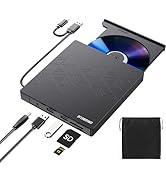
USB HUB+SD/TF Reader+DVD Drive



Product Description
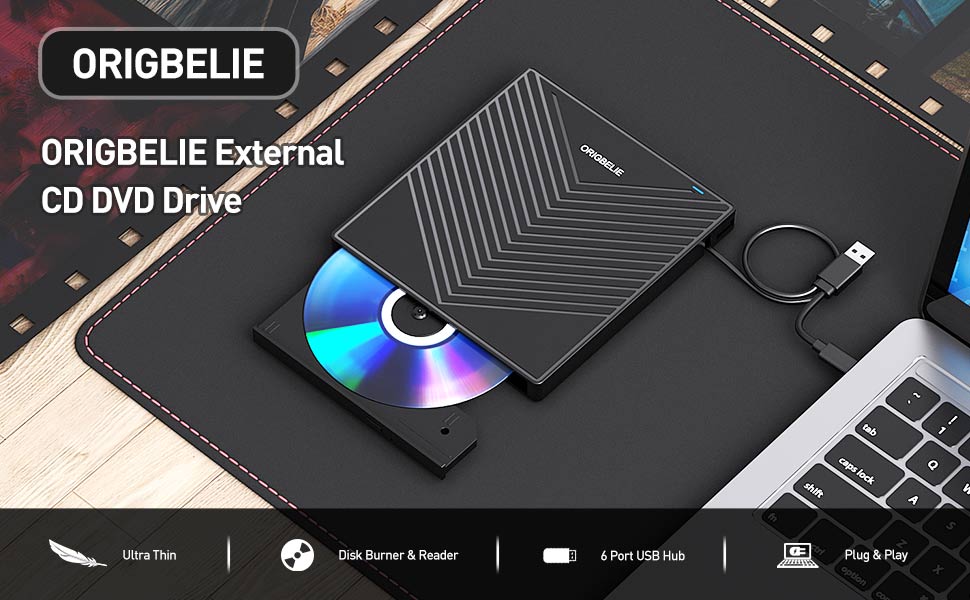
ORIGBELIE External CD/DVD Reader and Burner
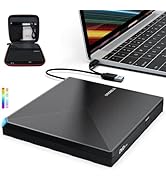
with this external CD/DVD RW Drive, you can read movies DVDs, play music CDs, burn and rip discs, copy photos, install software/games/system, backup data and more. and just slips easily into your travel bag, perfect companion for DVD lovers, using everywhere.
Powerful Performance
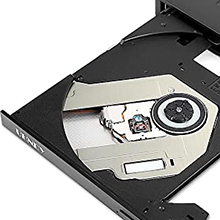
New upgraded DVD loader with faster speed, low impedance & anti-interference ability, bring you a fast and more smooth experience.
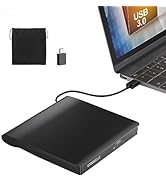
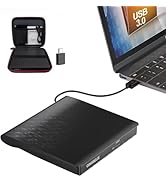
2-in-1 USB 3.0 Connector
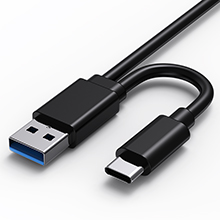
Equipped with USB-C and USB-A connectors make it easier to connect to more laptops and desktop computers, no USB hub/adapter required. Plug and Play

Extra SD/TF Slot
It is not only CD/DVD burner, but also a SD/TF card Reader. Extra built-in SD/TF card slot is perfect for you to transfer photos shooting or videos by your camera from memory cards to your computers

Package Contain
- 1*External CD/DVD Drive
- 1*User Manual
- 1*USB Power Supply Cable
- 1*Drive Storage Bag
- 1*Packaging Box

Play a DVD movie on laptop

Play a CD on a Desktop Computer
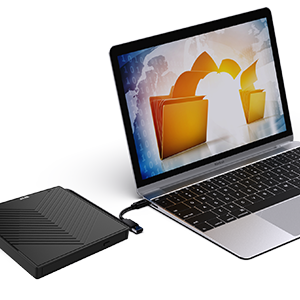
Back Up Computer Files to CD/DVD
Install Software If PC Lacks an Optical Drive
For troubleshooting steps
Please check if your computer is recognizes to the optical drive (if your computer recognizes the optical drive, you can see the icon of "DVD RW Drive" in your computer's "My Computer". The Mac OS computer will not display the device icon until the disc is placed in the optical drive and the disc is read successfully. ).
If the optical drive is not recognized by the computer, the following are suggestions for solutions.
*Method 1:Check external connections.
1. Use the Type A and Type C cables on the back of the machine to connect the laptop. (The cable comes with the package is only for current transmission, not for data transmission.)
2. Connect the machine to other USB ports.
*Method 2: Update or reinstall the driver.
Drivers for your CD, DVD drive is included within the Operating System and hence does not require you to install a specific driver. Uninstalling the driver and restarting the computer will reinstall the driver which will resolve most issues related to the device driver.
*Method 3: Run the Hardware and Devices troubleshooter.(Windows 7, Windows 8, Windows 8.1 and Windows 10)
You can run the Windows Hardware and Devices troubleshooter which is built-in to Microsoft Windows. The Hardware and Devices troubleshooter is available in Microsoft Windows 7, Windows 8/8.1 & Windows 10 only.
If the optical drive is recognized by the computer, the product problem you encounter may be caused by the following two reasons:
1. The power supply of the product is insufficient - Please use a 5V charger / power bank supply to supplement it.
(Note: For the Apple computers, you need to connect the external CD/DVD drive to the computer first, and then connect the supplementary power supply to the external CD/DVD drive, otherwise the Apple computer will not recognize the external CD/DVD drive.)
2. WINDOWS 11 needs a media player (such as VLC ) and a network connection.